Pipeline
Leads, deals, quotes, orders — one chain, four screens.
CRM guide 2 of 6 · 18 min · 8 screenshots · updated 10 Sep 2026
- For
- Admin, Sales
- Use
- Setup + everyday
- Needs
- CRM — start here
Covers the four modules under Sales Pipeline in the CRM sidebar — Leads, Deals, Quotes and Orders — and the Products catalog the quotes are built from.
This is the longest of the six guides, because it is one continuous chain rather than four separate features. A lead becomes a deal, a deal is quoted, an accepted quote is what lets the deal be won, and winning is what creates the order. Each link in that chain has a rule that refuses at the wrong moment if you do not know it in advance.
Section 01The chain, in one screen#
Lead
Somebody who might buy. Unqualified, worked by one owner, and either converted or disqualified. Has a stage, a source and a score.
Deal
A real opportunity with an amount and an expected close date, moving through pipeline stages toward Won or Lost.
Quote
A priced proposal built from your product catalog, with a quote number, a valid-until date and a PDF you send the customer.
Order
The confirmed sale. Created for you when the deal is won, carrying the accepted quote's lines and totals.
A lead converts into a deal, a contact and an account at the same time — three records, one action, nothing retyped.
Winning a deal requires an accepted quote. Not a stage flag, not a setting — a hard rule. Move a deal into your closed-won stage with no accepted quote behind it and it is refused, with the message "An accepted quote is required to win this deal." If your business genuinely does not quote, the closed-won stage is unreachable, and that is worth discovering now rather than on the day of your first win.
Part 1One-time setup
ForAdminSections4Read6 minNeedsPipelines & Stages already created
The pipeline itself, your lead sources and your stages were set up in CRM — start here. This part is what sits around them.
Section 02One-time setupCapturing leads from your website#
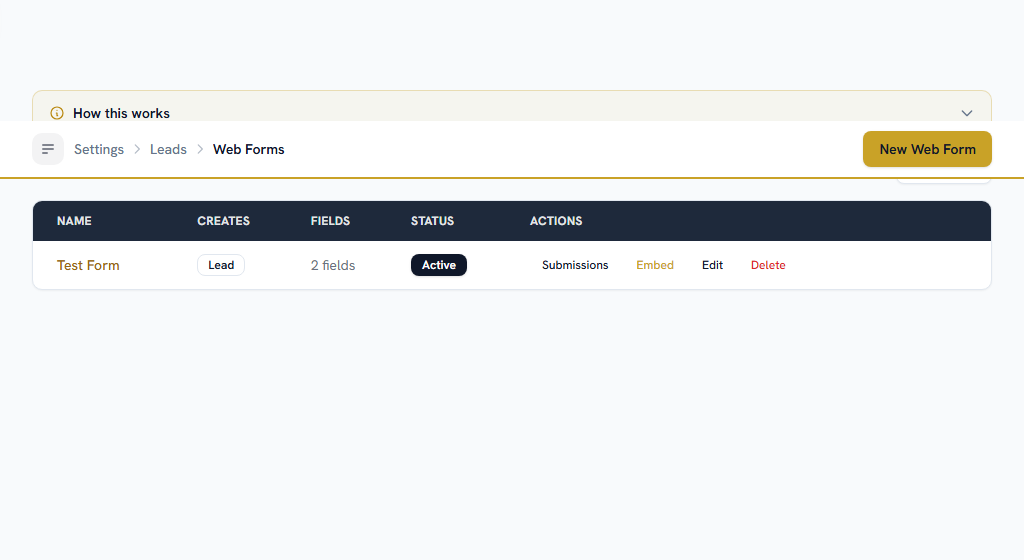
WhereSettings›CRM›Web Forms
OpenWeb Forms
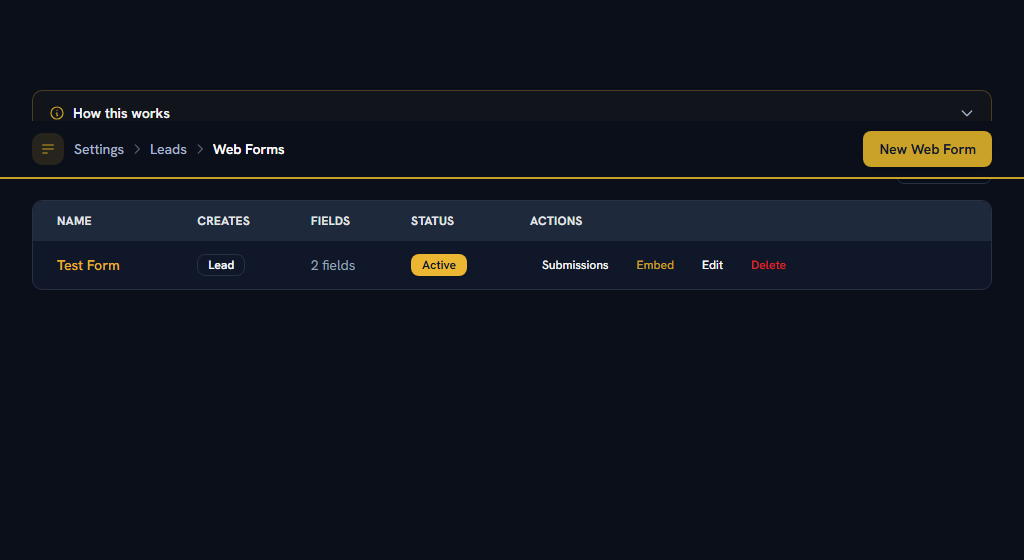
Publish a public form that turns an enquiry into a lead without anybody retyping it. Create the form, choose its fields, turn on anti-spam, and embed the link or the snippet on your site. Submissions arrive as leads, and the owner is notified.
A web form records its own name as the lead's source, and that name is almost certainly not on your Lead Sources list. An unlisted source is invisible to the Source filter and is erased the first time somebody opens the picker on that lead — so you lose the answer to "where did this come from" for exactly the leads you most want to attribute. Add a matching entry on Lead Sources for every form you publish.
Section 03One-time setupScoring and routing leads and deals#
OpenLead Scoring RulesLead Assignment RulesDeal Scoring RulesDeal Assignment Rules
Lead Scoring Rules and Deal Scoring Rules open the same Scoring Rules screen at the right record type; Lead Assignment Rules and Deal Assignment Rules do the same for assignment. Both are covered in CRM — start here; the things worth knowing specifically here are:
- Assignment fires on creation, including on a lead arriving from a web form, which is the case it earns its keep in. Nobody is awake at 11pm to claim an enquiry.
- Assignment does not re-run when a record is edited. Changing a lead's country will not move it to the country's team.
- Rules run in priority order and the first match wins, so a rule with no conditions belongs at the bottom.
Section 04One-time setupDeal Blueprints and Deal Custom Fields#
OpenDeal BlueprintsDeal Custom Fields
Deal Blueprints enforce which stage moves are allowed and what each one requires — "Proposal to Negotiation only once a quote is attached". It carries a Coming Soon badge: the page works and the configuration saves, but nothing enforces it yet. Use required fields on a pipeline stage for the same job today; those are live.
Deal Custom Fields adds fields of your own to the deal form.
Section 05One-time setupThe catalog a quote is built from#
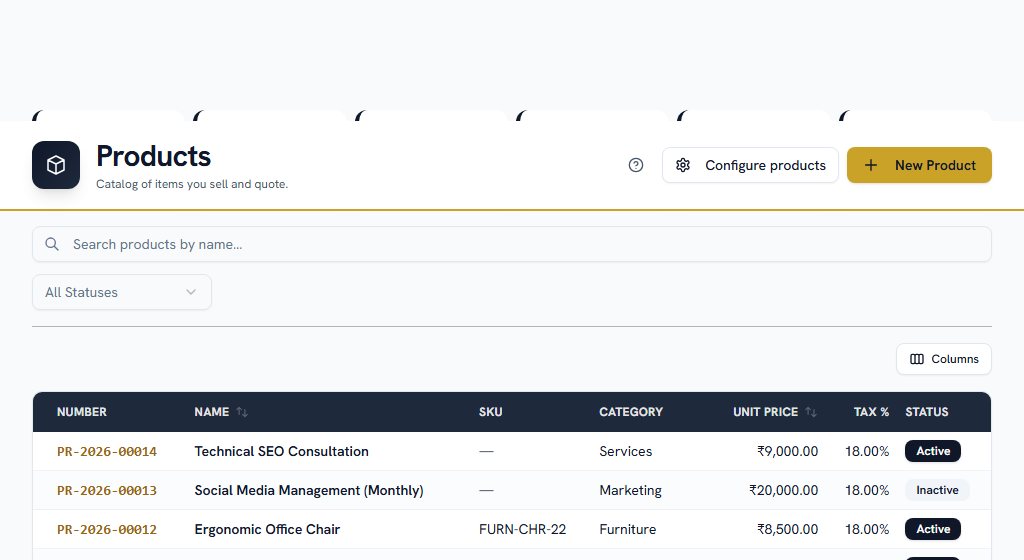
WhereCRM›Catalog›Products
OpenProductsProduct CategoriesHSN CodesProduct Custom Fields
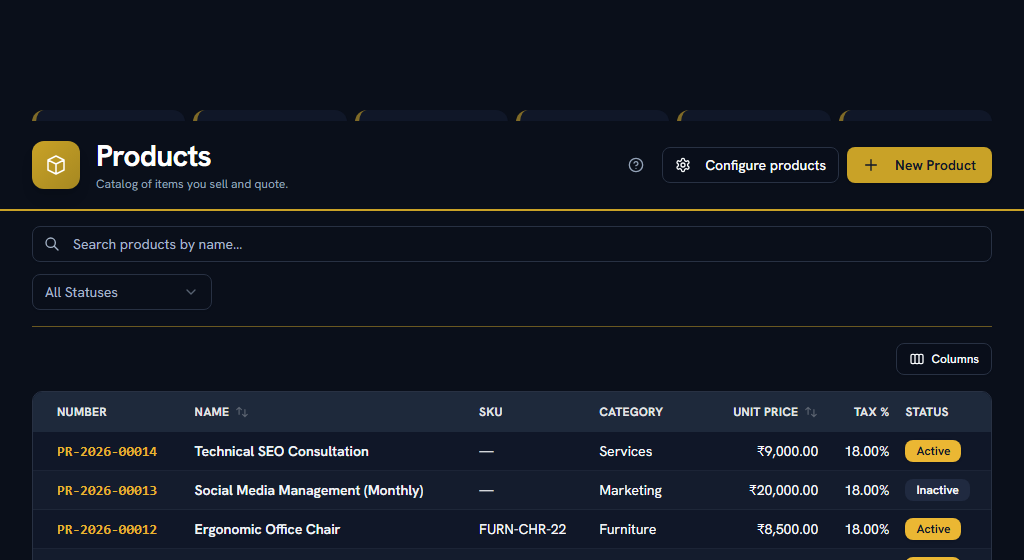
The list of what you sell. Each product carries a code, a name, a price and the unit that price is per, and may carry an HSN code for tax. Quote lines are looked up from here, so a price corrected in one place is corrected everywhere it has not yet been quoted.
You do not have to build the catalog before you can quote. A quote line can be typed free-hand, which is the right answer for a one-off. The catalog earns its keep when the same thing is sold repeatedly — it stops two reps quoting two different prices for it.
What a product records#
- Unit of measure — what one of it is. Every product has one; it defaults to Unit. This is what a quantity on a quote line means, so a line for 12 against a product measured in Bottles is twelve bottles and nothing else.
- Sold in, and the units inside it — for anything that leaves the warehouse by the case. A product counted in Bottles and sold in Cases of 24 says so here, once, instead of every rep doing the multiplication in their head.
- Minimum order quantity and order multiple — the smallest order you accept and the step it goes up in. Both are optional and blank means no rule, which is not the same as a rule of zero.
- Brand and barcode — the brand groups and filters the catalogue; the barcode must be unique, because two products sharing one is a scanner that returns the wrong item.
- Category — the group it is filed under, chosen from your Product Categories list.
Only the name and the unit are required. A catalogue that sells one kind of thing by the piece can leave the rest blank and lose nothing.
- Product Categories — the groups products are filed under. Worth doing once you have enough products that grouping helps, and it is also how Forecasts splits revenue by product line. Rename one whenever you like: every product in it comes with it. A category cannot be deleted while products are still in it — you are told how many.
- HSN Codes — a master list of HSN codes with their default tax rates, for GST-compliant billing. Assign one to a product and it flows through to every quote and order that product appears on.
Once you have set up any Product Categories, a product's category has to be one of them. Adding a new group means adding it on the Product Categories page first — which is the point: the list is what the filter, the reports and the product-line forecast all read from, and a category invented on one product form would appear in none of them.
Price Books#
OpenPrice Books
A product carries one price. A price book lets you sell it at another one — to a segment, in a territory, for a season, or above a certain order size.
Set one up in three decisions:
- What it charges. Add a price per product. Add a second price for the same product with a higher From quantity and you have a bulk rate: 1+ at ₹100, 50+ at ₹92, 500+ at ₹85. The band is inclusive — an order of exactly 50 gets the 50+ price.
- Who it applies to. Give it an Account type or a Territory and it is used automatically for customers who match. Make it the default and it is used for everyone else. Leave all three alone and it is used only by customers you name it on directly, from the Price Book field on their account — which is what you want for a list built for one large customer.
- When it applies. Optional Valid from / Valid to dates, so a seasonal price expires on its own instead of waiting to be remembered.
Quote and order lines then price themselves. Pick a product for a customer on the Wholesale book and the line fills in the Wholesale price with Wholesale · 50+ underneath it. Change the quantity past a band and it re-prices. Type over the figure and it stops — a hand-typed price is a decision, and the line says Price set by hand.
Changing a price never moves a quote you have already sent. A quote records the price it was given and the book that gave it, and nothing reads that back afterwards. The same goes for switching a book off or letting it expire: documents already raised keep their figures. Retiring a book that customers are still assigned to is refused, and tells you how many to move first.
If you have no price books — which is the case until you make one — every line quotes the product's own price, exactly as it always has.
CPQ Configurators#
CPQ Configurators guide a rep through building a valid, correctly-priced quote for a product with options and dependencies. This one still carries a Coming Soon badge: the page works and the configuration saves, but the quote builder does not read it yet.
Part 2Everyday use
ForSales, AdminSections7Read10 minNeedsPart 1 done once
Section 06Everyday useWorking a lead#
WhereCRM›Sales Pipeline›Leads
OpenLeads
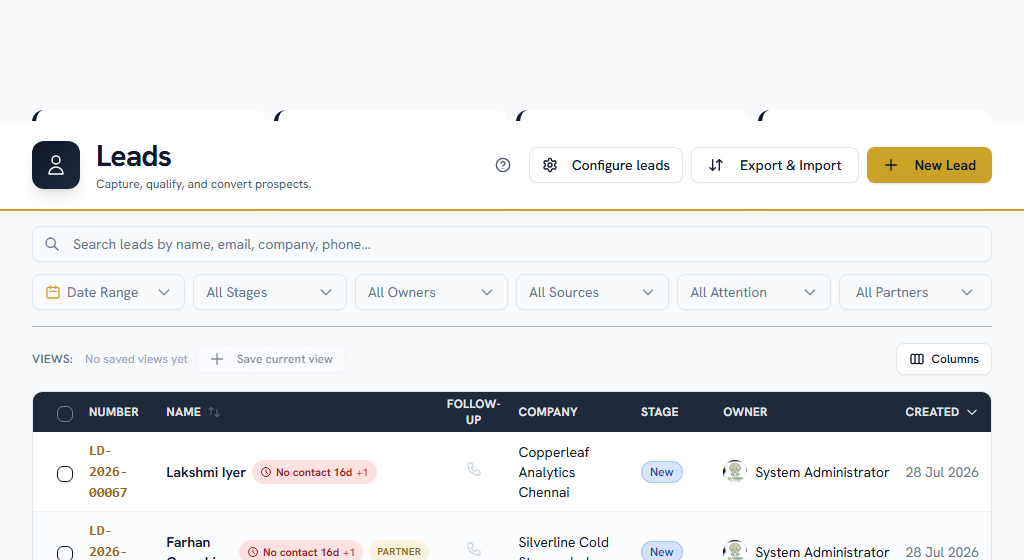
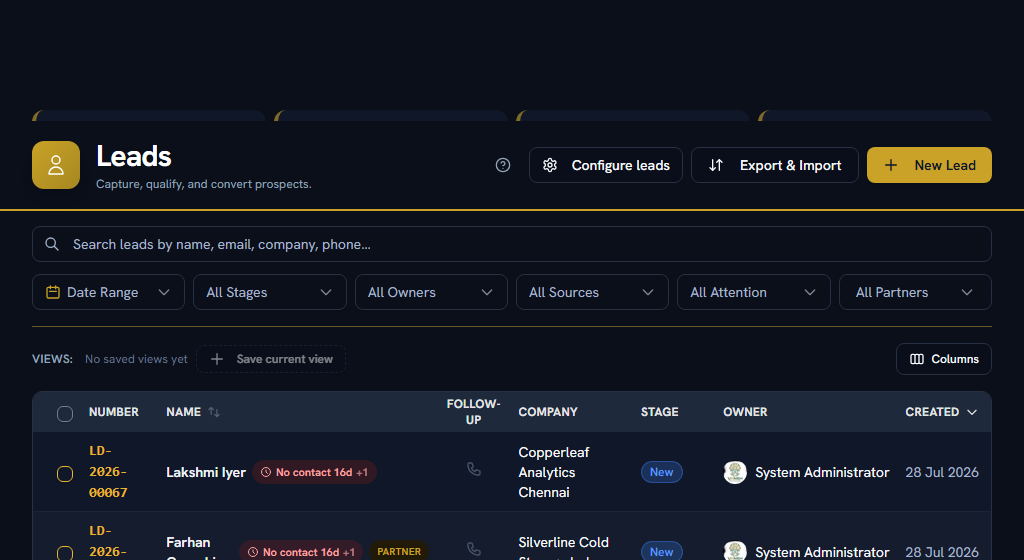
The list leads with a stat card per stage, and filters — stage, owner, source, needs attention, date — that stay in the URL, so going back from a lead returns you to the list you left rather than to the top of an unfiltered one.
Two columns are worth understanding:
- Follow-up — a phone icon that is grey when nothing is scheduled, green when something is coming up, and red when something is overdue. It is the fastest read on the page: a column of grey is a list nobody is working.
- Needs attention — a badge on any lead that has gone quiet for longer than your thresholds allow. See People & Activities.
Open a lead and everything about it is on one page: its details, its Follow-ups tab, and an Activity tab that is the automatic history — every field and stage change, who made it and when. The two are deliberately separate. Follow-ups are what you plan; Activity is what happened.
Fields are edited in place. Click the value, change it, and it saves — there is no edit mode and no Save button to hunt for.
Converting a lead#
When a lead is real, use Convert. In one action it creates:
- a contact for the person,
- an account for their company, and
- a deal, in the pipeline and stage you choose.
The panel also takes Qualification Notes — why this is worth pursuing: the budget, the timeline, who actually decides. Write them. They are copied onto the new deal, where anyone who can see the deal can read them, and the lead keeps its own unedited copy in its Stage Notes. Six weeks later, when somebody asks why this deal was ever thought real, that paragraph is the answer.
If the lead is going nowhere, use Disqualify and give a reason, rather than deleting it. A disqualified lead with a reason is data; a deleted lead is a gap.
A converted lead is read-only, permanently. After conversion it cannot be edited, and there is no undo — you cannot un-convert a lead. Get the account and contact right in the conversion panel, because fixing them afterwards means editing three separate records. If a lead was converted in error, work on the deal it created: disqualifying the lead is no longer available to you.
Section 07Everyday useWorking a deal#
WhereCRM›Sales Pipeline›Deals
OpenDeals
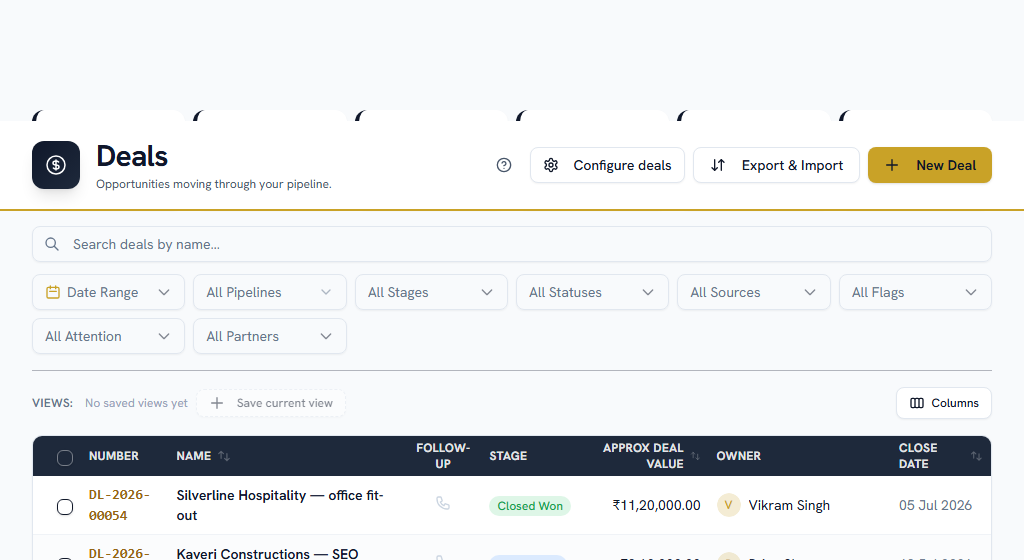
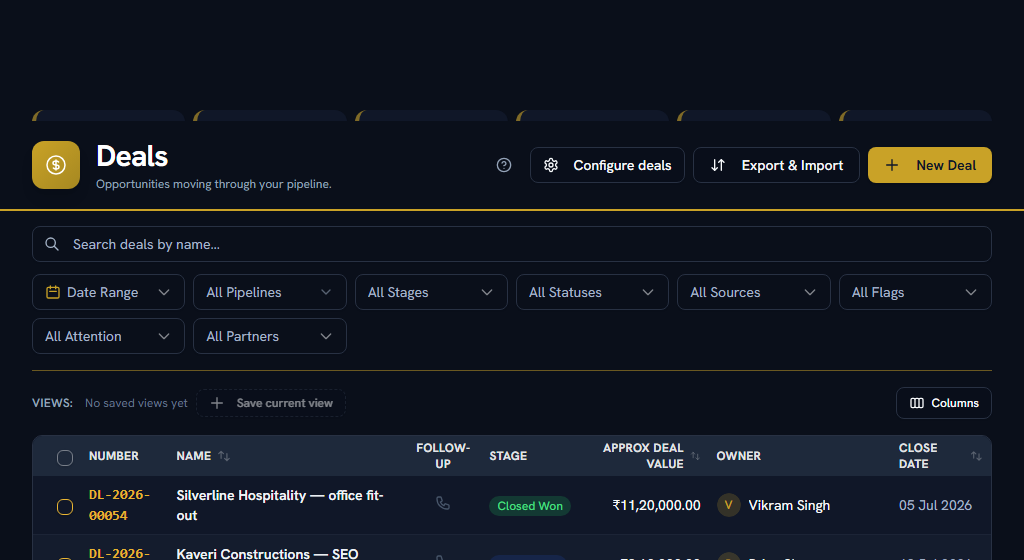
A deal carries an amount, a currency, an expected close date, an owner, a stage and its linked quotes. It has the same Follow-ups and Activity tabs a lead has, plus a Related tab holding its contacts and its quotes.
The expected close date is load-bearing. It decides which forecast period the deal lands in, and it is what puts the deal on the CRM Calendar's deal-close layer. A deal with no close date is a deal that appears in no forecast.
Moving a deal between stages is a drag on the board or a click on the detail page. If a stage has required fields, the move is refused until they are filled in, and the message names them.
Winning#
The deal's own page carries a banner telling you where you stand:
- Green — there is an accepted quote. The deal is ready to win.
- Slate — no accepted quote yet, with a button to review the quotes on the deal or create one.
Move the deal to your closed-won stage and, inside the same action, Facto creates the sales order from the most recent accepted quote — copying its account, currency, line items and grand total. You do not create an order by hand; there is no button for it, and that is deliberate.
The order is created when the deal is won, not when the quote is accepted. Accepting a quote marks it accepted and nudges the deal one stage forward — it never moves a deal into a closing stage, because winning is a decision a person makes. If you are waiting for an order to appear after a customer accepts, it is waiting for you to win the deal.
Losing a deal is the same move into the closed-lost stage, with a reason and, optionally, the competitor you lost to. Both come back in the Win/Loss report.
Undoing a win#
Won and Lost are not one-way. Reopen puts a deal back into an open stage you choose, and cleans up after itself:
- Any open sales order linked to the deal is cancelled, and says on its own timeline that it was cancelled because the deal was reopened.
- The locked exchange rate, the closed date and the close reason are cleared.
- Any commission that accrued to a partner on the win is reversed — removed if it was never paid, and marked Clawed Back if it was.
A fulfilled order blocks the reopen. Once an order has been fulfilled, the deal behind it cannot be reopened at all — the goods went out, and un-winning the deal would leave the order describing something that never happened. Reopen the order first if it was fulfilled in error.
Section 08Everyday useQuoting#
WhereCRM›Sales Pipeline›Quotes
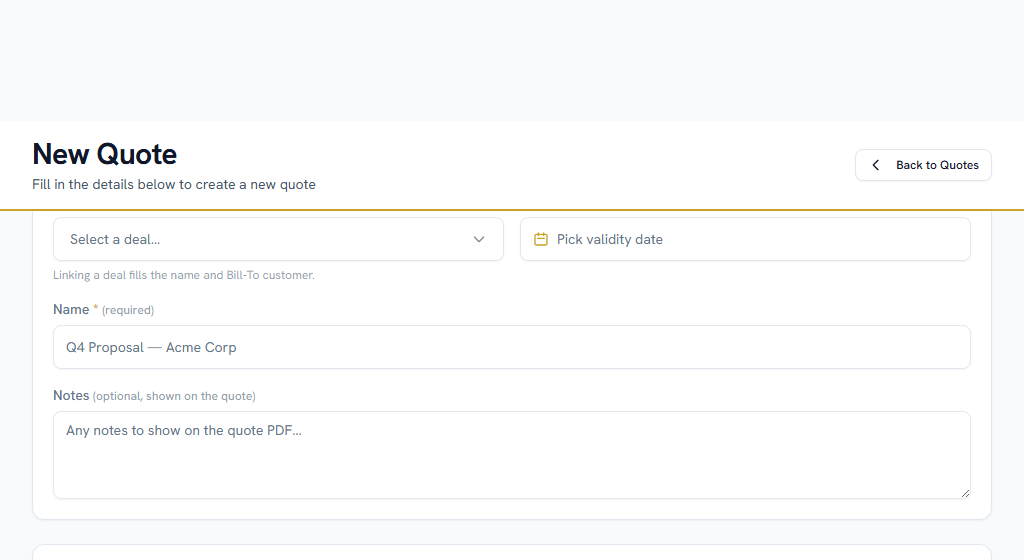
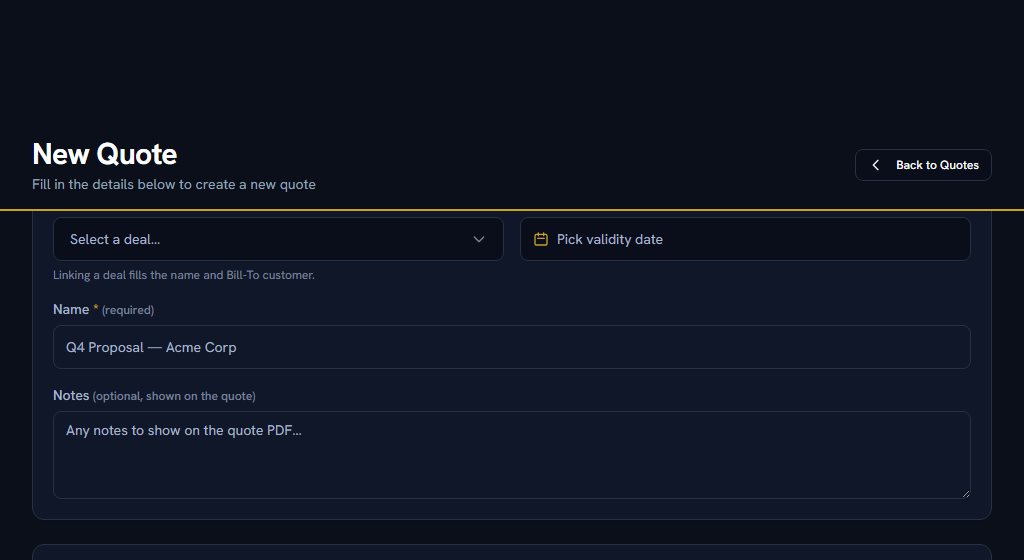
The natural way in is from the deal: its Related tab has Create Quote, which carries the deal, the account and the currency across so you start with the customer already filled in.
Build the quote by adding lines. Each line is a product from the catalog or free text, with a quantity, a unit price, a discount and tax. Set a valid-until date — it is what the expiry sweep reads, and it appears on the calendar.
A quote moves through Draft → Sent → Accepted, or to Rejected or Expired.
Sending it#
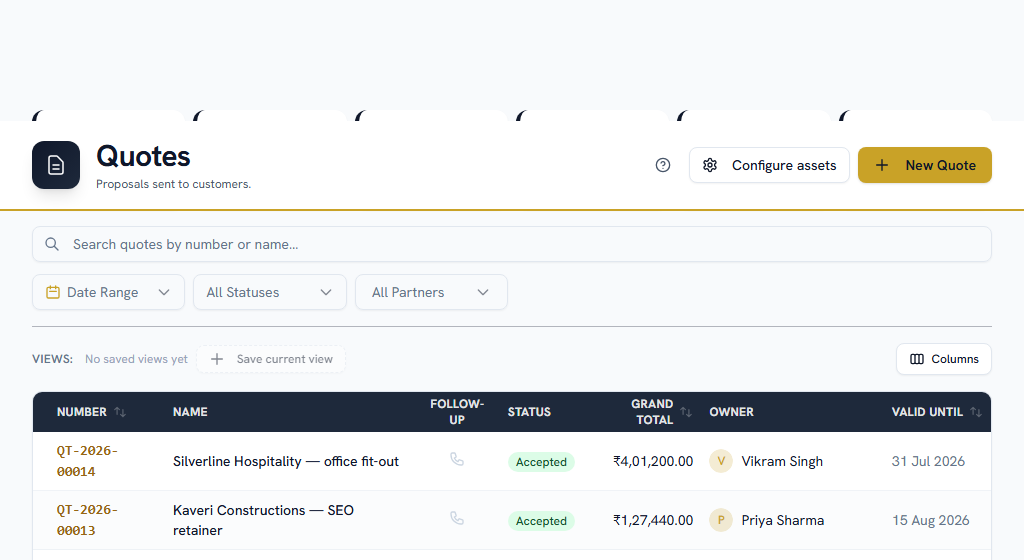
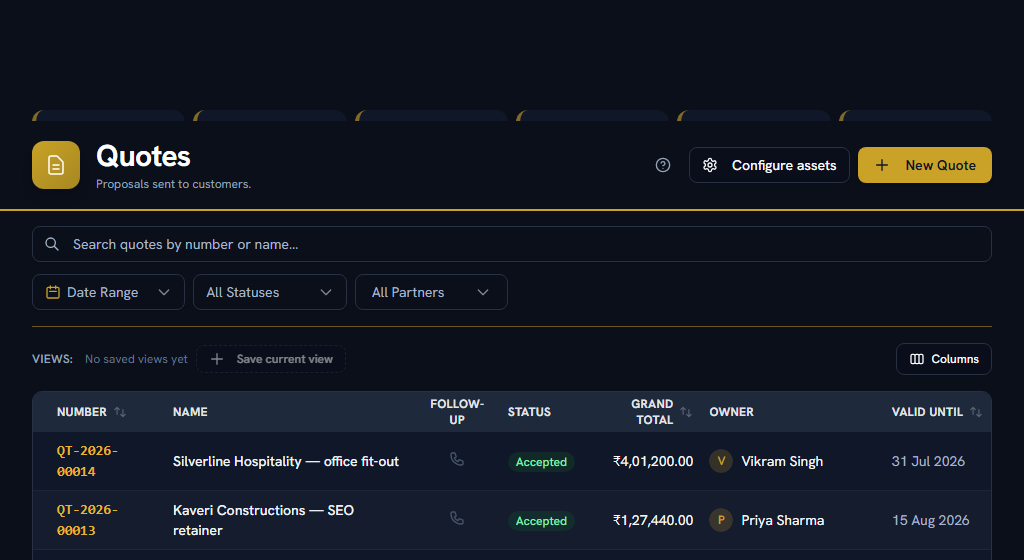
From the quote — or from the three-dot menu on its row in the list — you can:
- Print or Download PDF. The PDF is a real document, laid out with your logo, legal name, tax id, From and Bill-To blocks, the line items, your bank details and a signature block. All of that comes from Company Assets.
- Share — a public link the customer opens with nothing to log in to, offered as WhatsApp, Email, or Copy link.
- Mark as Sent, Accept or Reject as the conversation moves.
A sent quote expires by itself. Overnight, any quote still sitting on Sent past its valid-until date is marked Expired. That is a feature — it stops your quote list pretending a three-month-old proposal is live — but it means the valid-until date is a real deadline rather than a formality.
An accepted, rejected or expired quote can be reopened back to Sent, so you can correct it and send it again. The one thing that blocks it is a sales order: if the quote already has an order that has not been cancelled, reopen the deal first.
Section 09Everyday useOrders#
WhereCRM›Sales Pipeline›Orders
OpenOrders
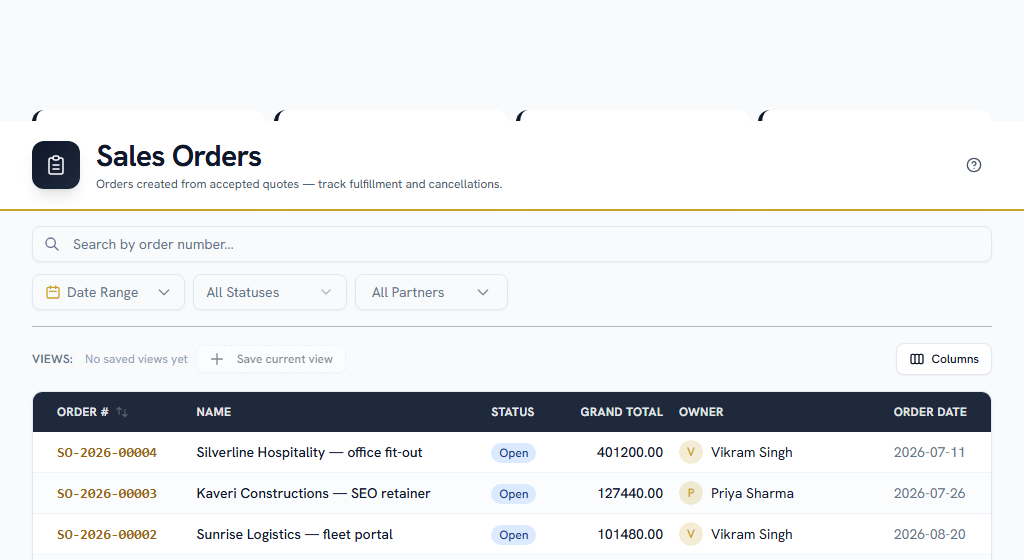
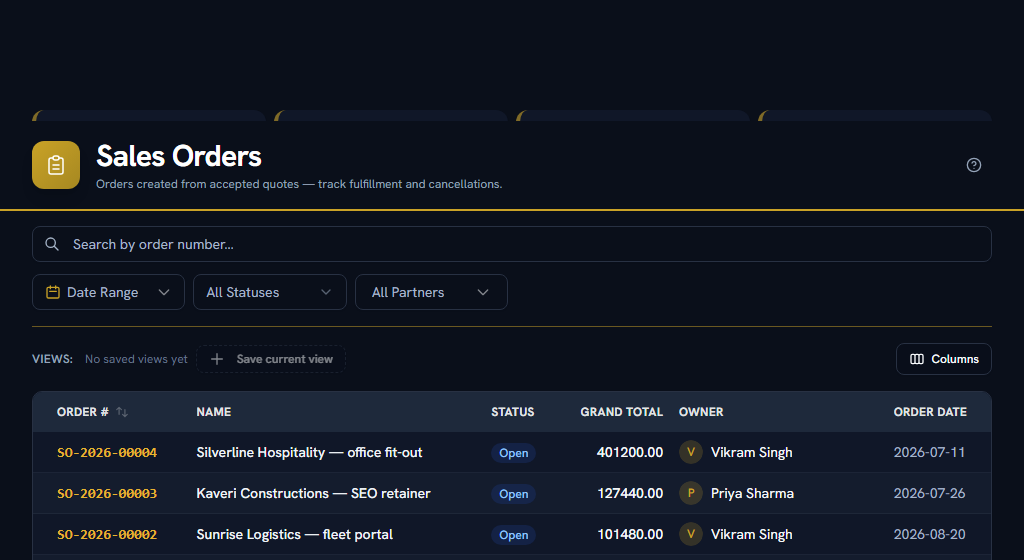
An order is the confirmed sale, and it starts life as a copy of the accepted quote — its account, currency, line items and totals. Its detail page names the quote, the deal and the original lead it came from, so the whole chain is readable from either end.
- The order's line items are its own. They are copied from the quote when the deal is won, not borrowed from it — so amending the quote afterwards leaves the order alone, and amending the order leaves the quote alone.
- Ship To and Bill To are chosen from the customer's own addresses, and start filled in with their default shipping and billing addresses. If the right warehouse is not on the list, add it on the customer's account first — no other customer's address will be accepted.
- Expected Delivery is when the customer is expecting the goods, which is not the day the order was raised. The Orders list can be filtered on it, and it is available from the column picker alongside Customer PO.
- Customer PO number and PO date record the customer's own reference. It is the number their accounts department will quote back at you, and it prints in the header of the order document.
- Orders can be printed and downloaded as PDF, using the same layout as a quote with "ORDER" in place of "QUOTATION". The document prints a real Bill To block with the address and GSTIN, and a separate Ship To panel whenever the goods go somewhere other than the invoice.
- There is no public share link for an order, deliberately. A quote is a document you send a customer; an order is your internal record of the sale.
- An order can be edited to diverge from the quote it came from — the customer added a line at the last minute. Editing needs the Orders update permission; deleting is administrator-only.
- Fulfilled and Cancelled can both be reopened back to Open.
The quote it came from is kept exactly as it was signed. The order carries a frozen copy of the accepted quote's totals, so when a customer asks why the order differs from what they agreed, the answer is on the record rather than in somebody's memory. The order's own timeline names every change since — a delivery date moving, a ship-to switching warehouse, a line being added — with the old value and the new.
Orders are the one CRM record with no import and no create button. An order exists only because a deal was won.
Section 10Everyday useDocuments#
WhereCRM›Catalog›Documents
OpenDocuments
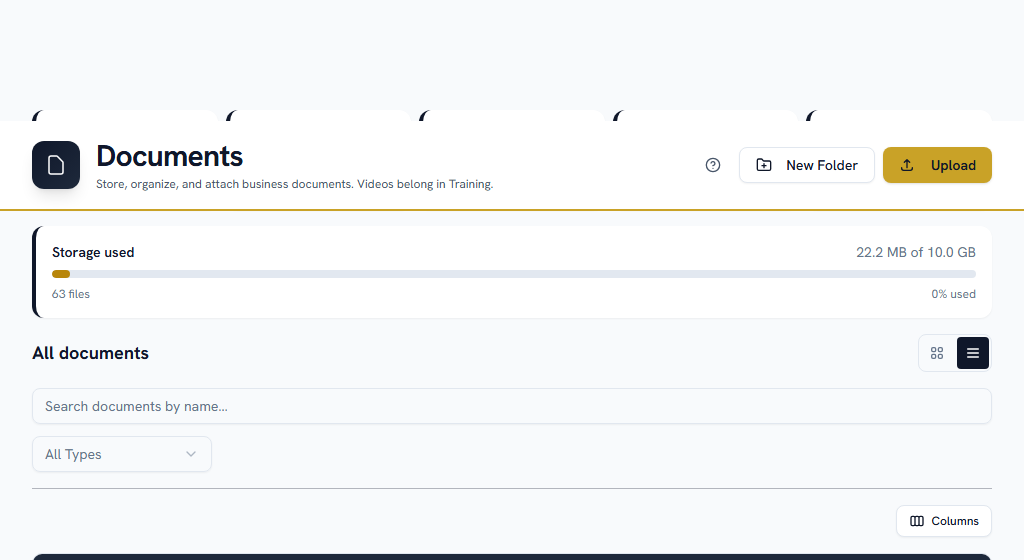
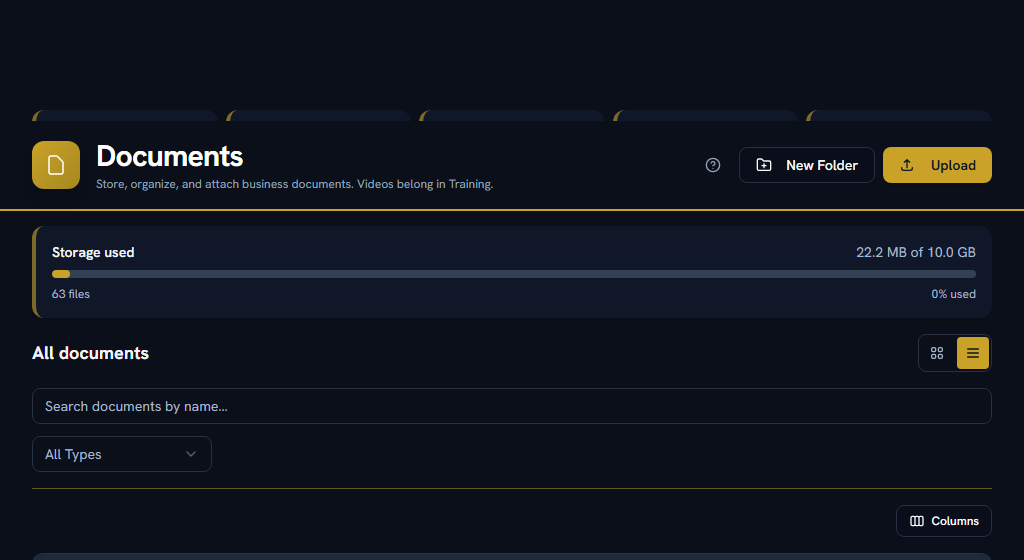
Every file attached to a CRM record, in one list, with the record it belongs to named beside it — a signed quote, a proposal, a purchase order the customer sent back. It is the screen for when you remember the customer but not which deal.
Files get here by being attached to a record: upload on the lead, deal, quote, account or partner it concerns and it appears here. Generated documents, such as a quote PDF, are filed here when they are produced.
A document carries no permissions of its own — whoever can see the record can see its files. A rep who cannot see an account cannot see what is attached to it.
Section 11Everyday useSpreadsheets: export, import and bulk edits#
Every list page in this guide has the same Export & Import button and the same selection bar, and they work identically across Leads, Deals, Contacts, Accounts, Partners and Lead Registrations.
- Export — "All matching current filters" gives you exactly what the list is showing; "Selected only" gives you the ticked rows. A real .xlsx, capped at 10,000 rows, and it tells you the true total when it hits the cap rather than quietly handing you a short file.
- Import — the four-step wizard. An export of a list is a valid import file, which is what makes "export it, fix a column in Excel, import it back" safe.
- Tick a row and a bar appears offering Export, Edit and — for administrators — Delete, each stating the number it will actually touch. Bulk edit writes only the fields you fill in and leaves the rest of each record alone.
Bulk delete is a permanent delete, not a recycle bin. Before anything is destroyed, the records are written to a spreadsheet in the importer's own format and kept on Data Operations — recovery means re-importing that file. Deletes are also refused where a record is referenced by another: a converted lead, a deal with a quote against it, a partner with commission history. The refusal names what is in the way.
Section 12Everyday useIf you get stuck#
In this order — most questions are answered before you reach the bottom.
- Look for help on the page itself. A ? in the page header opens the FAQs for that screen, and every settings screen carries a "How this works" panel with a worked example.
- Search the FAQs — the menu under your name, top right → FAQs. Search the words you can see on screen, rather than what you think the feature is called.
- Take a tour — the same menu → Help & Tours.
- Read the message. When Facto refuses something it says why, and usually what to do about it. "An accepted quote is required to win this deal" is the whole explanation.
- Ask your own company — Support in the sidebar. Anyone can raise a ticket there and your admins pick it up. A deal that cannot be won and a currency nobody enabled look identical from the outside.
- Facto Support — the pinned block at the bottom of the sidebar. Admin-only: if your question needs Facto, raise it at step 5 and your admin will escalate it.