Start here
The foundation every other part of CRM reads.
CRM guide 1 of 6 · 16 min · 6 screenshots · updated 10 Sep 2026
- For
- Admin
- Use
- One-time setup
- Needs
- An Admin account
Who this is for: the person setting CRM up for your company. You need an Admin account. You do not need to be technical.
What this covers: the foundation every other part of CRM reads — the money, the people, and the words your pipeline is described in. Do it first, once. Then pick up whichever of the other five guides you actually need.
This guide is one-time setup only — there is nothing here you come back to weekly.
Before you start. Open the sidebar and look for CRM. If it is not there, CRM has not been switched on for your company yet, and you cannot turn it on yourself. Ask Facto through Facto Support — the pinned block at the bottom of the sidebar — then come back to this page.
Section 01Five things that have to be right first#
Everything else in CRM is optional or reversible. These five are neither: each one is read by screens you have not opened yet, and each one is painful to change once people have started working.
1. Company details#
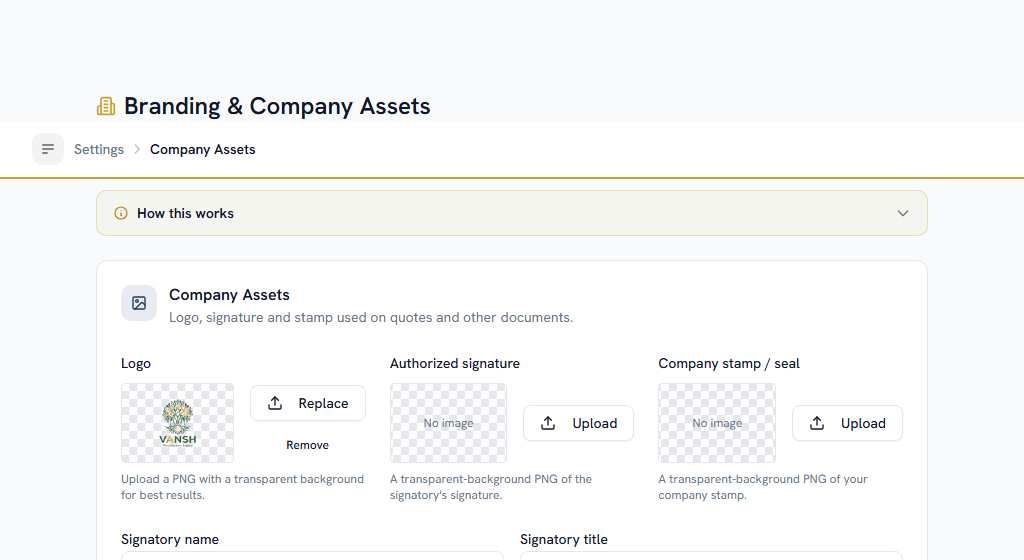
WhereSettings›General›Company Assets
OpenCompany Assets
The screen is called "Company Assets" and its description talks about logos and stamps, so it is easy to assume it is only branding. It is not. Every quote and every order your customer ever sees is printed from this screen.
- Logo, signature and stamp — they appear on the quote PDF, in that order down the page. A quote sent without them looks like a draft.
- Legal name and address — the registered name of the entity, not your workspace name. This is what prints in the "From" block.
- Tax id / GSTIN — prints beside the legal name. Without it your quote is not a document a customer's finance team can act on.
- Bank account details — printed as the payment block at the foot of the quote. This is the single most-asked-about omission: a customer who accepts a quote with no bank details has to email and ask where to pay.
- Signatory name and title — the signature block at the bottom.
2. The currencies you sell in#
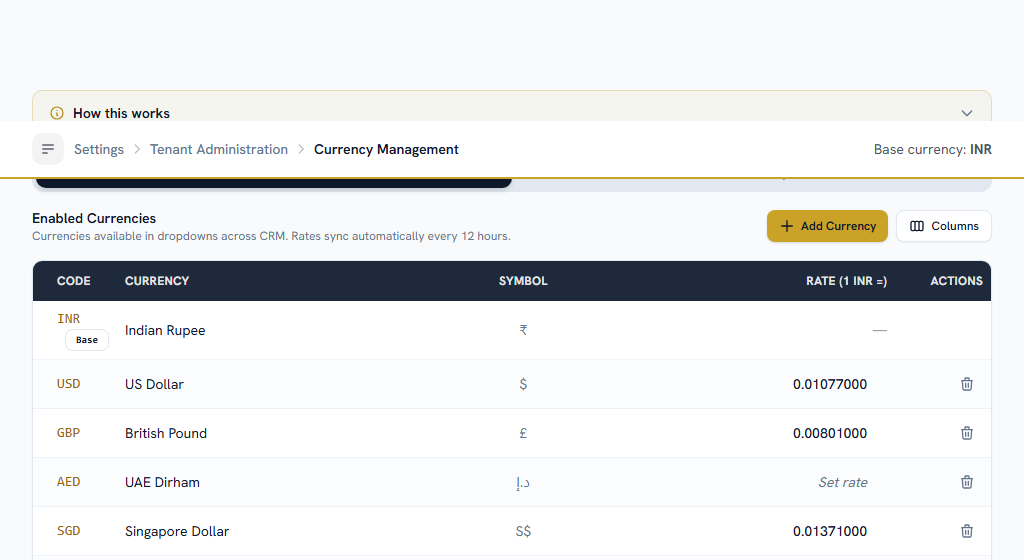
WhereSettings›CRM›Currency Rates
OpenCurrency Rates
Enable every currency you sell in, including the one you sell in most. Rates then sync automatically twice a day, and you can override any single rate by hand if your finance team uses a fixed one.
a currency you have not enabled here is a deal you cannot close later.
A deal in an unlisted currency saves without complaint, and then cannot be won. Winning locks an exchange rate onto the deal, and the sync only fetches rates for currencies on this list — so the refusal arrives at the very end of the sale, months after the mistake, in front of a customer who has already said yes.
Forecasts is worse, because it does not refuse: a deal with no rate is dropped from the roll-up silently, so your forecast is short and nothing tells you. Enable the currency before anybody quotes in it. Capitalisation counts too — usd and USD are not the same string to the rate lookup, and only one of them works.
Add everyone who will use CRM. Two fields matter more here than they look:
- Reporting manager — CRM's idea of "my team" is read from the org chart, not from a role. The Mine/Team toggle on My Follow-ups and on the Calendar, the manager digests, and the Team rollup in Forecasts all resolve to "everyone reporting up to you, at any depth". Somebody with no manager set is nobody's report and appears in no team view.
- Role — CRM permissions are granted per role in Settings → Roles, per sub-module (Leads, Deals, Quotes, and so on) and per action (view, create, update, view all).
A manager does not automatically see their team's leads and deals. This catches everybody, because follow-ups behave differently: for follow-ups and the calendar, a manager really does get their whole reporting line, automatically. Leads, deals, accounts, contacts and partners do not work that way. Those are visible to the record owner, to anyone holding that module's View All permission, and to anyone the record has been shared with explicitly — and to nobody else, manager or not.
If your sales managers are meant to see their reports' pipeline, grant them View All on Leads and Deals in Settings → Roles. Nothing about the org chart will do it for you.
4. The words a lead is described in#
WhereSettings›CRM›Lead Sources
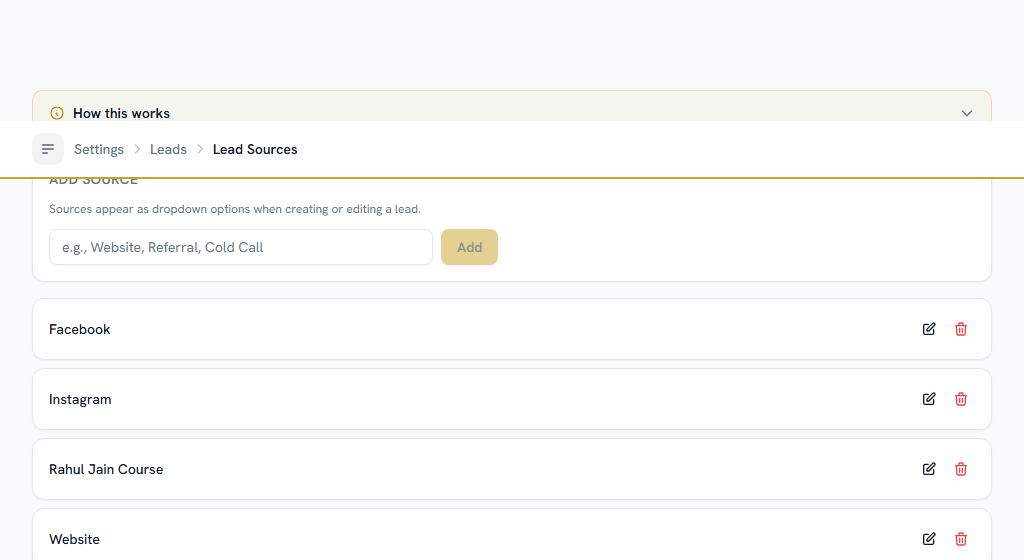
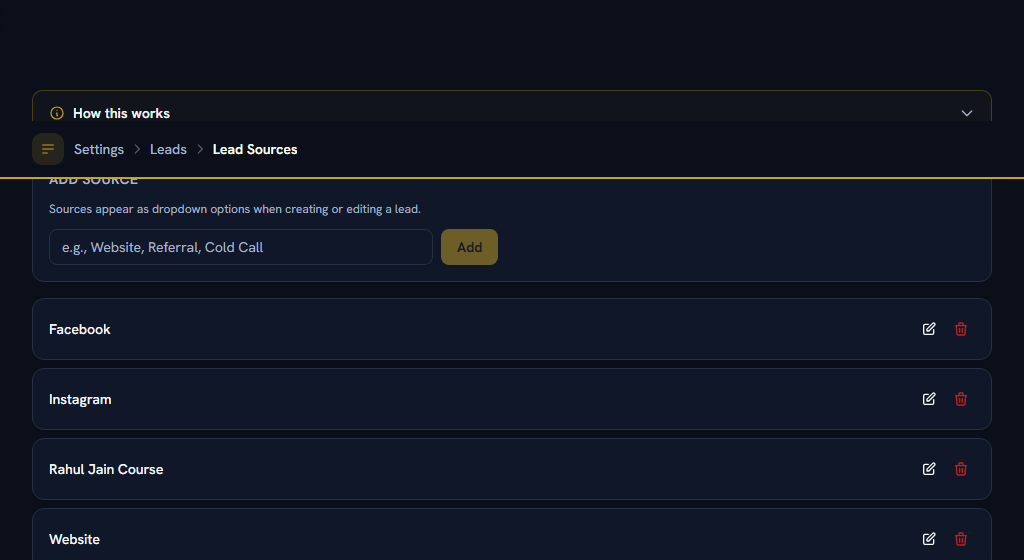
Lead Sources is the list reps pick from when they say where a lead came from — Website, Referral, Trade Show, Cold Call. It is also the axis every "which channel actually works" report is grouped by, so it is worth more thought than it looks.
Lead Stages are the steps a lead moves through before it is qualified into a deal: New → Attempted → Contacted → Qualified. Each one is a colour-coded badge on the list. These are the pre-sales steps, and they are not the same thing as pipeline stages, which a deal moves through afterwards.
Add every source before anybody creates a lead. The Source box looks like a dropdown and is stored as ordinary text with nothing checking it. A value that is not on this list saves cleanly — and is then invisible to the Source filter on the Leads list, shows as an empty box on the lead's own page, and is erased the moment somebody clicks that box, because the picker saves whatever it is currently showing. The data is gone and no error is ever raised.
The same applies to leads arriving from a Web Form: those record their source as the form's own name. Add a matching source for every form you publish.
5. Your pipeline#
WhereSettings›CRM›Pipelines & Stages
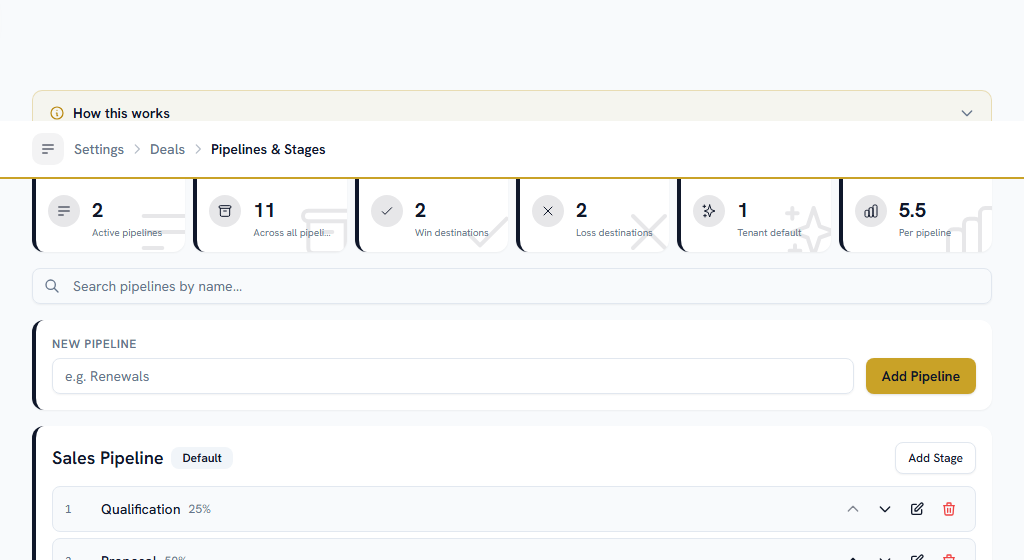
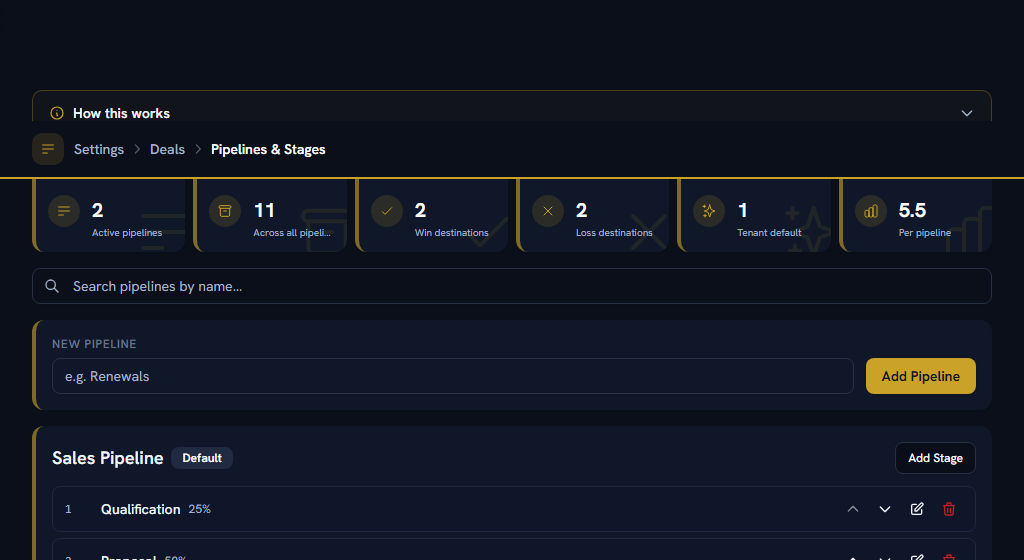
The stages a deal moves through from first contact to Won or Lost. This is the backbone of every deal report you will ever run, so name the stages for what your team actually does rather than for what a textbook calls it.
- Create a pipeline and name it for the sales motion it represents. Most companies want one to start with; a second is for a genuinely different flow, such as renewals.
- Add the stages in order, each with a colour and a win probability. The probability is not decoration: Forecasts sorts every open deal into Commit, Best Case or Pipeline purely by the probability of the stage it is sitting in.
- Mark exactly one pipeline as the default. Deals use it unless told otherwise.
- Per stage you can require fields before a deal is allowed to leave, and set the idle limits that Record Attention & Escalation uses to notice a deal has gone quiet.
Two of the stages are special and are set by a flag rather than by their name: the closed-won stage and the closed-lost stage. Moving a deal into the closed-won one is what creates the sales order, and it is refused unless the deal has an accepted quote behind it. That rule is explained where it bites, in Pipeline.
Section 02Who gets the work#
Assignment Rules#
WhereSettings›CRM›Assignment Rules
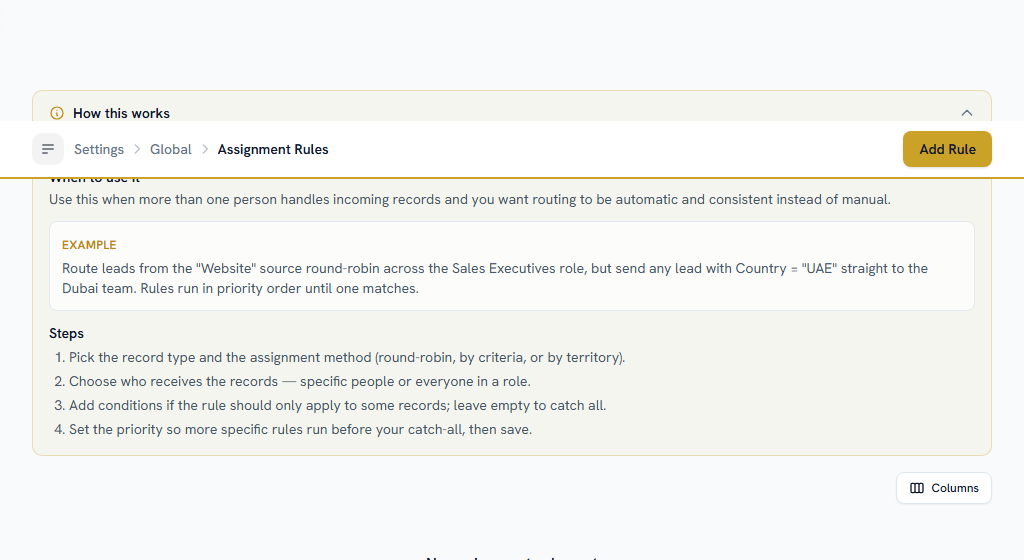
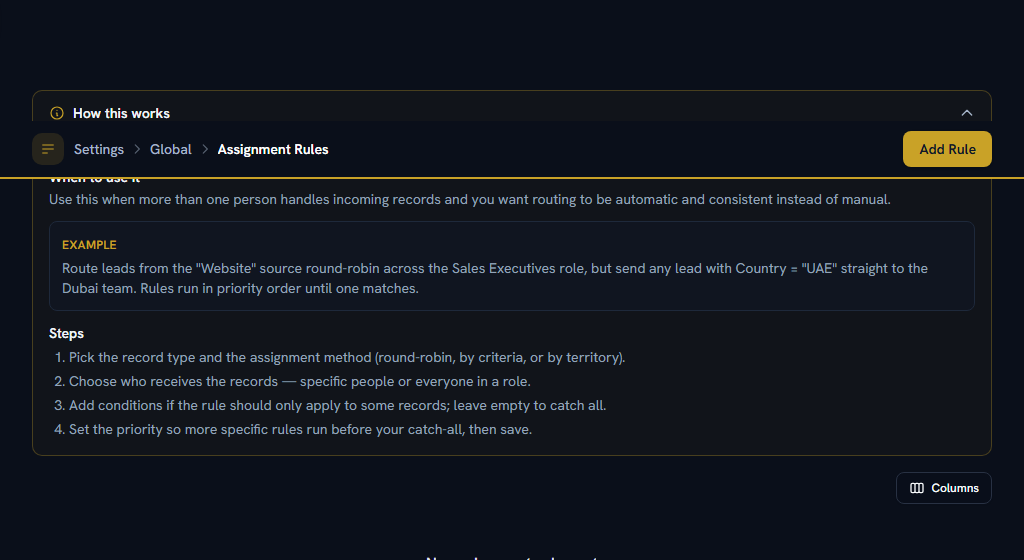
OpenAssignment Rules
Decide who a new lead, deal, account or contact is handed to the moment it is created, so nothing sits unowned. One page covers every record type; the sidebar's Lead Assignment Rules, Deal Assignment Rules, Account Assignment Rules and Contact Assignment Rules cards are the same screen opened at the right tab.
- Pick the record type and the method: round-robin, by criteria, or by territory.
- Choose who receives the records — named people, or everyone holding a role. A role pool is resolved live at the moment of assignment, so somebody who joins that role next month is included without you touching the rule.
- Add conditions if the rule should only apply to some records. Leave them empty and it catches everything.
- Set the priority. Rules are tried in priority order and the first one whose conditions match wins, so your catch-all belongs last.
How you classify the companies you sell to — Distributor, Dealer, Retailer, Direct, Institutional. You start with those five and can rename, reorder or replace any of them; the list here is what the account form offers, what the account list filters on, and what a by-type report groups by.
A type is a label. It grants nothing, prices nothing, and no rule reads it — which is why it is safe to hand the list to whoever knows your business best. Leaving an account unclassified stays allowed, so there is no rush to file every existing customer.
Worth doing early if you sell through a channel, because "customer" covers two very different relationships: a distributor who buys to sell on, and a company buying for itself. Once they are told apart, every list and report can separate them.
Renaming a type updates every account currently on it, so nothing is left holding the old word. A type can only be deleted once no account is on it — the message tells you how many there are.
Group accounts, and the people who own them, by region or segment — "West India", "SMB", "EMEA". A territory carries its own list of assignees, which is what the territory-based assignment method routes to; matching is on state, pincode or country. Territories are also one of the ways Forecasts can group a roll-up, so they are worth creating even if you never route by them.
Rank leads, deals and contacts by how promising they are, so the team works the best ones first. Add criteria rows with points — +20 for a Referral source, +15 for a company over 200 people, −10 for two weeks of silence — and optionally let scores decay over time so a stale record drifts back down. As with assignment, the Lead Scoring Rules, Deal Scoring Rules and Contact Scoring Rules cards all open this one page.
This is worth leaving until you have more incoming records than the team can act on at once. Before that it is arithmetic nobody reads.
Section 03The settings that belong to no single module#
Add fields of your own to any CRM record. Each record type has its own tab, which is what the per-entity cards — Lead Custom Fields, Deal Custom Fields, Account Custom Fields, Contact Custom Fields, Product Custom Fields, Partner Custom Fields and Lead Registration Custom Fields — open directly.
Custom fields flow into the import template and into the export, so a field you add here is a column you can fill in a spreadsheet.
Marking a custom field "required" is a hint, not a rule. The form shows an asterisk beside the label; nothing refuses a record that leaves it blank, and nothing checks that a picklist value is one of the options you defined. If a field genuinely must be filled in before a deal can progress, use a required field on a pipeline stage instead — that one is enforced.
A shared, company-wide library of labels — "VIP", "Renewal-Q3", "Do not call" — so that tagging is consistent and a list can be filtered down to one of them, instead of five people inventing five spellings of the same word.
Your working week and this year's holidays. CRM reads it for one specific thing: Record Attention counts idle days in working days, so a record does not look neglected because of a long weekend. It is shared with the rest of Facto, so if HR has already set it up you have nothing to do here.
Choose which sections appear on the CRM home screen, and in what order — per role, or per person. Worth doing after your team has used CRM for a fortnight, when you know which panels they actually look at. The sections themselves are described in Insight.
Custom Modules and Picklist History#
OpenCustom ModulesPicklist History
Custom Modules creates entirely new record types, for something your business tracks that none of the built-in ones cover — service contracts, site surveys, assets.
Picklist History is an audit trail of changes to dropdown options: who added, renamed or removed one, and when. It answers "where did this option go" without guesswork.
Section 04Automation, once you know what you repeat#
Leave all of this until your team has been using CRM for a month. Automating a process you have not settled is how you end up with rules nobody can explain.
OpenWorkflowsAuto-Response RulesMacrosCustom ButtonsWebhooksBlueprints
| Screen | What it does | Reach for it when |
|---|---|---|
| Workflows | Reacts to a record changing — assigns an owner, updates a field, creates a follow-up, sends a notification | The team repeats the same reaction to the same event |
| Auto-Response Rules | Sends an in-app notification when an event matches your conditions | You want an alert and nothing more |
| Macros | Bundles several updates into one action a rep runs by hand | Reps do the same three edits together |
| Custom Buttons | Puts a macro or workflow on a record as a one-click button | A macro is used often enough to deserve a button |
| Webhooks | Pushes CRM events to another system over HTTP, signed and retried | Another app has to stay in step with CRM |
| Blueprints | Enforces which stage moves are allowed and what each one requires | Stages are being skipped and you need discipline |
Workflows is the one worth learning. Its builder is a three-step wizard — trigger, conditions, actions — with no code and no JSON anywhere, and a Run History tab that shows exactly what each run did, step by step, including the ones that failed.
Build the workflow, save it, and leave it inactive for a day while you watch the records it would have fired on. Switching it Active is the last step, not the first.
Section 05Screens that are not finished yet#
sixteen of the fifty settings screens carry a gold Coming Soon badge — the page works, the configuration saves, and nothing reads it yet.
This is worth knowing before you spend an afternoon on one. They are grouped under their own "Coming Soon" heading at the bottom of each settings category rather than mixed in with the rest, so you can see at a glance which is which.
As things stand that includes Auto-Response Rules, Custom Buttons, Webhooks, Macros, Blueprints, Deal Blueprints, Tags, Custom Modules, Report Schedules, CPQ Configurators, API Keys, Scheduled Backups, Data Hygiene, Security and Record Locks. Configure them if you want the shape of your process recorded; do not build a plan around them firing.
Everything else on this page — currencies, sources, stages, pipelines, assignment, scoring, territories, price books, custom fields, workflows, data operations — is live.
Section 06Tenant administration#
OpenData OperationsData HygieneSecurityRecord LocksAPI KeysScheduled Backups
- Data Operations — every import, bulk update and bulk delete that has ever run: who ran it, what it touched, the file it used, the rows that failed, and the way back from each. This is the one on this list you will actually need, and it is live. See below.
- Data Hygiene — duplicate detection and merging.
- Security — IP allowlists and data subject requests.
- Record Locks — releasing a lock left behind by somebody who closed their browser mid-edit.
- API Keys — keys for an external system to reach CRM programmatically.
- Scheduled Backups — a backup cadence and how long copies are kept.
Section 07Bringing in what you already have#
Whereany CRM list page›Export & Import›Import from a file
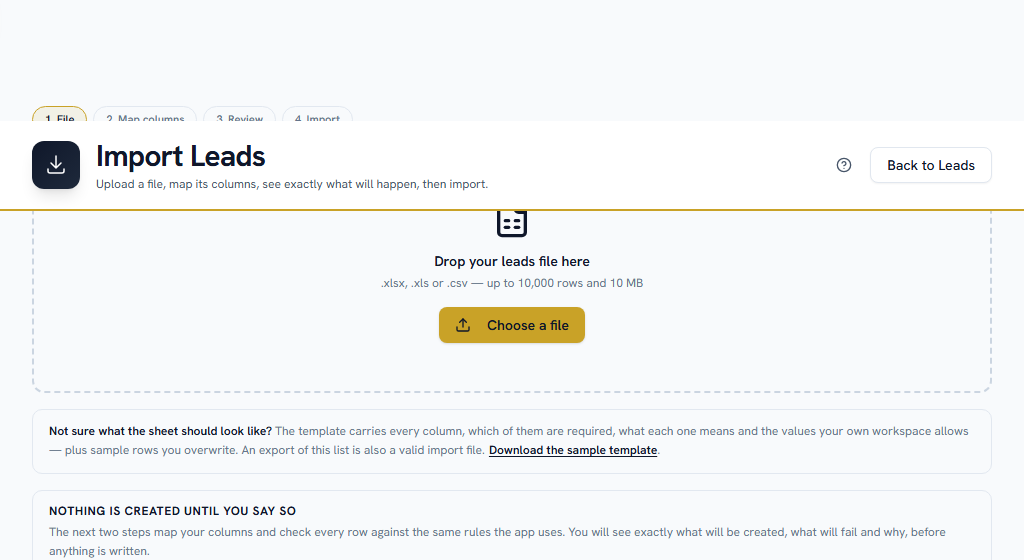
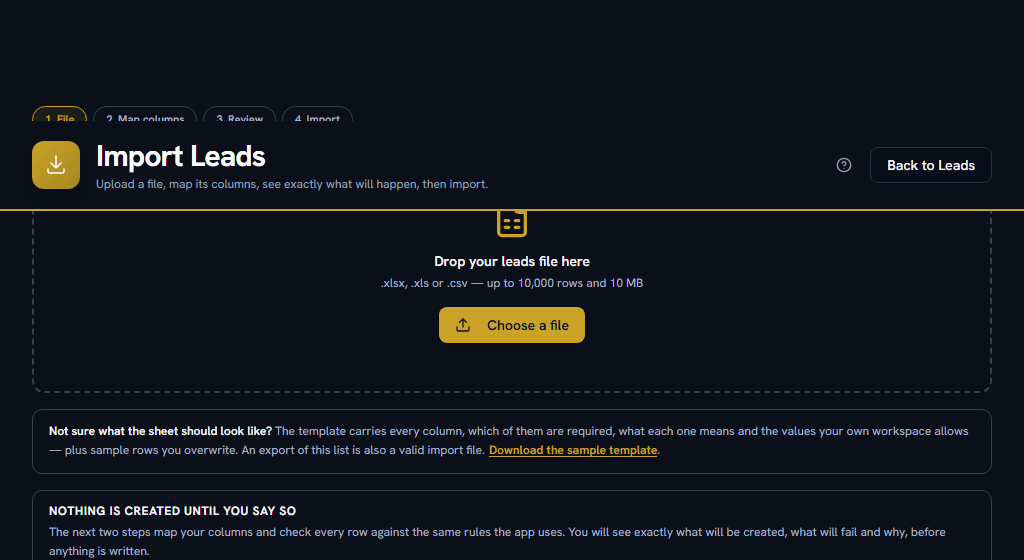
OpenImport leadsData Operations
Six record types can be imported from a spreadsheet: Accounts, Contacts, Leads, Deals, Partners and Lead Registrations. A real migration runs in that order, because a deal resolves its account by name and a contact resolves its account the same way — or use Combined workbook for a migration, which puts Accounts, Contacts, Leads and Deals on four sheets of one file and imports them in dependency order, in one run you can undo as a whole.
Four steps — pick the file, map the columns, review, import — and nothing at all is written until the last one. Do not skip the review screen: it reports fill rates, dates that could be read two ways and how it is reading them, phone numbers Excel mangled into scientific notation, and values that differ from one you already use only by punctuation.
Use Download template rather than inventing a layout. The template is built from your own stages, owners, sources, tiers and custom fields, so it already names the legal values.
Leave "Run assignment rules, workflows and notifications on imported records" unticked, which is how it ships. With it on, your assignment rules run on every imported row and overwrite the Owner column you carefully filled in — silently, on every record. A two-thousand-row import also becomes roughly sixteen thousand background writes and up to two thousand bell notifications.
Records still land in their own timeline and in the workspace audit log either way; that is never switched off.
If the wrong file goes in, Data Operations has the undo. It removes exactly the records that import created and nothing else, because each record carries the batch that made it. An import whose records somebody else has since edited cannot be undone at all, which is a good reason to check an import the day it runs rather than the week after.
Section 08Check your setup#
Before you hand CRM to your team:
Section 09Where to go next#
Pick the guide for the part you are setting up. Each is in two parts — the setup an admin does once, and what everybody does with it afterwards.
- Pipeline — leads, deals, quotes, orders and the product catalog
- People & Activities — contacts, accounts, follow-ups, the calendar and the Needs Attention queue
- Partners — partners, lead registrations and commissions
- Insight — the dashboard, reports and forecasts
- For everyone — the short version, to send to your sales team
Section 10If you get stuck#
In this order — most questions are answered before you reach the bottom.
- Look for help on the page itself. A ? in the page header opens the FAQs for that screen, and every settings screen carries a "How this works" panel with a worked example.
- Search the FAQs — the menu under your name, top right → FAQs. Search the words you can see on screen, rather than what you think the feature is called.
- Take a tour — the same menu → Help & Tours.
- Read the message. When Facto refuses something it says why, and usually what to do about it.
- Ask your own company — Support in the sidebar. Anyone can raise a ticket there and your admins pick it up.
- Facto Support — the pinned block at the bottom of the sidebar. Admin-only: if your question needs Facto, raise it at step 5 and your admin will escalate it.