People & Activities
Who you sell to, and how you stay in touch with them.
CRM guide 3 of 6 · 11 min · 5 screenshots · updated 18 Aug 2026
- For
- Admin, Sales
- Use
- Setup + everyday
- Needs
- CRM — start here
Covers Contacts and Accounts under People & Organizations, My Follow-ups and Needs Attention under Activities, and the CRM Calendar.
Two halves that belong together. Contacts and accounts are who you are selling to; follow-ups, the attention queue and the calendar are how you stay in touch with them without relying on anybody's memory.
Section 01What these five screens are for#
Contacts
The people. Usually attached to an account, with their own history and their own follow-ups.
Accounts
The organisations you sell to. They group their contacts, deals and activities, and can belong to a territory.
My Follow-ups
Your dated to-do list across every CRM record: calls, meetings, notes and tasks, with a due date on every one.
Needs Attention
The opposite of a pipeline view. The records that have gone quiet, sorted so the expensive silence is at the top.
Calendar
Everything dated, on one grid: follow-ups, deal close dates, quote expiry and order dates.
OpenContactsAccountsMy Follow-upsNeeds AttentionCalendar
Part 1One-time setup
ForAdminSections2Read3 minNeedsYour people added
Section 02One-time setupNoticing when something goes quiet#
WhereSettings›CRM›Record Attention & Escalation
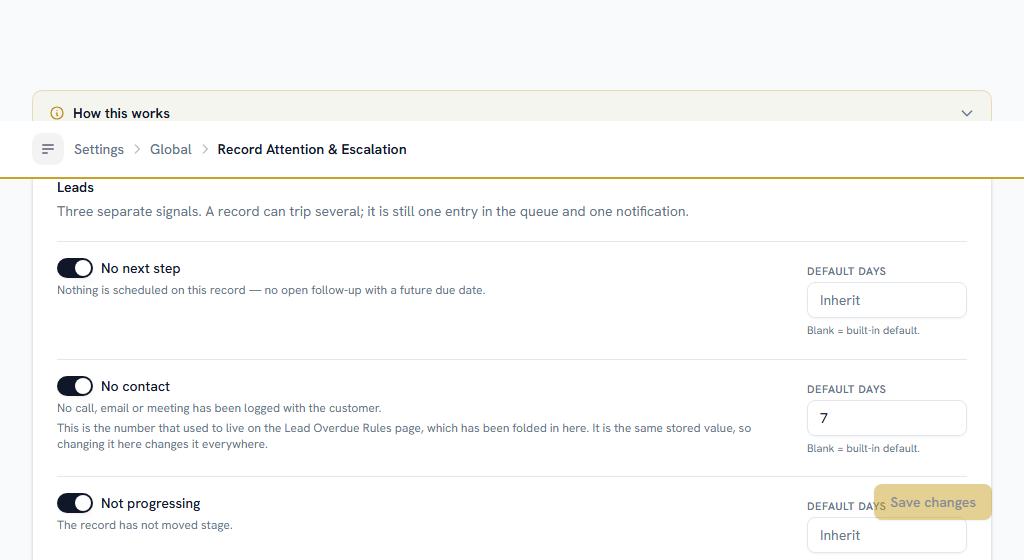
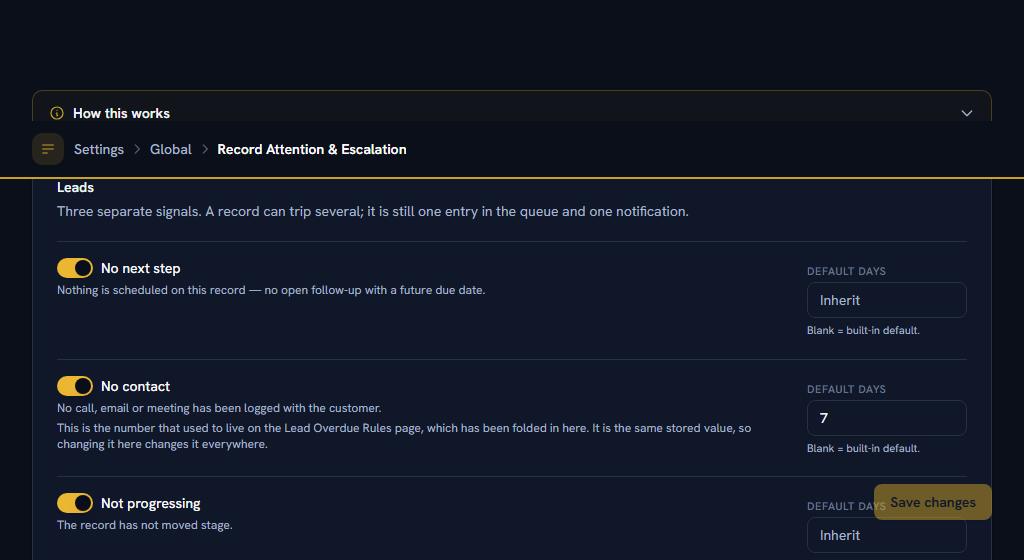
OpenRecord Attention & Escalation
This is the most valuable screen in CRM that nobody sets up, and the only one in this guide that needs real thought. Everything else here is a list.
The problem it solves: a deal sits in Negotiation for three weeks with nothing scheduled on it and nobody calling the customer, and nothing tells anyone until somebody happens to open a list. A pipeline chart is exactly the wrong tool for this — it shows you what is moving, and this is a question about what is not.
The three signals#
They are independent, they answer different questions, and each fails on a different timescale. Decide which of them you care about:
| Signal | The question it answers | Typical limit |
|---|---|---|
| No next step | Is anything scheduled on this at all? | 3–5 days |
| No contact | Has anybody actually spoken to the customer? | 7–14 days |
| Not progressing | Has the stage moved? | 14–30 days |
Set a default number of days per signal, for leads and for deals separately. Leave one blank to use the built-in default.
Then tune the stages that are genuinely different#
Stage-level limits live on the Lead Stages and Pipelines & Stages pages, and anything you leave blank there inherits the defaults you just set. "Negotiation: 7 days" and "Qualification: 30 days" are not the same problem, and treating them as one is how a queue becomes noise people ignore.
Read the coverage warning at the top of the page. A stage with no threshold anywhere is never checked — so an empty Needs Attention queue means "we never looked", not "nothing is idle". That is the failure mode of this whole feature, and it looks exactly like success.
If a stage is slow on purpose — a long-cycle nurture stage — tick Never flag against it in the stage table rather than leaving its limits blank. Both leave it unchecked; only one of them says you meant it, and the warning stops nagging.
Who hears about it, and when#
- At 75% of the limit the owner sees the record in their morning summary.
- Past the limit, the owner is notified directly.
- A configurable number of working days after that, the owner's manager is told, by name.
Choose whether owners get one daily summary — recommended — or one notification per record. Leave count working days only switched on, so a holiday week does not make a record look neglected. That setting reads the shared Working Calendar.
Auto-action is the last step, and the only one that changes a record rather than telling somebody about it. It ships off. Turning it on puts it in report-only mode: every night it picks the records it would have moved, tells your admins, and changes nothing. Leave it in report-only until that list looks right to you — probably for a month.
Section 03One-time setupRouting and customising contacts and accounts#
OpenContact Assignment RulesAccount Assignment RulesContact Scoring Rules
Contact Assignment Rules and Account Assignment Rules open the shared Assignment Rules screen at the right record type; Contact Scoring Rules does the same for scoring. They behave exactly as they do for leads and deals, described in CRM — start here.
Accounts have one method the others do not lean on as heavily: by territory. An account matched to a territory by state, pincode or country is routed round-robin within that territory's own assignee list, which is what makes "the West India team owns West India accounts" a rule rather than a habit.
OpenAccount Custom FieldsContact Custom Fields
Account Custom Fields and Contact Custom Fields add your own fields to those two forms — an account's licence number, a contact's preferred language.
Part 2Everyday use
ForEveryone, SalesSections5Read7 minNeedsPart 1 done once
Section 04Everyday useContacts and accounts#
WhereCRM›People & Organizations
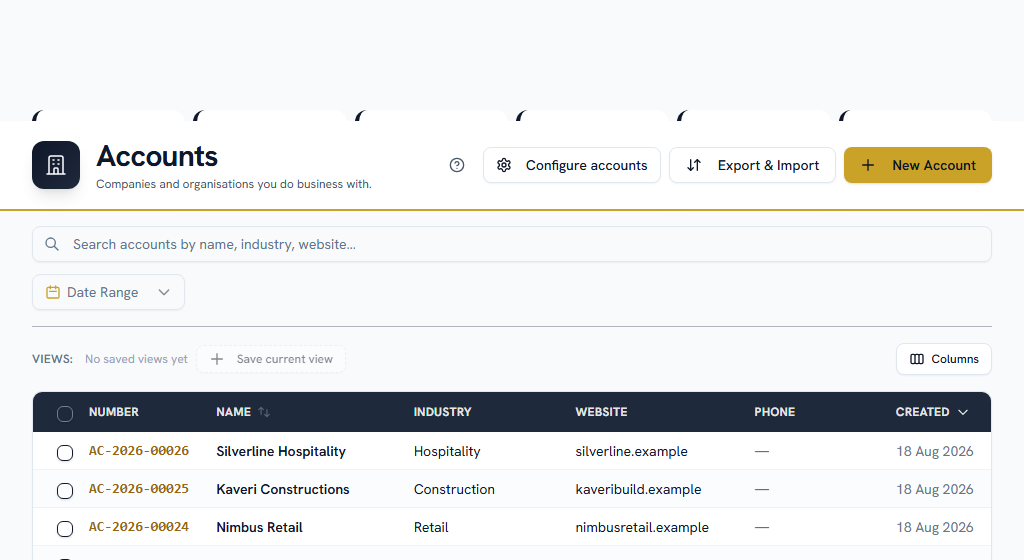
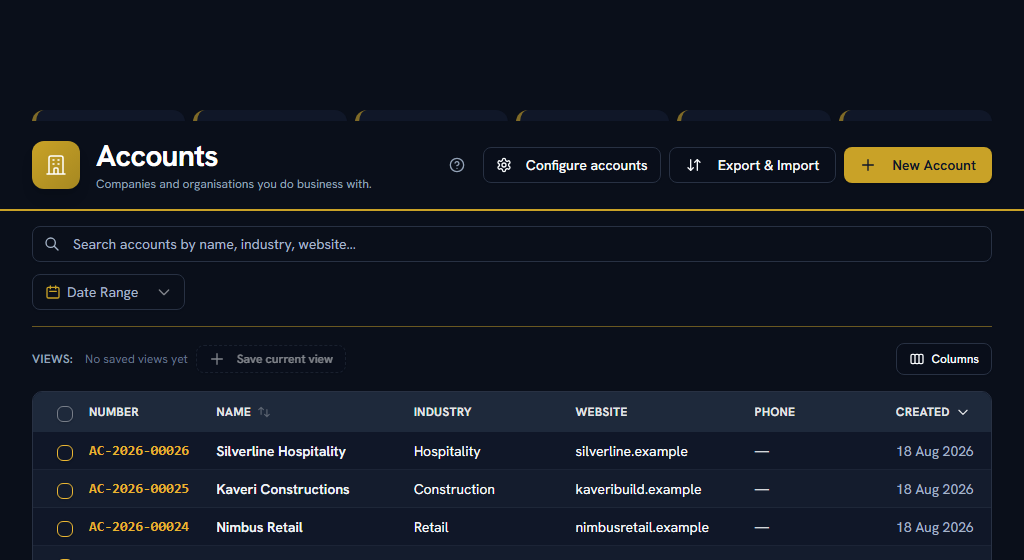
An account is an organisation you sell to. Its page groups everything about it: its contacts, its deals, its activity history, and the territory it belongs to.
A contact is a person, usually linked to an account. If a lead was converted rather than created by hand, both records already exist and are already linked — the conversion made them.
Both lists carry the same Export & Import button and the same selection bar as the pipeline lists, and both are in the combined migration workbook. A real migration loads Accounts, then Contacts, then Leads, then Deals, because each resolves the one before it by name.
Contacts and accounts have no Follow-ups tab, but they do accept follow-ups. Log one from My Follow-ups or from the calendar, pick the contact or account as the related record, and it works normally — it just lives on those two screens rather than on the record's own page.
Section 05Everyday useFollow-ups#
WhereCRM›Activities›My Follow-ups
OpenMy Follow-ups
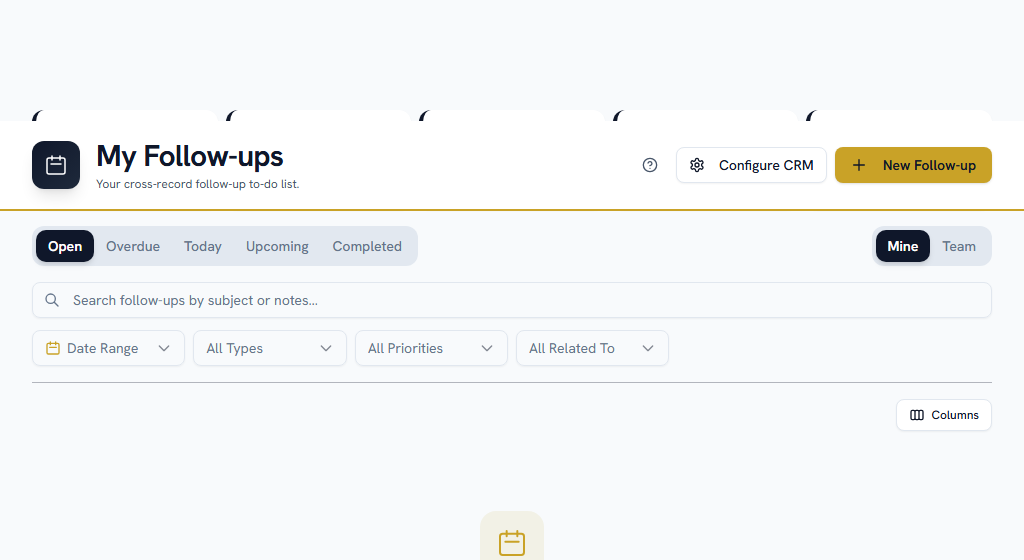
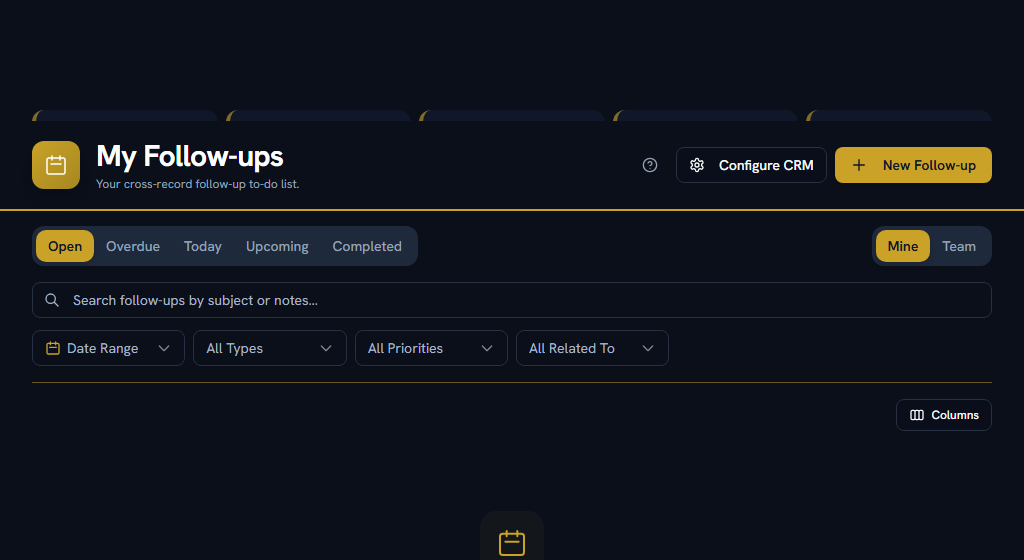
Your CRM to-do list: every call, meeting, task or note scheduled against a lead, deal, quote, contact or account. Stat cards across the top — Open, Overdue, Due Today, Upcoming, Completed — and filters for status, type, priority, related record and due date, all held in the URL so back-navigation returns you to the list you were on.
Every follow-up has a due date. There is no such thing as an undated one; that is what makes this a list you can work rather than a pile you can only browse.
Creating one#
New Follow-up on this page lets you pick the record afterwards, so you do not have to open a lead just to schedule a call on it. From a record's own Follow-ups tab it is already filled in.
Either way you set:
- the type — call, meeting, task, note,
- a subject and notes,
- a priority — low, normal, high or critical,
- the due date and time, which is required,
- a reminder — at the time, or 15 minutes, an hour, a day ahead,
- the assignee, which defaults to the record's owner and can be changed.
The assignee defaults to the record's owner, not to you. Log a follow-up on somebody else's lead and by default you have given it to them, which is usually right and occasionally a surprise. If you meant to keep it yourself, change the assignee before saving — otherwise it is on their list and not on yours.
Two more options worth knowing:
- Loop in colleagues notifies teammates about a follow-up without making them its owner. They can see it; they are not responsible for it.
- Internal only marks a prep or admin reminder that is not a customer-facing touch. It shows an "Internal" badge in the list and on the calendar, and it does not count as contact for the purposes of the attention queue.
Working the list#
- Snooze on any row moves it to Tomorrow, Next week, or a date you pick.
- Mark done asks for an outcome — connected, no answer, voicemail, busy, meeting scheduled, not interested — and offers to schedule the next one in the same step. Use it: outcome data is the only honest measure of how many calls it takes to get a conversation.
- Tick several rows to mark them done, reschedule them or reassign them in bulk.
- Clicking a row opens a read-only drawer. The only part of the row that navigates is the Related To cell, which takes you to the record.
When a follow-up is missed#
This is the part that makes follow-ups accountable rather than decorative, and it is worth explaining to your team before they meet it.
A follow-up whose due time passes while it is still open is stamped as missed by the server. That fact is permanent. Rescheduling it afterwards explains the miss; it never erases it.
Rescheduling something already overdue asks for a reason — could not reach, contact requested it, unavailable, deprioritised, or other with a note. The reason and the move are both kept in an append-only trail on the follow-up, and the drawer shows "Missed" and "Rescheduled 3×" badges above it.
An overdue reschedule also flags the owner's manager immediately, with stronger wording once the same item has been moved three times. None of this is punitive by itself — a customer who keeps postponing is a real thing, and now it is a visible one.
If you manage people#
A Mine / Team toggle appears for anyone with reports in the org chart, and for anyone granted the follow-ups View All permission. Team is everyone reporting up to you, at any depth, and you can edit, complete and reassign their follow-ups from it.
Managers also get a daily digest naming which of their people have overdue follow-ups and how many. It deliberately names people and counts, never the records — a manager has no automatic read access to their reports' leads and deals, so a digest that named a deal would link to a page that refuses to open.
Section 06Everyday useNeeds Attention#
WhereCRM›Activities›Needs Attention
OpenNeeds Attention
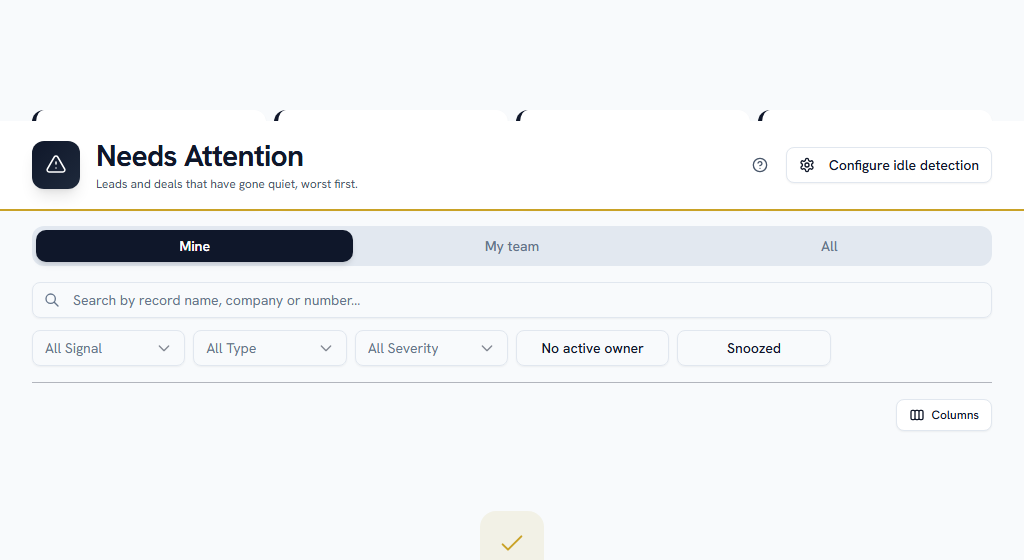
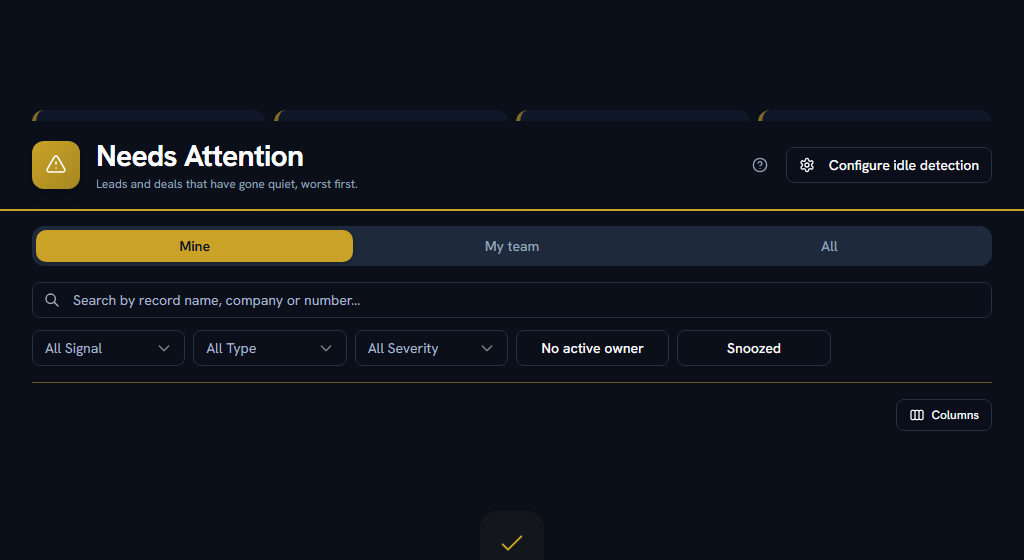
One list of the records that have gone quiet, judged against the thresholds set in Part 1 and sorted so that the big, slow problems sit above the small, old ones.
Each row says which signal tripped and by how long. One click schedules the follow-up that clears it.
If you are genuinely waiting on the customer, snooze it with a reason rather than ignoring it. The reason is recorded, the record leaves the queue for as long as you said, and — unlike ignoring it — the next person to look knows why it is quiet.
Whose records you see follows the ordinary rule: your own by default, your reporting line if you are a manager with the attention team grant, and the whole company only with an explicit grant. Everybody with CRM access has this page, because everybody has a queue.
Section 07Everyday useCalendar#
WhereCRM›Calendar
OpenCalendar
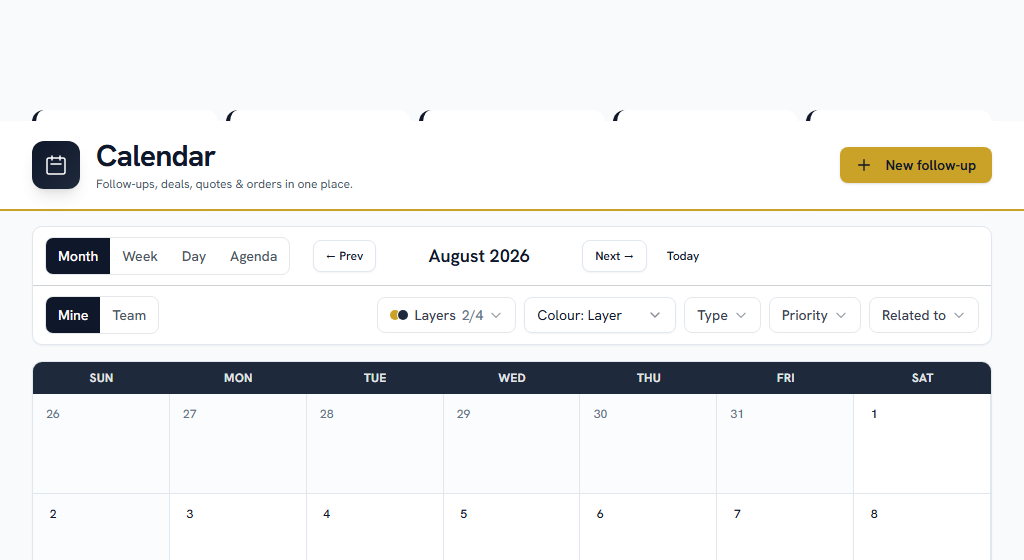
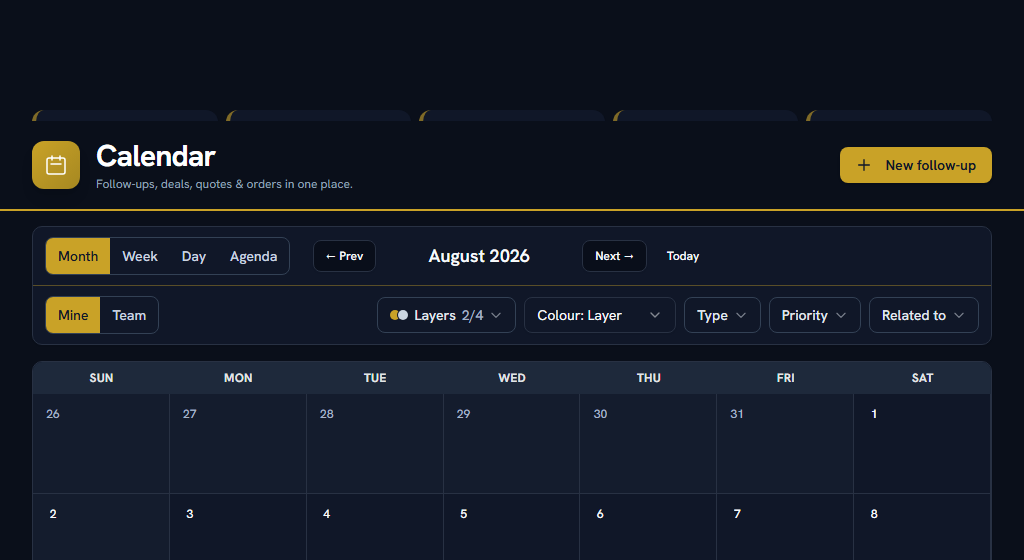
Four layers on one grid, each switched on or off from the Layers menu:
| Layer | What it shows | Colour |
|---|---|---|
| Follow-ups | Your dated to-do list, with times in week and day view | Gold |
| Deal close dates | Every deal by its expected close date | Navy |
| Quote expiry | Quotes by their valid-until date | Blue |
| Order dates | Sales orders by their order date | Green |
Follow-ups and deal close dates are on by default.
- Month, Week, Day and Agenda views. Agenda is a plain chronological list and is the one to use on a phone.
- Click an empty day or slot to schedule a follow-up at that moment; you only have to pick the record it is for.
- Click an existing entry for a read-only card with everything on it, from which you can Mark done or Edit.
- Drag a follow-up or a deal to another day or hour to reschedule it in place.
- Colour by Layer, Priority or Owner, whichever way you want to scan.
- The red Overdue strip collects every past-due open follow-up in the visible range, so nothing is lost as you page between months.
Your view, date, filters, scope and colour choice all live in the URL, so a link to the calendar lands somebody exactly where you were.
You can only edit your own entries. Like any shared calendar, editing or completing somebody else's follow-up needs to be your own, your report's, or covered by the calendar View All grant. Otherwise the card offers Request change — add a note and the owner is notified and asked to update it.
Section 08Everyday useIf you get stuck#
In this order — most questions are answered before you reach the bottom.
- Look for help on the page itself. A ? in the page header opens the FAQs for that screen, and every settings screen carries a "How this works" panel with a worked example.
- Search the FAQs — the menu under your name, top right → FAQs. Search the words you can see on screen, rather than what you think the feature is called.
- Take a tour — the same menu → Help & Tours.
- Read the message. When Facto refuses something it says why, and usually what to do about it.
- Ask your own company — Support in the sidebar. An empty Needs Attention queue is nearly always a thresholds question, and your admin can answer it in a minute.
- Facto Support — the pinned block at the bottom of the sidebar. Admin-only: if your question needs Facto, raise it at step 5 and your admin will escalate it.