Attendance & Leave
Who is at work, and who is off.
HRM guide 2 of 7 · 32 min · 16 screenshots · updated 21 Sep 2026
- For
- Admin, HR, Everyone
- Use
- Setup + everyday
- Needs
- HRM — start here
Covers the three modules under Attendance & Leave in the HRM sidebar: Attendance, Leave Management and Short Leave.
Do HRM — start here first. This guide assumes your company details, departments, people and working calendar are already in.
Attendance
Records that somebody turned up, and for how long. Check in, check out, and correct a day that was missed or recorded wrongly.
Leave Management
Records planned time off against a balance. Apply, approve, and see who is out.
Short Leave
Records an hour or two out of the building during work hours. Does not come off a leave balance.
Part 1One-time setup
ForAdminSections4Read16 minNeedsDepartments, people, working calendar
For an Admin, once. Skip to Part 2 if somebody has already done this.
Section 01One-time setupAttendance#
WhereSettings›HRM›Attendance
Do these in order — the first one sets the day everything else is measured against.
OpenDefault HoursCheck-in & Check-outShiftsOvertimeOvertime ApprovalsLate Marks & RegularizationShort Leave ApprovalsApprovalsBiometric Devices
Default Hours#
The standard working day, for anyone not on a shift.
- Set the day's start and end.
- Set how much lateness is forgiven before an arrival is flagged.
- Set the worked minutes that count as half a day, and as a full day.
Anyone who does not work these hours goes on a shift instead — these settings then stop applying to them.
Check-in & Check-out#
- Decide whether a selfie is required at check-in. Turn it on where somebody clocking in for a colleague is a real risk.
- Decide whether people check out at all. With checkout off, worked hours and half-days do not apply — you are only recording that somebody turned up.
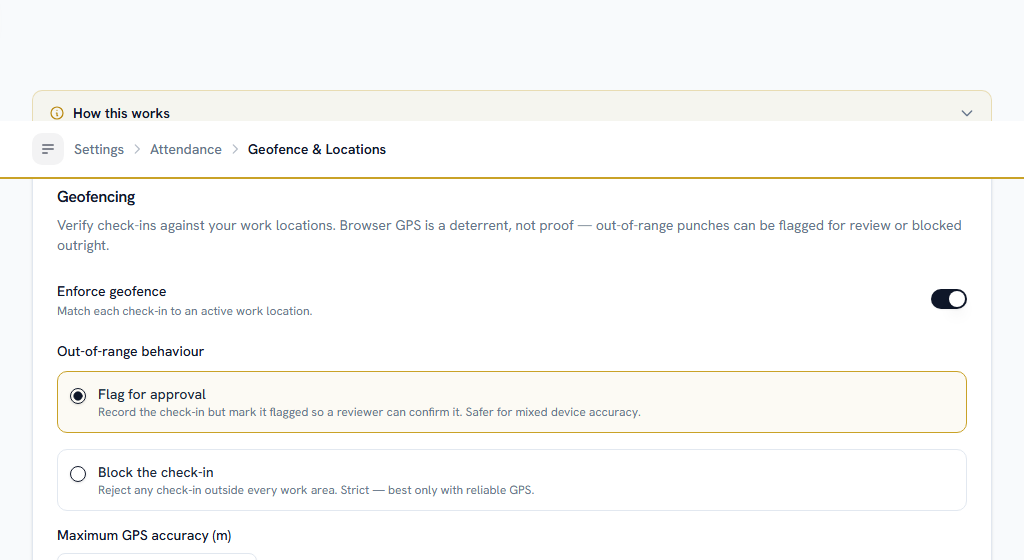
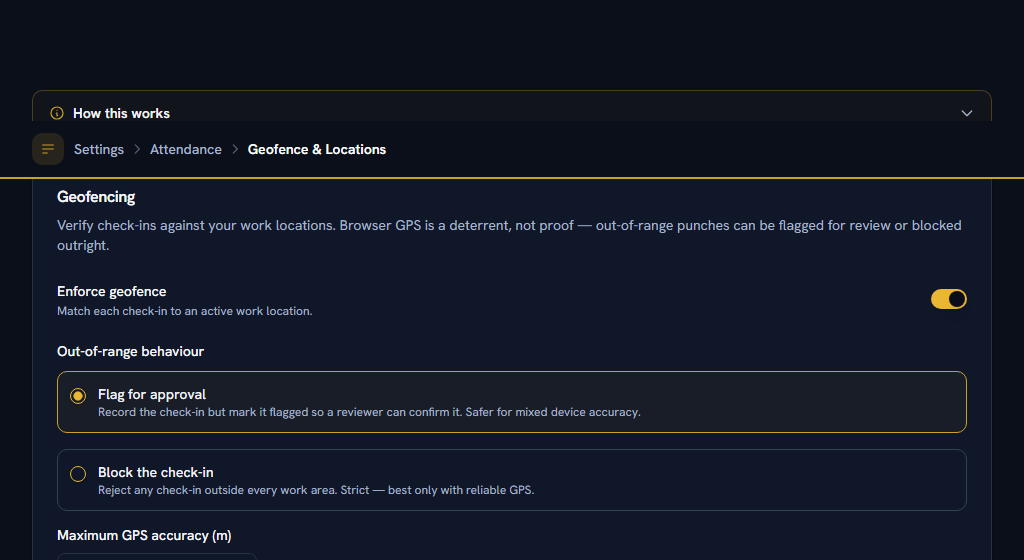
Geofence & Locations#
- Turn the geofence on, and add each place people work from.
- Choose whether a check-in from outside the boundary is flagged for review or refused outright. Flagging is safer — a refused check-in leaves somebody with no record at all.
- Set how imprecise a GPS reading may be before it is treated as untrustworthy.
Shifts — only if you need them#
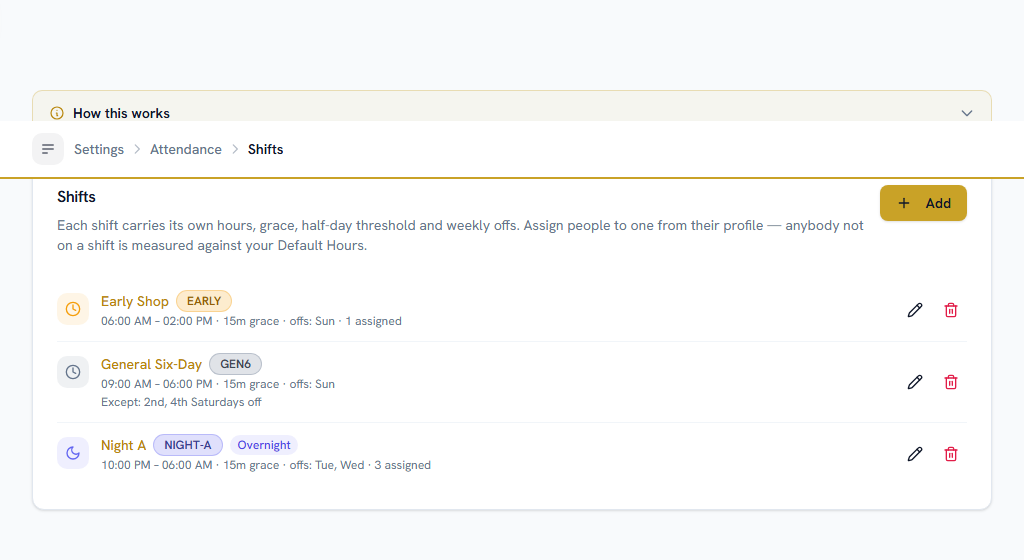
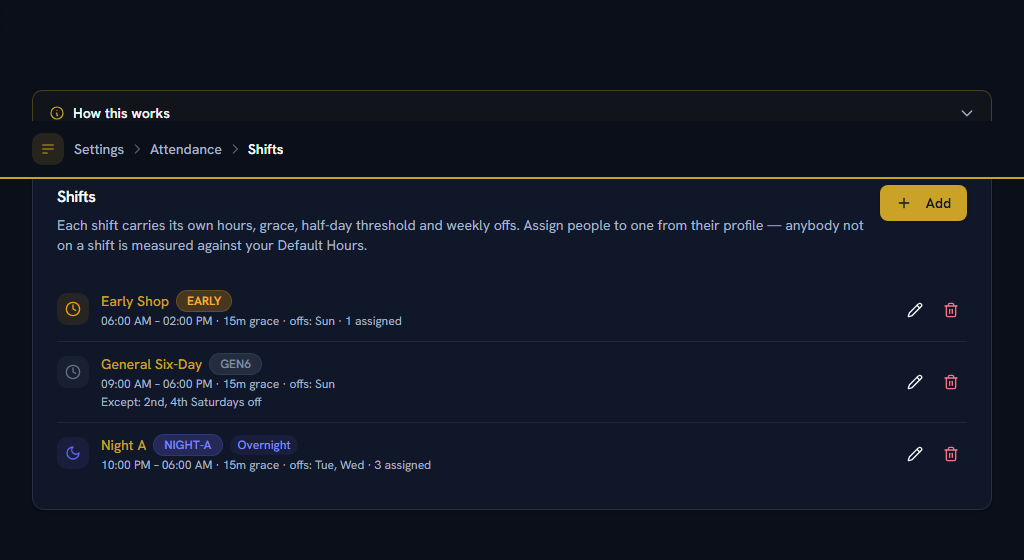
Skip this if everyone works the same hours. Add a shift where they do not — a night rota, a shop floor, a hospital, a call centre.
- Add the shift with its start and end. A shift ending before it starts runs past midnight, and the night's record is dated the day the shift began.
- Set its own grace, half-day and full-day thresholds. Each shift carries its own — it does not inherit Default Hours.
- Pick its working days. The rest become that shift's weekly offs, replacing the company working calendar for anyone on it.
- For an alternate Saturday off — or any other fortnightly or monthly pattern — turn on Different weeks work different days and set each week separately. "1st week" means the first Saturday of the calendar month, not the week the 1st happens to fall in.
- Assign people from their profile in User Management → Details.
Do
Take somebody off a shift by assigning "No shift — default hours" from the date the change takes effect.
Don't
Delete the old shift assignment. Past attendance is recalculated against it, so deleting it rewrites history.
Alternate week-offs are a shift's, not the company's. The working week in Settings → Working Calendar is one set of days for every week — to give somebody a fortnightly Saturday off, put them on a shift.
Holidays that are not the same everywhere#
Settings → Working Calendar holds the holiday list, and a holiday can be narrower than the company.
- Leave State blank for a company-wide day. Fill it in and only people posted to a work location in that state get it — the spelling has to match the state on the work location exactly.
- Mark a day Optional for a restricted holiday. It stays an ordinary working day until an employee chooses it, up to the limit set below the list.
- Set the limit — how many optional holidays one person may choose in a leave year. Zero switches choosing off without removing anything from the calendar.
Employees pick theirs on the same page, under Your optional holidays, and a reminder goes out once a year to anybody who still has one to choose.
An optional holiday nobody has chosen is a working day. Publishing four of them and leaving the limit at zero publishes a list nobody can use — the screen says so, but it is the one to check after adding the first one.
Overtime#
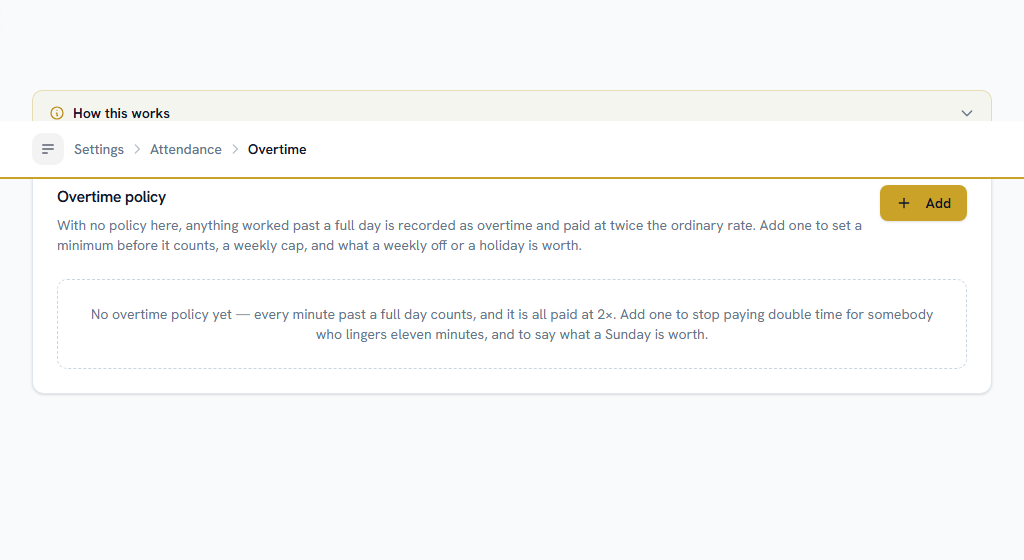
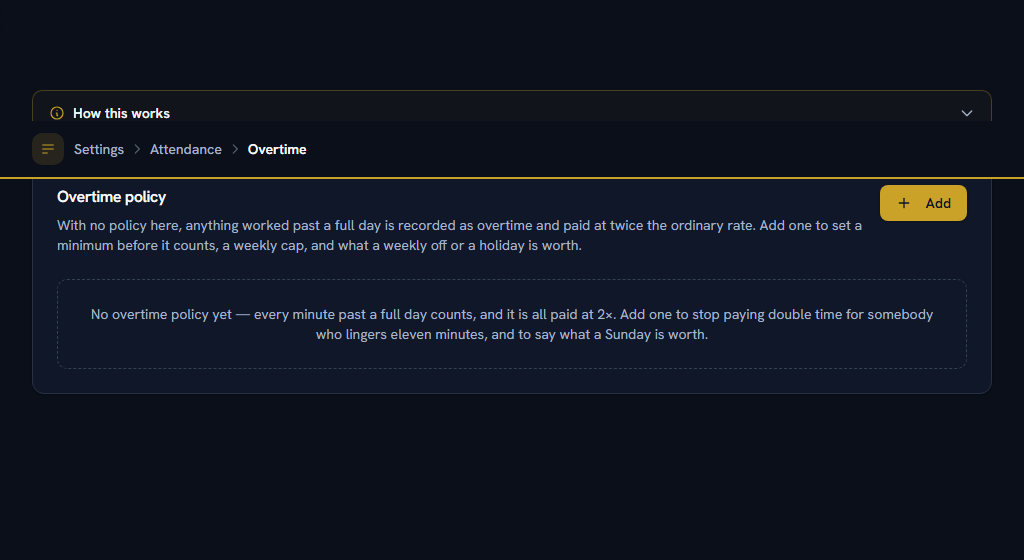
with no policy here, every minute worked past a full day is overtime and all of it is paid at twice the ordinary rate. Add a policy to change that.
- Add a policy for Everyone, and a second one for a shift if that team's rules differ. A shift's own policy wins for anybody on it.
- Set the minimum before it counts. Thirty minutes is the commonest answer; zero means every minute counts, which is what happens with no policy at all.
- Decide whether early starts count. Many companies pay only for staying late. Either way it is recorded, so "who is being asked to come in early" stays a question the data can answer.
- Set what each kind of day pays — an ordinary working day, a weekly off, a holiday, and a night shift.
- Set a weekly cap if you have one, and name the salary component that hours past it are paid under.
Do
Add a new policy from a later date when the rules change.
Don't
Edit the existing one. Editing corrects the rules for every day from its own date onwards, including months you have already paid.
Twice the ordinary rate is the legal minimum, not a default. Section 59 of the Factories Act sets it, so you can pay more than 2× and the screen will refuse less.
A policy also changes how overtime is measured, from the date it takes effect. Without one, overtime is anything worked beyond a full day's minutes — which on a shift with an unpaid break includes the break. With one, it is the time worked before the shift started and after it ended, counted separately. On a 9-to-6 shift with a 480-minute full day, somebody working 08:00 to 19:00 goes from 180 minutes of overtime to 120. Days already recorded are never recalculated, so nothing you have paid changes.
Hours past the weekly cap are not thrown away. They are recorded, reported, and paid at the ordinary rate under the component you name — the register an inspector asks for is hours _worked_, not hours _paid_.
Overtime Approvals#
turn on needs approving on an overtime policy and a month stops being paid until somebody signs it off. This is where you say who.
- Pick who approves. ⚠ The request comes from whoever checked and sent the month — usually a supervisor, on their team's behalf — not from the employee. So "reporting manager" here means the sender's manager.
- Pick a fallback for senders with nobody above them.
- Grant somebody the approve permission under Settings → Roles → Overtime → Overtime Claims → Approve. Nobody holds it by default, deliberately: it is the money decision and it should not be the same person who prepares the month.
While a month that needs approving has not been approved, payroll stages nothing for it — it does not fall back to the raw hours from the register. That is the point of the setting, and it is also the way to get it wrong: turning on "needs approving" without naming an approver stops overtime being paid, with the reason only visible on the payroll pre-flight.
Do
Set the approver up before you turn on "needs approving" on any policy.
Don't
Give the same person Submit and Approve. Sending and signing are split on purpose; it is the most valuable separation in this module.
Late Marks & Regularization#
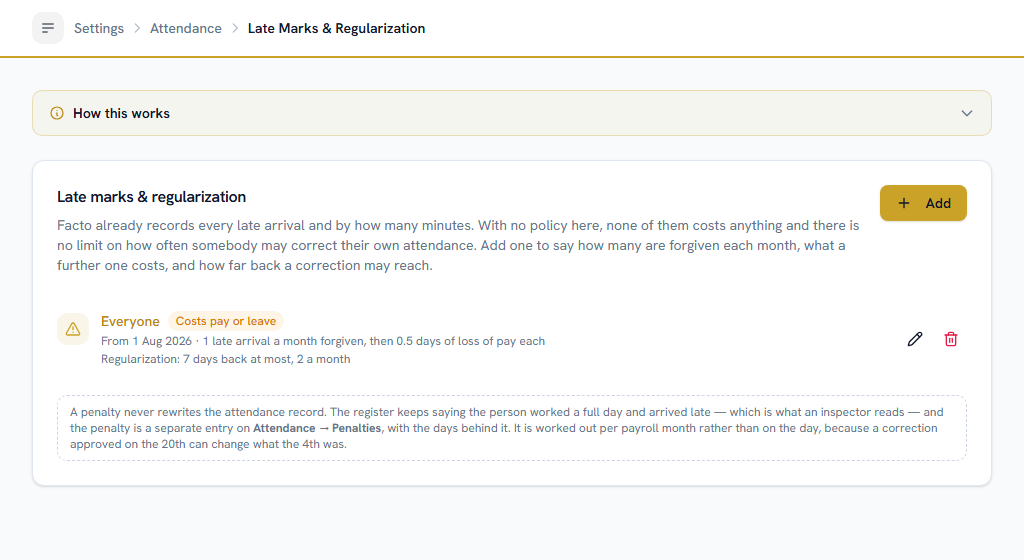
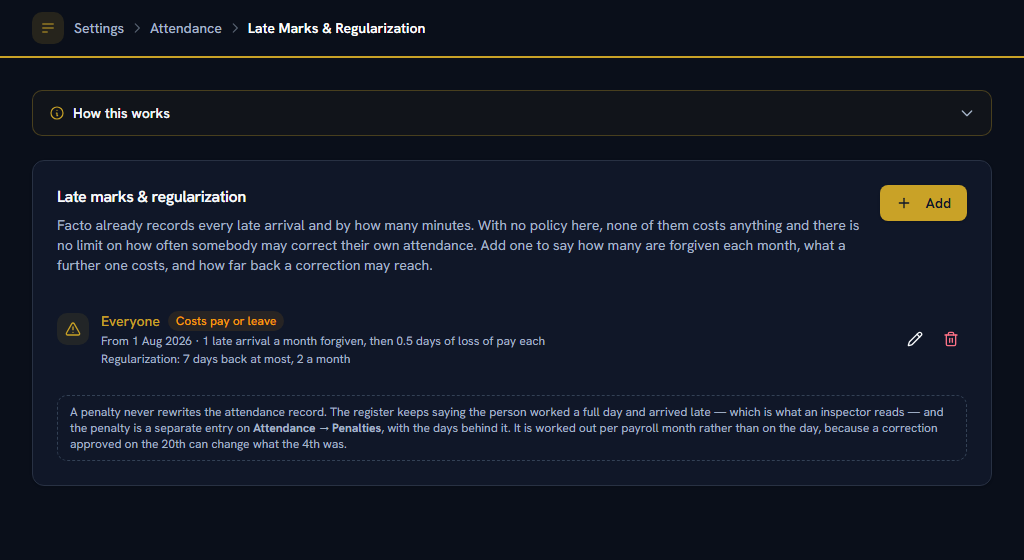
Facto has always recorded that somebody arrived late, and by how many minutes. Until you set this up, none of it costs anything and there is no limit on how often somebody may correct their own attendance. This is where "three lates make a half day" stops being a sentence in a handbook.
- Set how many late arrivals a month are forgiven. Three is the usual figure. Zero means every one counts, including the first of the month.
- Choose what a further one costs. Recording it and telling them costs nothing and is where most companies start. Half a day of unpaid absence is the common next step. Or take it off a leave balance you name — the "three short leaves make one casual leave day" idea, one rule along.
- Set what one penalty costs in days. Half a day is the usual figure.
- Set how far back somebody may ask for a correction, and how many they may raise a month. Both are off by default, which is today's behaviour: any day, any number.
- A per-shift policy overrides the company-wide one for anybody on that shift — which is how a night team can have a longer allowance than the office.
A penalty never rewrites the attendance record. The day still says a full day was worked and that the arrival was late — which is what an inspector reads — and the penalty is a separate entry on Attendance → Penalties, with the exact dates behind it. If you were expecting the day to turn into a half day, this is why it does not.
The allowance sits on top of the grace minutes on Default Hours or on the person's shift. Grace decides whether an arrival counts as late at all; this decides how many late arrivals are forgiven before one costs something. A 10-minute grace and an allowance of three means somebody can be 9 minutes late every day of the month for nothing, and 11 minutes late four times before anything happens.
Do
Add a new policy from a later date when the rules change.
Don't
Edit the existing one. Editing corrects the rules for every day from its own date onwards, including months already penalised and already paid.
Half a day of loss of pay is not a deduction from wages, and the distinction protects the employee. A deduction comes out of wages that were earned, and the law caps all deductions in a month at half of them — so a fine or a loan instalment competes for that ceiling. Loss of pay is wages never earned, because the person was not at work, so it is not subject to the cap and never eats into it. That is why a late-mark penalty deliberately does not go through Deductions.
If you take it off a leave balance, check whether that leave type may go below zero. One that cannot will simply refuse the debit for somebody with nothing left — the penalty is still recorded on the register and costs them nothing.
Nobody can waive a penalty until you grant Settings → Roles → Attendance → Late-mark Penalties → Waive. It is deliberately separate from reading the register, because a waiver is a decision about one person rather than a change to the rules. Every employee can read penalties recorded about themselves by default, and nothing more.
Whatever you set for corrections, a correction into a payroll month you have already finalised is always refused. That one is not configurable — reopening it would restate pay that has gone out.
Biometric Devices#
Only if your company records attendance at a reader on the wall rather than with the Check In button. Facto support switches this on per company; until they do, this card is not shown.
- Register each reader. Give it a short code — exactly what its export's Device column will say — a name, its site, and the timezone its clock is set to.
- Enrol people on HRM → Biometric Devices → Enrolments: who each id on that reader means, from which date. A reader keyed on employee codes can enrol everybody in one go with By employee code.
- Upload an export from the same page. Every tap becomes the same attendance day the Check In button would have written — the first tap in and the last tap out, with lateness, hours and overtime worked out by the same rules.
- Or let the reader push. The key button beside a reader issues its push URL. Put it in the reader (or the box that collects its log) and each tap arrives as it happens, with the day updated moments later — the same rules as an upload, and sending a tap twice records it once.
- Or use the reader's own cloud setting (ADMS). Many eSSL and ZKTeco readers accept only a server address and a port, not a URL. The tower button beside such a reader turns on vendor push: list the address(es) the site connects to the internet from, then type the server address and port shown in the drawer into the reader's cloud server setting. The reader is recognised by its serial number, so enter that on the device first.
The push URL is shown once. Only a fingerprint of it is kept, so copy it before you close the drawer. Anyone holding it can send punches for that reader — if it is lost or leaked, issue a new one and the old one stops working straight away.
Vendor push accepts a reader only from the addresses you list. A serial number is printed on the reader, so on its own it proves nothing. If the site's internet address changes, the reader's punches are refused until you add the new one — the tower button shows the address it was last refused from. Add it only if it is your site's own address.
Registering a device changes nothing for anybody. People keep the Check In button until the company's capture mode moves to devices. Facto support sets that, from a date at least a day ahead, and the Check-in & Check-out card shows which mode is in force and since when.
A device's timezone is chosen once. If it turns out to be wrong, correct it with the globe button — that moves the time of every punch the device already sent and rebuilds each day that moves. You are shown how many before you confirm, and nothing is added or deleted.
Short Leave Approvals#
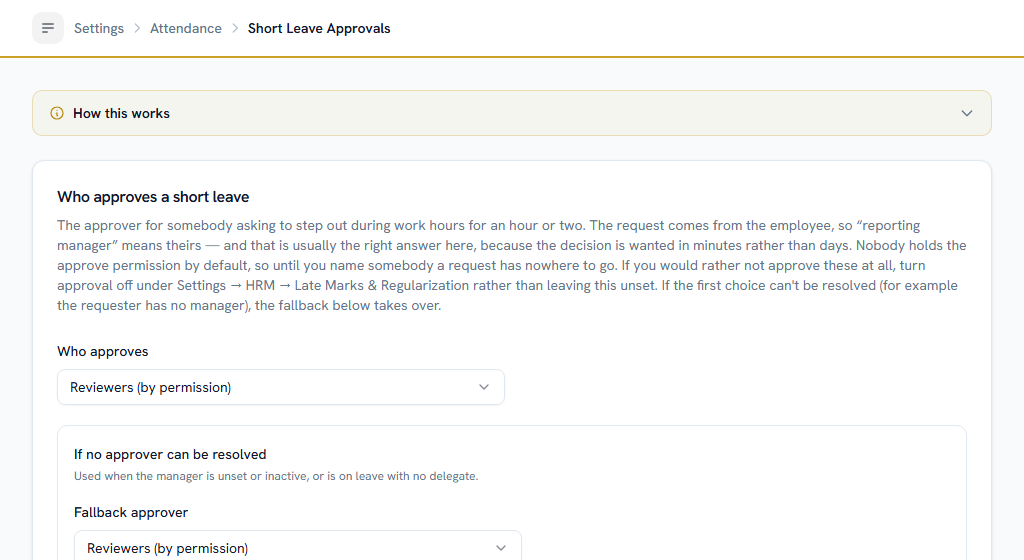
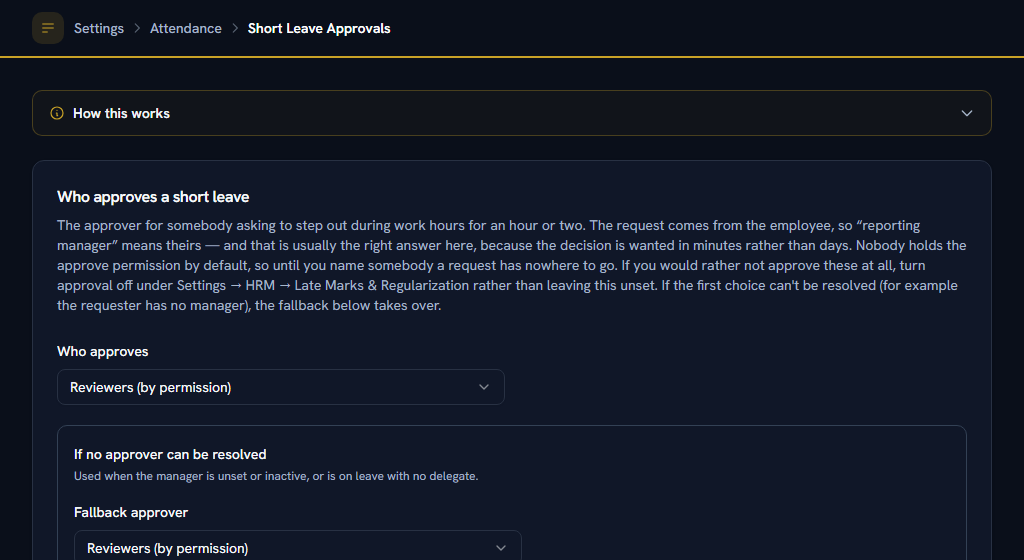
Who decides whether somebody may step out for an hour. This is a different decision from an attendance correction and it has its own routing, deliberately: a correction is a record of something that already happened and can wait; a short leave is somebody standing by a door.
- Pick who approves — usually the reporting manager.
- Set a fallback for anybody with no manager on file.
Nobody holds the short-leave approve permission by default. Until you name somebody here, a request has nowhere to go at all. Grant it under Settings → Roles → Attendance → Short Leave → Approve to whoever you name.
Route it to somebody who can answer in minutes. Somebody raises a short leave on a phone twenty minutes before they need to leave. Sending it to a committee, or to somebody who reads their queue weekly, means people stop raising them and just go — which loses the record the feature exists to create.
Do
Turn approval OFF under Late Marks & Regularization if you would rather not approve these at all. A pass is then valid the moment it is raised, and is still recorded, still counted against the monthly allowance and still deducted.
Don't
Leave approval on with nobody named here. That is a queue nobody can clear.
Approvals#
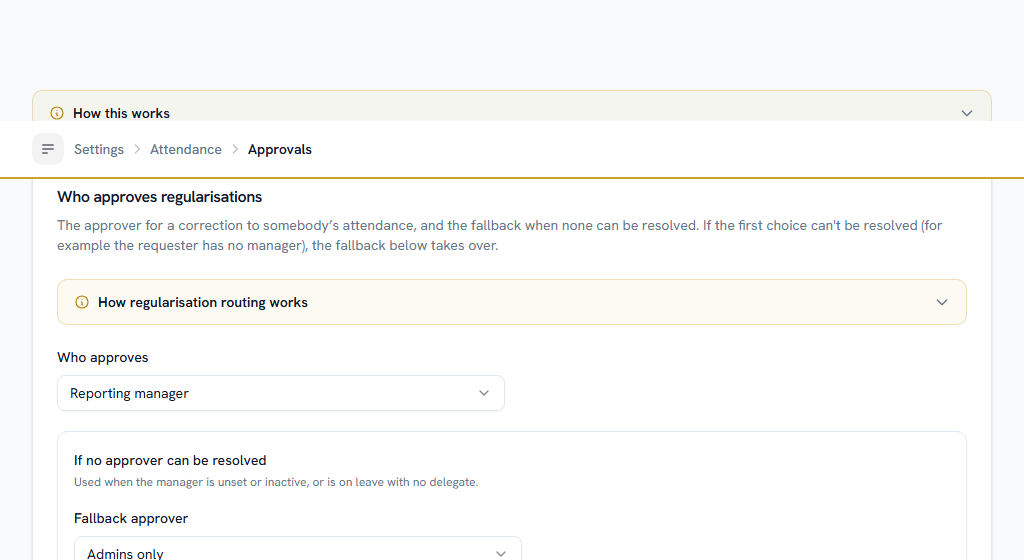
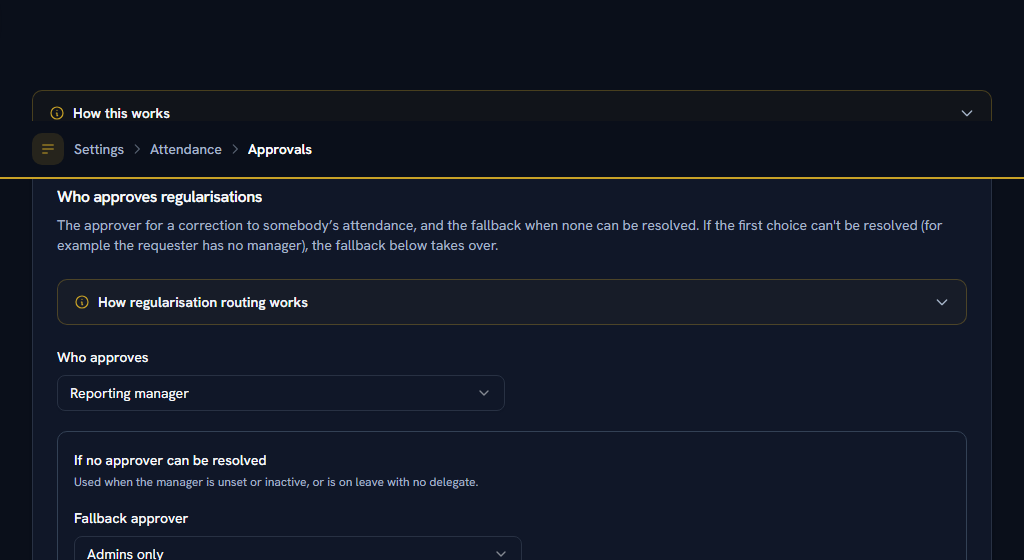
Who reviews a regularization — somebody asking to correct attendance that was missed or recorded wrongly.
- Pick who approves, by role or by named person.
- Add a second level if corrections need HR as well as a manager.
- Set how long a request waits before it escalates.
Set this before people start checking in, or corrections pile up with nobody assigned to them.
Section 02One-time setupLeave#
WhereSettings›HRM›Leave
The order matters here more than anywhere else in HRM.
leave eligibility is keyed on employment type and every balance is measured from the leave year, so add employment types first and set the leave year second. Leave types come last.
OpenEmployment TypesLeave Year & DefaultsLeave TypesApprovals
Employment Types — first#
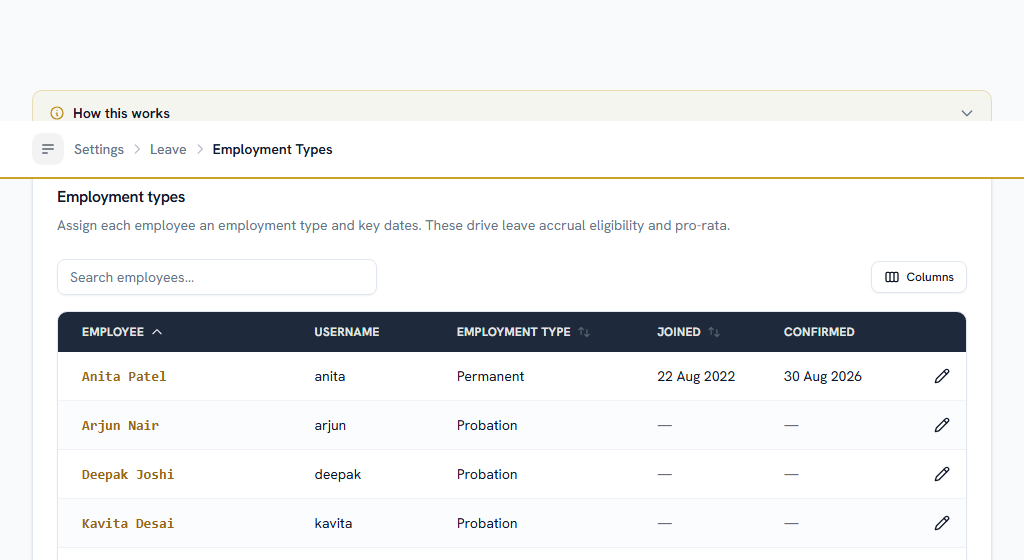
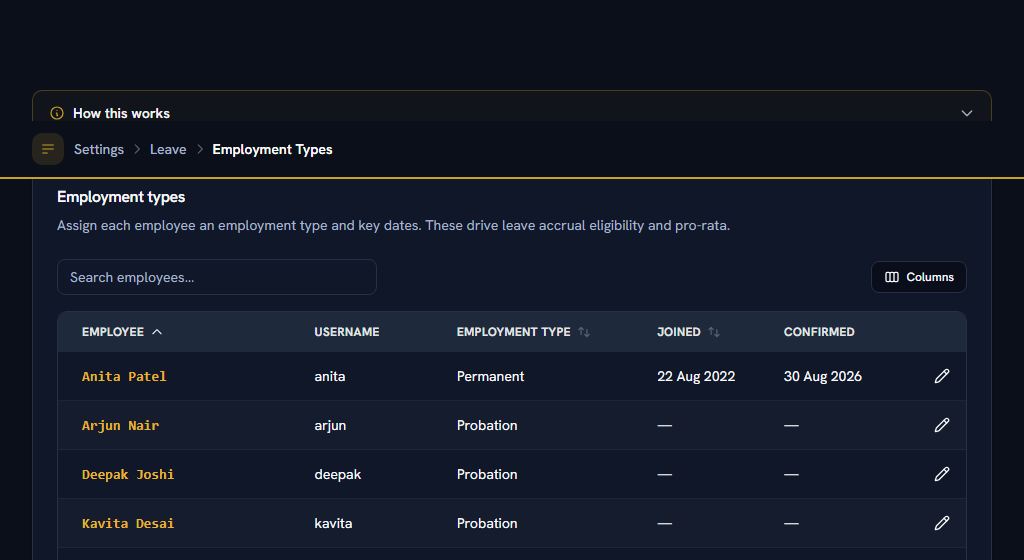
Leave eligibility is keyed on employment type, so a leave type cannot be restricted to permanent staff until "Permanent" exists.
- Add each employment type you use — Permanent, Probation, Contract, Intern.
- Assign each person to one on their profile.
Leave Year & Defaults#
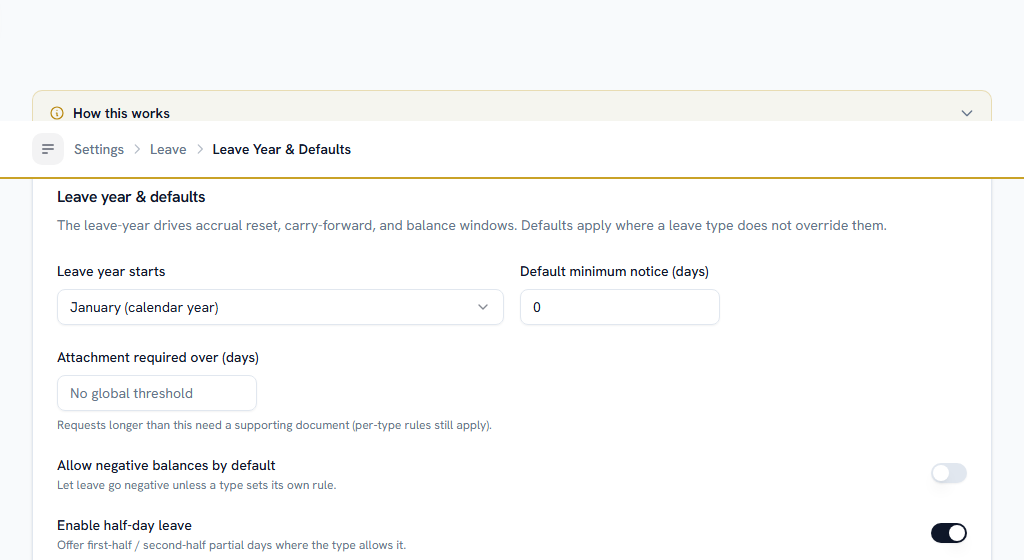
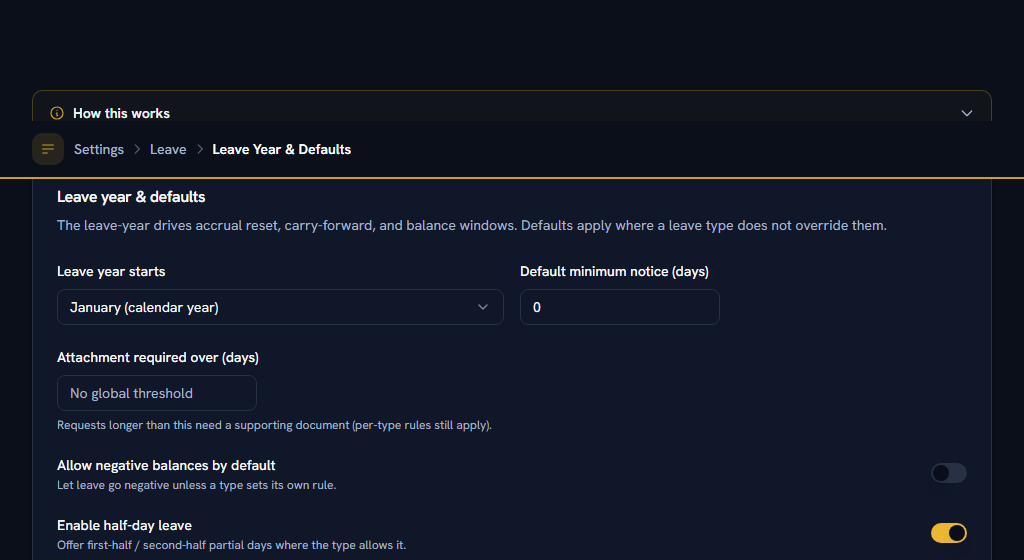
Do this before adding leave types — accrual, carry-forward and balances are all measured from the year you set here.
- Choose the month your leave year starts. April is the common choice in India.
- Set the default notice period, and the number of days above which a request needs a supporting document.
- Decide whether balances may go negative.
- Decide whether half-days and comp-off are offered at all.
Leave Types#
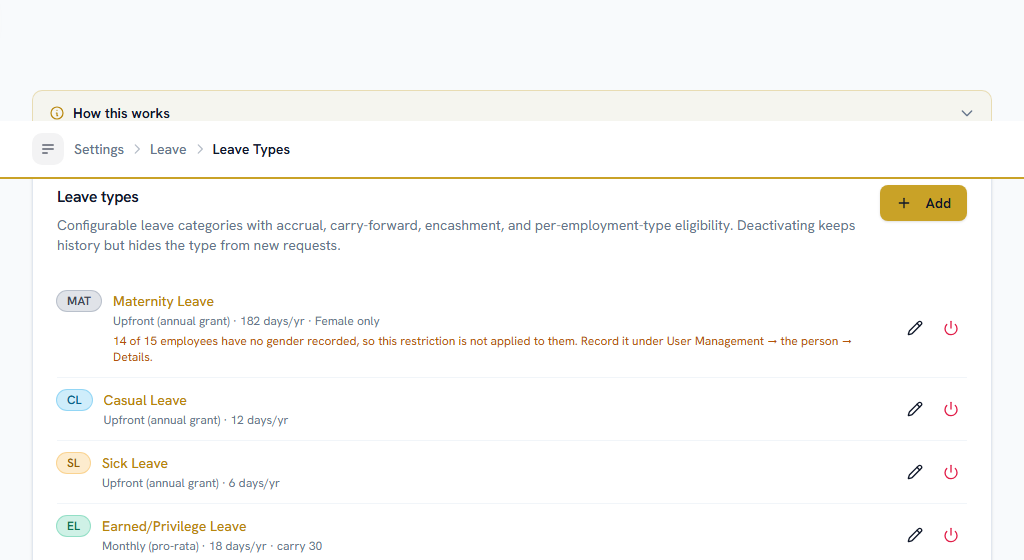
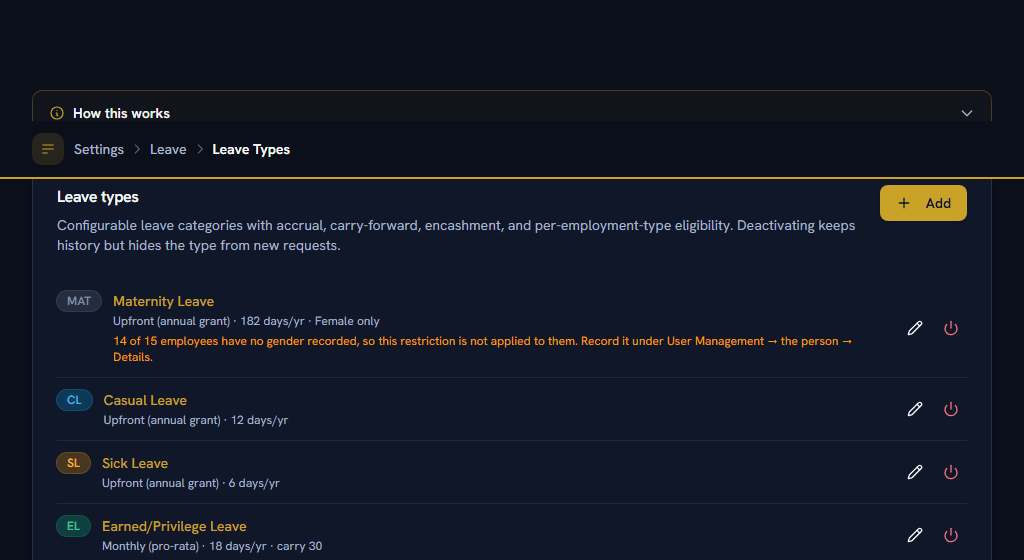
The request form and every balance come from this list. For each type:
- Give it a short code and a name —
CL, Casual Leave. - Say how it accrues: the whole year's quota up front, a set number of days each month, or not balance-tracked at all — which is what loss-of-pay and comp-off use.
- Set carry-forward, expiry and encashment.
- Say whether it can be taken in half days, whether it needs approval, and whether it needs a document.
- Limit it to the employment types it applies to.
- Restrict it to one gender, if it is maternity or paternity leave.
A gender restriction applies only to people whose gender is recorded. Anybody with nothing on file may still apply for the type — which is deliberate, because the field starts out empty for everybody and the alternative would be refusing maternity leave across the company until somebody had filled in four hundred rows. The screen shows you how many people are in that state, beside the type that restricts on it, so you can see how complete the enforcement is. Gender is set on the person's Details tab in User Management, or brought in with the employee import.
Approvals#
- Pick who approves, by role or by named person.
- Add further levels if longer requests need more sign-off — the manager approves anything, HR also approves anything over five days.
- Set how long a request waits before it escalates.
Set this before the first request, or every request lands with an administrator.
Section 03One-time setupCheck your setup#
Open Leave Management and apply for a day yourself. It should reach the right approver. Everything below has to be true before the first person checks in.
Section 04One-time setupIf you also run payroll#
Payroll reads this module. Once you move on to the Pay & Claims guide, three things connect back here:
- The attendance cut-off decides which days count towards which month's pay.
- Unpaid leave costs somebody a day's pay, at a rate you set in the pay cycle.
- The payroll run pulls attendance and leave in before it calculates anything.
Part 2Everyday use
ForEveryone, HRSections4Read15 minNeedsPart 1 done once
Section 05Everyday useIf you are an employee#
Checking in and out#
WhereHRM›Attendance›My Attendance
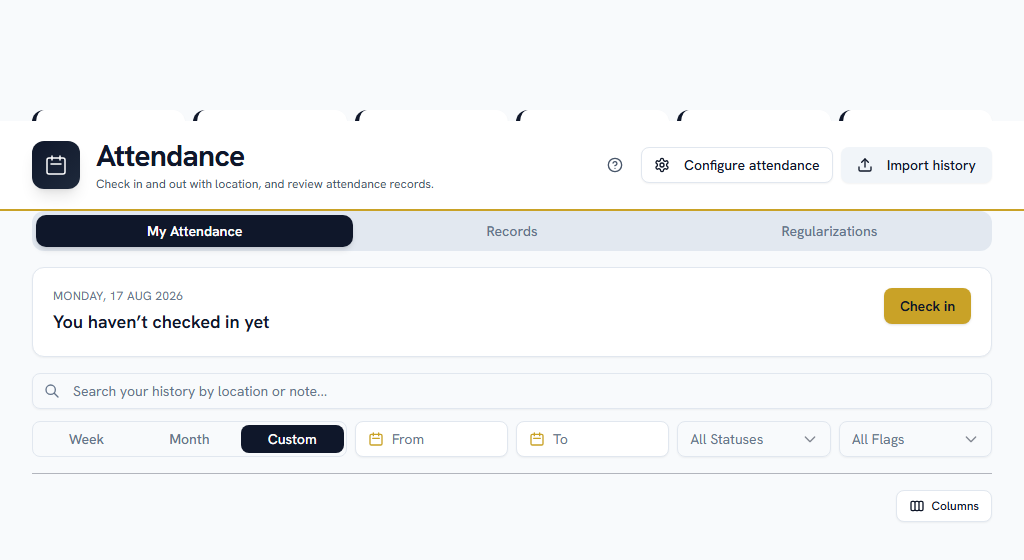
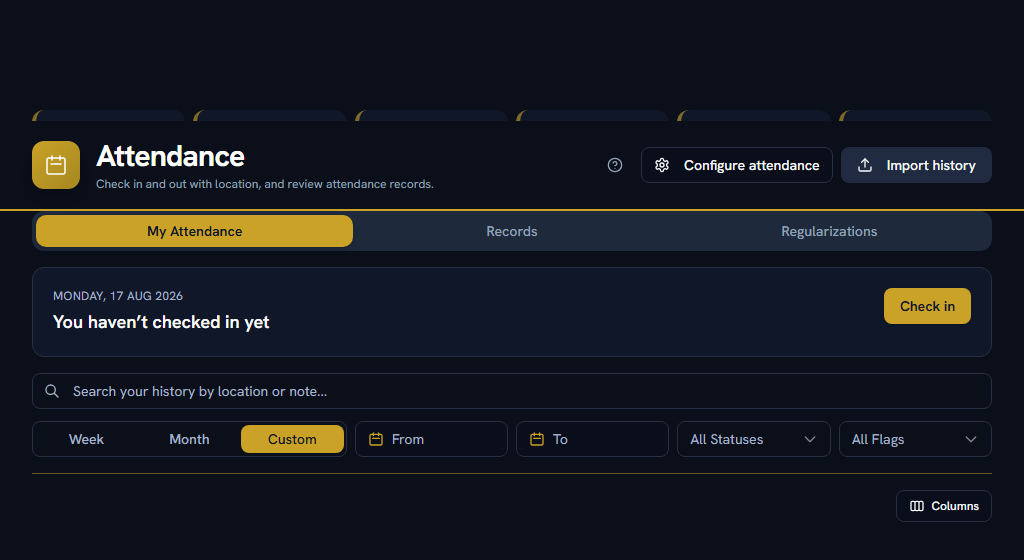
Press check in when you start and check out when you finish. Depending on how your company set it up, you may be asked for a selfie, and you may need to be at one of your company's locations for it to count. If your company turned checkout off, you only check in.
If you forget, or it recorded the wrong thing: don't ask somebody to edit it. Use Request correction on the day in question, say what actually happened, and it goes to whoever reviews corrections at your company. Track it under the Regularizations tab.
Your company may limit how far back a correction can reach and how many you may raise in a month. If it does, the form says so before you fill it in, and the calendar will not offer a day that is out of reach. Two things are worth knowing about the monthly count: it counts corrections you sent rather than corrections that were approved, so a rejected one still counts — that is deliberate, otherwise a reviewer's backlog would decide your limit — and it resets on the 1st.
One refusal is not configurable and no setting turns it off: a correction into a payroll month that has already been finalised is always refused, because reopening it would restate pay that has gone out. If a day in a closed month is genuinely wrong, raise it with HR — anything owed is settled as an arrear in a later month rather than by editing a settled one.
For HR, on a company that records attendance at a reader.
- Upload the export each day (or each week). Uploading the same file twice is safe — a tap the device already sent is recognised and skipped.
- Clear the unmatched list. A tap under an id nobody is enrolled as is kept, never thrown away, and listed on the Enrolments tab with the first date it was seen. Enrol the person from that date and those taps count straight away.
- Repair a day the reader missed with Repair days: a check-in, a check-out or both, for one or many people over a range, with a reason. It is not limited by anybody's monthly correction allowance — it repairs the company's own hardware — but a day in a payroll month already closed or paid is refused and named.
- Check the Coverage tab. Every working day, each reader is checked against what it should have sent. A day a reader was expected on and sent nothing is listed as a gap, and you are notified. Upload the missing export, repair the days, or — if the site was shut, say — clear the gap with a note.
- Watch the one-punch digest. Each morning you are told, per reader, how many people tapped only once the day before. Those days have no hours until the missing tap is repaired.
A day with no punch is not an absence — and payroll waits for you to look. Nothing is docked automatically for a day the reader has no record of; one broken reader would otherwise dock a whole shift. Instead, a payroll month cannot be sent for approval while it has an uncleared gap, or device days for somebody who had already left (deactivated with no exit on file, or after their last working day). Both are listed under Coverage → Payroll holds for the month, and on the payroll pre-flight.
Lunch-break taps do not reduce anybody's hours. A day is first tap in to last tap out. The taps in between are kept and shown on the Punches tab and in the day's record, marked as not counted, and change nothing about pay.
Punches that arrive while biometric attendance is switched off are kept, not applied. A reader with a push URL keeps sending; its taps are stored and change nobody's attendance. When it is back on, the Devices and Punches tabs say how many are held — Apply them works each affected day out, signed with your name.
A few things work differently on a company that records at a reader:
- My Day no longer waits for a check-in. It only refuses a working day with no attendance once your own reader has sent punches from after that day — until then the export simply has not arrived.
- Short leave closes itself from the gate: the tap back in after the tap out is your return, and the leave costs the time from its approved start to that tap. With no tap out on record, the full time asked for stands, just as when nobody taps "I'm back".
- A missed check-out is reported only once the reader has sent punches from after your shift ended, and it asks HR to add the missing tap rather than asking you for a correction.
Stepping out for an hour#
WhereHRM›Short Leave
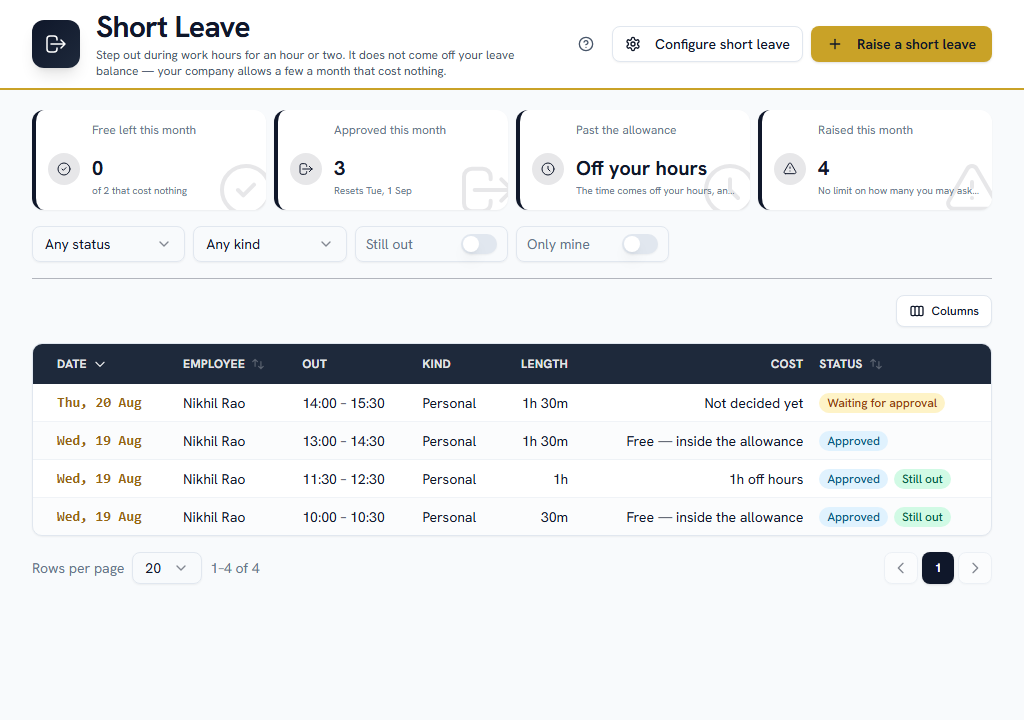
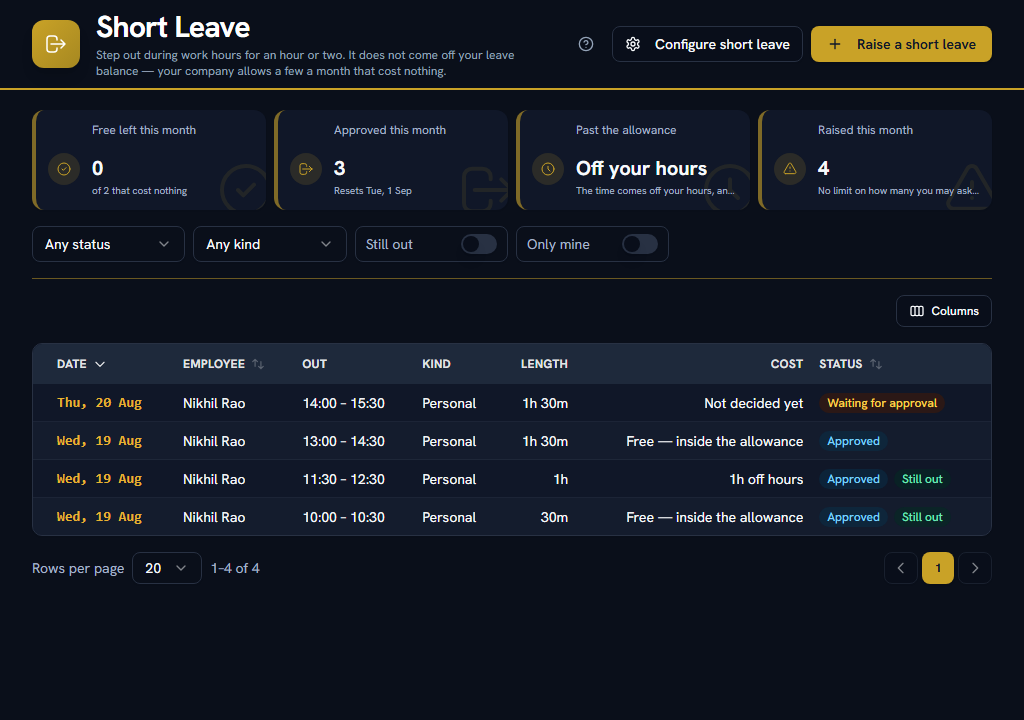
OpenShort Leave
An appointment, a bank, a school run. Raise a short leave rather than checking out and back in — checking out cuts your day at the moment you left, and takes the day's overtime with it.
- Raise it. Pick the date, the time you are leaving and the time you will be back, and say why. The form tells you what it will cost before you send it.
- It is approved (or it is valid straight away, if your company does not require approval).
- Tap "I'm back" when you return. That is the only tap there is.
It does not come off your leave balance. Your company allows a set number a month that cost nothing at all — the tiles at the top of the page say how many of yours are still free. Only what you take past that allowance can cost anything, and even then your company chooses between taking the time off your hours or converting it to leave.
There is no "I'm leaving" tap, and that is on purpose. If there were, forgetting it would be free — so the honest person would be deducted and the forgetful one would not. The time you ask for is the time counted, and only your return is stampable. That flips it: tapping "I'm back" can only ever count less, never more. Come back late and you are still only charged what you asked for.
Do
Tap "I'm back" every time. If you asked for 90 minutes and were back in 70, you are charged 70.
Don't
Check out and check back in. It cuts the day's hours at the moment you left and takes its overtime with it.
| The four kinds | What it means |
|---|---|
| Personal | Your own errand. The only kind that can use up your monthly allowance or come off your hours. |
| Official duty | Company business — a client visit, a delivery. Never deducted, and uses none of your allowance. |
| Late arrival | Permission to start late, agreed in advance. Your check-in already records the shortfall, so nothing is deducted on top — and the day is left out of your late-arrival count entirely rather than using up one of the forgiven ones. |
| Early exit | Permission to finish early, agreed in advance. Same again: your check-out already records it. |
Where the time is deducted, it comes off any overtime as well — overtime is worked out from your worked hours, so an hour at the dentist is not an hour of double time. Four hours is the longest a short leave can be; anything longer is half a day and belongs in Leave Management, where it comes off a balance and shows on the who's-out calendar.
Applying for leave#
WhereHRM›Leave Management›My Leave
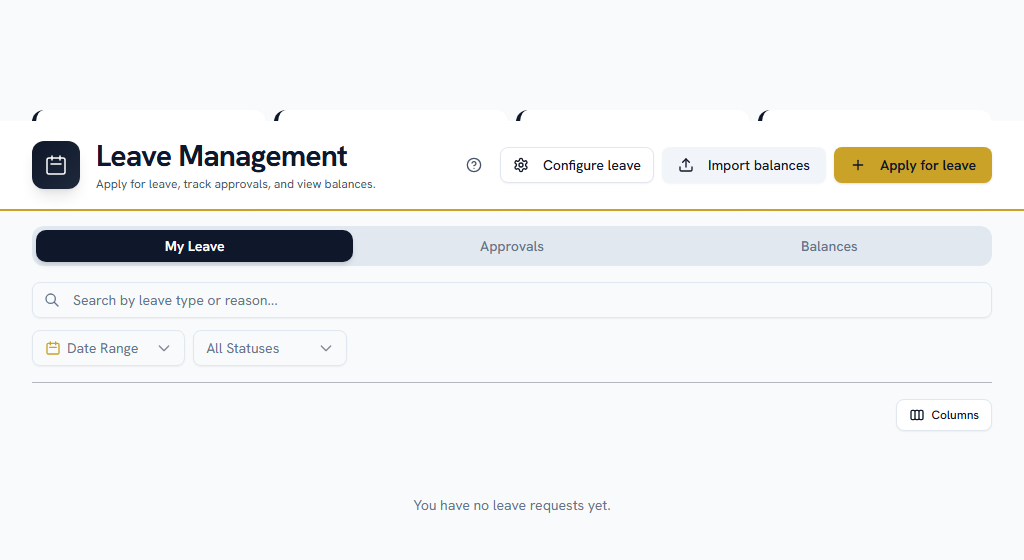
Press the button to apply. Pick the type, the dates, and give a reason.
Things that will stop you, and what they mean:
- "You don't have enough balance." Check the Balances tab. Some types accrue monthly, so the balance grows through the year.
- "Too short notice." Each type has a minimum notice period. Applying for tomorrow when the type needs three days will be refused.
- "A document is required." Longer requests need a supporting document — usually a medical certificate. Attach it and resubmit.
Your balances are on the Balances tab. If your company uses comp-off — a credit for working a weekly off or a holiday — it is on the Comp-off tab.
Seeing who is out#
WhereHRM›Calendar
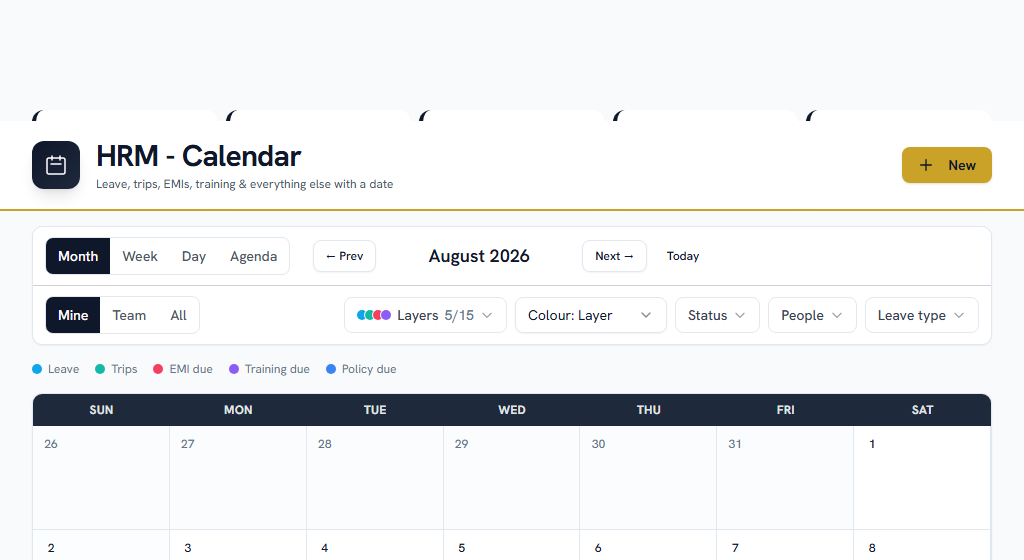
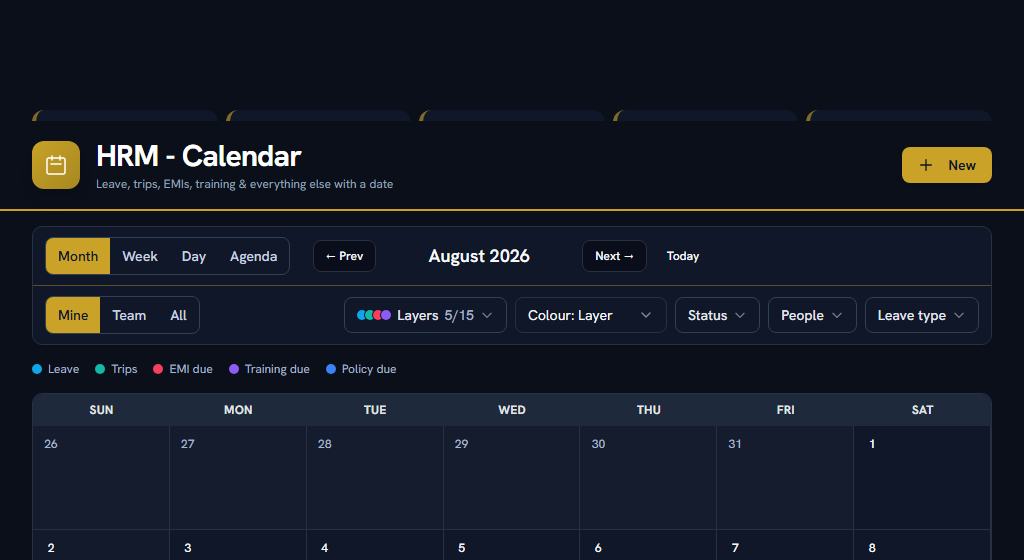
Who is off, company holidays, and your own commitments in one grid.
Section 06Everyday useIf you approve things#
| What you're approving | Where |
|---|---|
| Attendance corrections | HRM → Attendance → Regularizations |
| Leave requests | HRM → Leave Management → Approvals |
You are notified when something arrives. Requests escalate if you sit on them — your company sets how long.
Approving a leave request grants the leave and deducts the balance. When you reject, say why: the person sees your reason and can usually fix it and resubmit.
Section 07Everyday useIf you run HR#
Every day#
- HRM → Attendance → Records — everybody's attendance. Filter by date, person or flag to find missing check-outs and out-of-range check-ins.
- HRM → Attendance → Regularizations — corrections waiting on somebody.
- HRM → Leave Management → Approvals — leave waiting on somebody.
Late-mark penalties#
WhereHRM›**Attendance›Penalties**
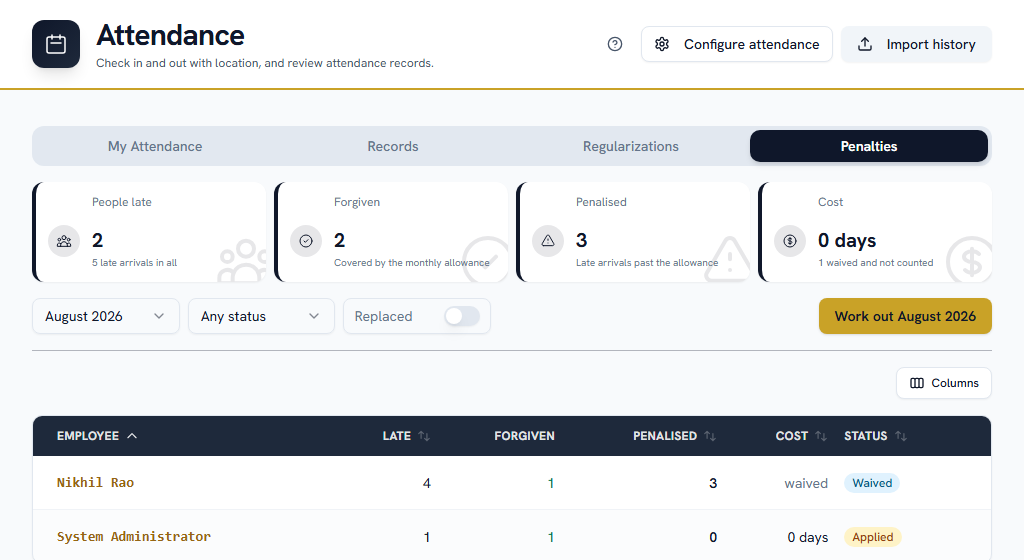
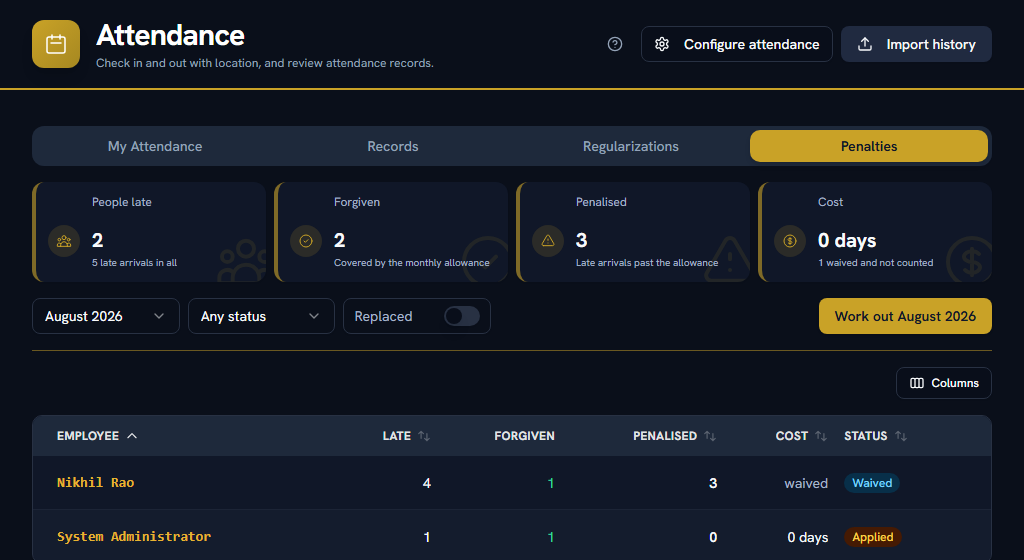
what your late-arrival policy has come to this month. Facto works it out each night and again whenever you press the button; nothing is sent anywhere and nobody is charged by looking.
- Pick a month. Penalties are worked out per payroll month, so a company with a cut-off on the 25th gets the same span its payslip covers.
- Press Work out this month to recalculate now — after a batch of corrections, say, rather than waiting for the night.
- Click anybody's row to see which days. Every late arrival in the month is listed, in date order, with how late each one was and whether the allowance covered it. The forgiven ones are listed too — "you were late five times and two were forgiven" is only checkable if you can see all five.
The four figures at the top are worth reading once:
Forgiven
Late arrivals the monthly allowance absorbed. Nobody pays for these, and the number is here so the allowance is visible rather than implied.
Penalised
Late arrivals past the allowance. On a "record it and tell them" policy this can be three while the cost is nothing, which is that policy working rather than a fault.
A penalty never rewrites the attendance record. Every day on it still says a full day was worked and that the arrival was late. That is deliberate: the register an inspector asks for is _attendance_, not _policy applied to attendance_, and once the row holds the second the first is gone.
A figure can change after you have seen it, and that is why the month is worked out rather than the day. A correction approved on the 20th changes whether the 4th was late. Facto produces a new figure rather than editing the old one — the old one is kept, marked as replaced, and whatever it had already done is undone first: loss of pay staged for payroll is taken back off, leave debited is credited back. Turn on Replaced in the filters to see them.
One case Facto reports rather than fixes: if a correction pushes a penalty into a payroll month you have already run, the loss of pay cannot be staged — that month is paid. The toast says so, the register keeps the penalty, and those days need an adjustment in a later month.
Waiving one
- Press Waive on the row and type a reason. Required.
- Whatever it had already done is reversed — staged loss of pay, or a leave debit.
- The penalty stays on the register, marked as waived, with your reason beside it.
Do
Waive with a reason somebody could read back in a year. "Approved client travel on those mornings" survives; "agreed" does not.
Don't
Expect it to disappear. A register that hid the times you let something go would only ever show punishment, which is not a register anybody should trust.
The employee is told twice, and the first one is the useful one: when they have used the whole month's allowance — while the next late arrival can still be avoided — and again if a penalty is applied. Both arrive before payroll runs, not after the payslip.
Overtime#
WhereHRM›Overtime
press Resolve for a month, and it works out what everybody is owed under your overtime policy. It sends nothing and pays nothing.
- Pick a month. Overtime is worked out per month, because the weekly cap is — you cannot know Friday's total on Tuesday.
- Press Resolve. Re-running is safe: a month somebody has already sent or decided is left alone.
- Open anybody to see their month day by day — time before the shift, time after it, which days were too short to count, which day of the week each one fell on, and what that day pays.
The four figures at the top are worth reading once:
Below the minimum
Days too short to count as overtime at all. This is the one figure nobody is owed.
Past the weekly cap
Hours that were worked and ARE paid, at the ordinary rate rather than the overtime rate. They still count on the register.
The total here differs from the Attendance report on purpose. The report shows overtime as recorded — every minute past the shift, before any rule. This screen shows it after the policy. Both are correct; they answer different questions.
A week that straddles two months is counted in the month it ends in, whole — so a month can start a few days before the 1st. That is what stops the same Monday counting against two months' caps, and each person's page says which dates it covered.
Sending a month for approval
Only if your overtime policy asks for it — otherwise payroll prices the resolved figure and nothing below applies.
- Open somebody's month and press Send for approval. It goes to whoever you named under Settings → HRM → Overtime Approvals.
- The approver presses Approve or Reject. A rejection needs a reason, and that reason reaches both the sender and the employee.
- A rejected month can be fixed — usually with an attendance correction — worked out again, and sent a second time. The approver is told again.
- Pull back takes a month out of an approver's queue. Withdraw says the month is not being claimed at all: no overtime is paid for it, and the hours stay on the register.
Rejected
Nothing is paid, and the month can be fixed and resent.
Withdrawn
Nothing is paid, and nobody is expected to resend it. It needs a reason for exactly that reason.
A month that needs approving and has not been approved is not paid at the raw register figure — payroll stages nothing at all for it, and says so on the derived inputs preview. That is deliberate: the alternative would make the approval a badge that changed colour.
When attendance changes after a month was approved
A regularization approved in November changes what August was owed. Nothing rewrites the figure somebody signed:
- The approved claim is kept, marked Superseded, and a new one is worked out for the same month and needs approving.
- Whoever approved the original is told, with the old and the new payable figures.
- It happens on its own once a day. Check against the register on the Overtime screen does it on demand, which is what you want after a batch of late corrections.
Leave balances#
WhereHRM›Leave Management›Balances
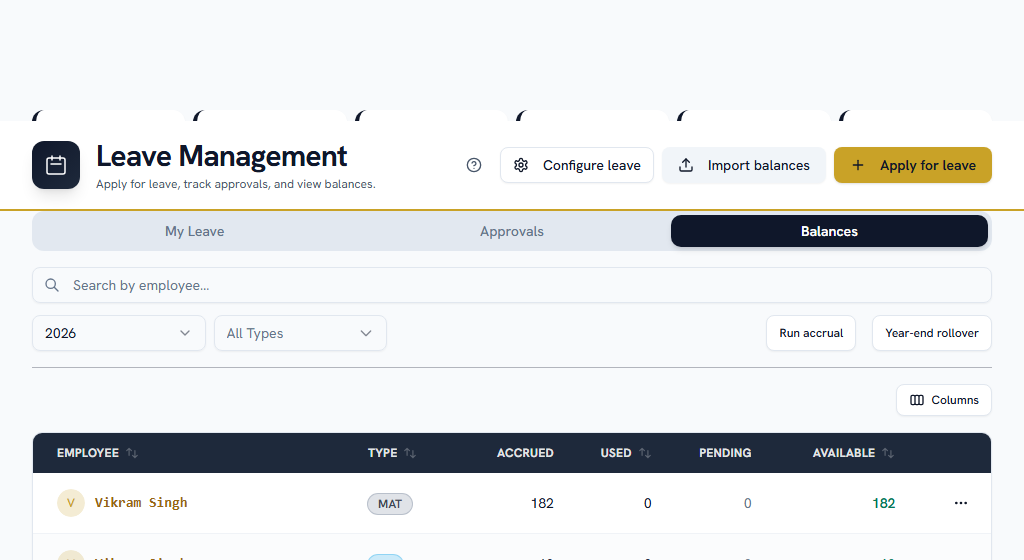
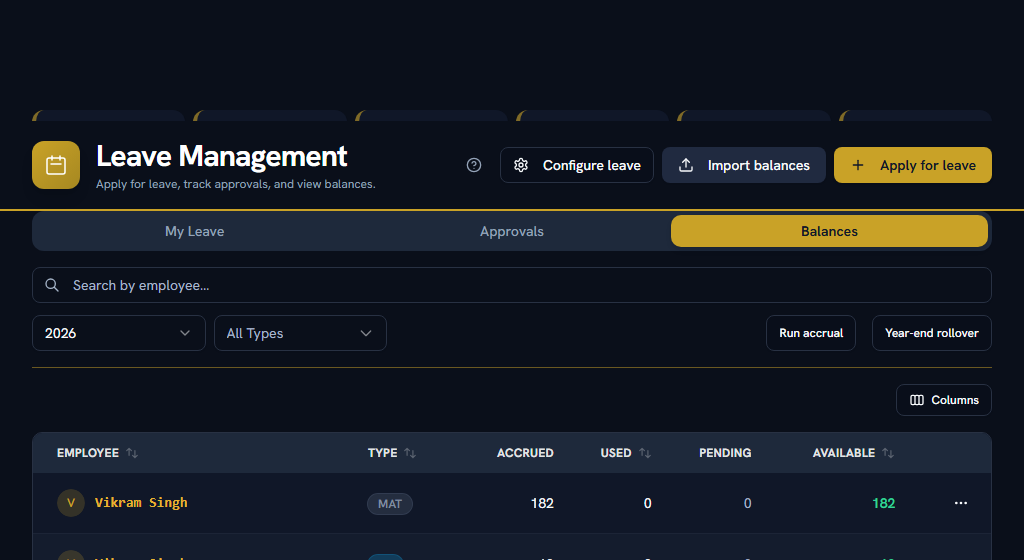
Everybody's balances. You can adjust an individual balance where something needs correcting, and there is a separate import for setting opening balances when you move across from another system.
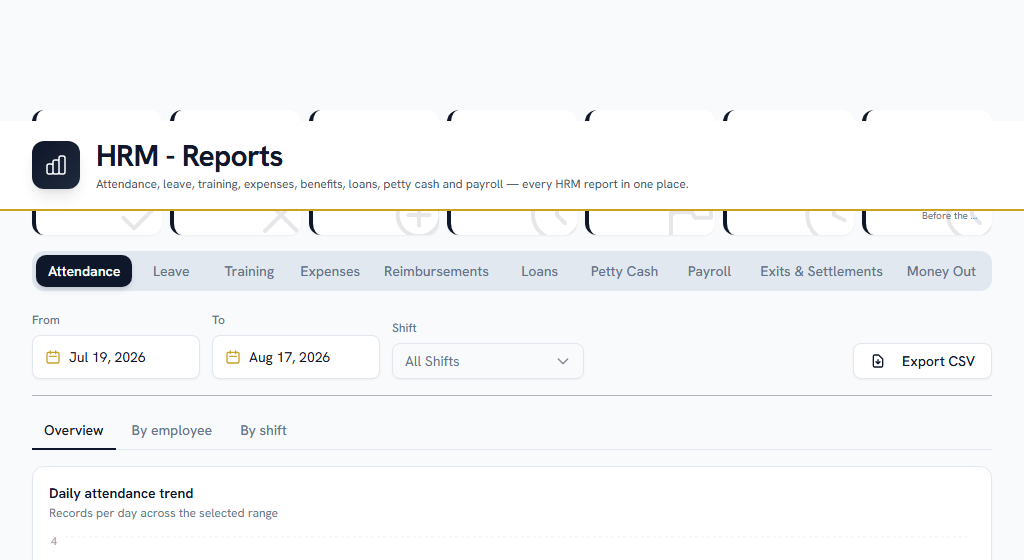
Attendance, leave and headcount reporting — and the overtime register, which is the one an inspector asks for.
The Overtime tab covers any range of months, filtered by department, in seven views:
- Daily register — every contributing day: who, when, before and after the shift, what counted, what was payable, and at what rate.
- By week — which weeks went past your cap, per person.
- By department, by employee and by month — the summaries somebody budgets against, with a month-by-month trend per person.
- Man-hours — ordinary man-hours, overtime man-hours and the total, per month. This is the shape a state annual return asks for.
- Register by worker — per employee, overtime split across ordinary days, weekly offs, holidays and nights, with the employee code first.
Every view exports to CSV on its own, and the file is exactly what was on screen.
The Attendance tab's overtime figure and the Overtime tab's will differ, and that is not a bug. Attendance shows overtime as recorded — every minute past the shift, before any rule. Overtime shows it after your policy: the daily minimum removed, the weekly cap applied, each day priced for the kind of day it was.
There is no amount column, deliberately. What overtime is worth depends on that month's proration, unpaid leave and salary structure, and it is worked out by the payroll run — a rupee figure here would be a second number that disagrees with the payslip. The register is the authority on hours; the payslip is the authority on money.
On the man-hours view, ordinary and overtime are made to add up to total man-hours, so the overtime is taken out of the ordinary column. That is why it reads lower than the attendance report's total hours, which include overtime.
Section 08Everyday useIf you get stuck#
In this order — most questions are answered before you reach the bottom.
- Look for help on the page itself. A ? in the page header opens the FAQs for that screen, and every settings screen carries a "How this works" panel with an example. Not every page has the ? yet.
- Search the FAQs — the menu under your name, top right → FAQs. Search the words you can see on screen, rather than what you think the feature is called.
- Take a tour — the same menu → Help & Tours.
- Read the message. When Facto refuses something it says why, and usually what to do about it.
- Ask your own company — Support in the sidebar. Anyone can raise a ticket there and your admins pick it up. Most things that look broken are a setting your own admin can change — a missing approver, a leave type nobody added.
- Facto Support — the pinned block at the bottom of the sidebar. Admin-only: if your question needs Facto, raise it at step 5 and your admin will escalate it.