Pay & Claims
Expenses, benefits, loans, petty cash, salary and exits.
HRM guide 3 of 7 · 37 min · 22 screenshots · updated 18 Aug 2026
- For
- Admin, HR, Finance, Everyone
- Use
- Setup + everyday
- Needs
- HRM — start here
Covers the six modules under Pay & Claims in the HRM sidebar: Expenses, Reimbursements, Loans & Salary Advances, Petty Cash, Salary, and Exits & Settlements.
This is the largest part of HRM. You do not have to set all of it up — the six modules are independent, so take only the ones you use.
Do these first:
- HRM — start here — company details, departments, people, working calendar.
- Attendance & Leave — only if you are running payroll. The pay cycle has an attendance cut-off, unpaid leave costs somebody a day's pay, and the payroll run pulls both in.
Section 01Know the difference before you start#
Four things in this group sound alike and are not. Confusing them is the commonest setup mistake.
Expenses
Business spend somebody paid for and claims back — a client lunch, a taxi, a hotel. The company's money
Reimbursements
A benefit claimed back out of somebody's own package — fuel, phone, books, meals, leave travel. Their money, coming back
Loans & Salary Advances
Money lent to somebody, repaid out of their salary. The company's money, lent
Petty Cash
Cash a department keeps in a tin for small spending. The company's money, held
A travel advance lives under Expenses and is settled by claims. A salary advance lives under Loans and is repaid from pay. They share the word "advance" and nothing else.
Part 1One-time setup
ForAdminSections6Read18 minNeedsDepartments, people, working calendar
For an Admin, once. Skip to Part 2 if somebody has already done this.
Section 02One-time setupExpenses#
WhereSettings›HRM›Expenses
Seven screens. The first two are the ones you cannot skip.
OpenClaims & SubmissionCategories & Policy LimitsTrips & AdvancesPer Diem & MileageGST & ITCBudgets & PayoutsApprovals
Claims & Submission#
- Set the claim number prefix (
EXP-00001) and the currency. These apply to new claims only, so changing them later leaves your history alone. - Choose which payout methods finance may use.
- Set how many days people have to submit an expense after they incur it.
- Decide whether likely duplicates are flagged.
Categories & Policy Limits#
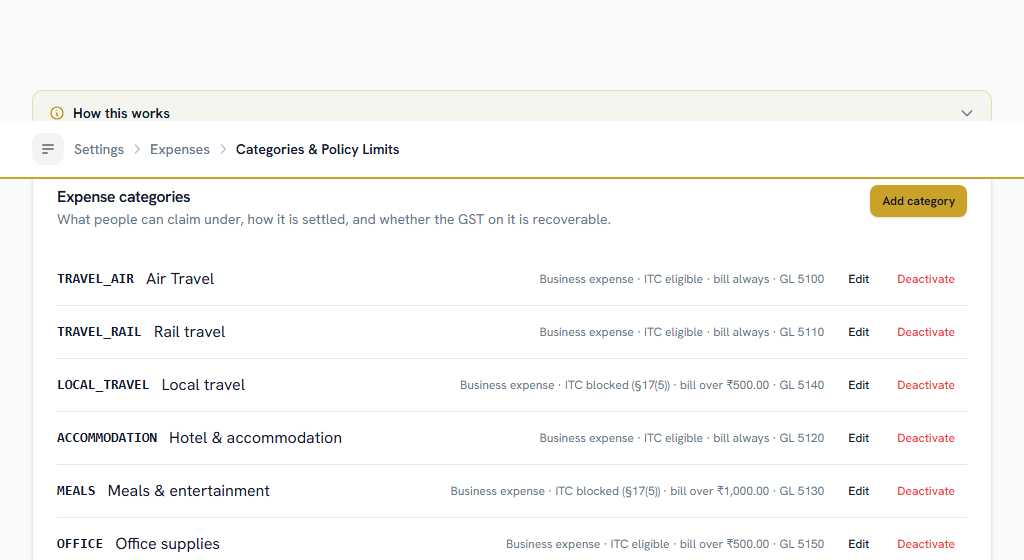
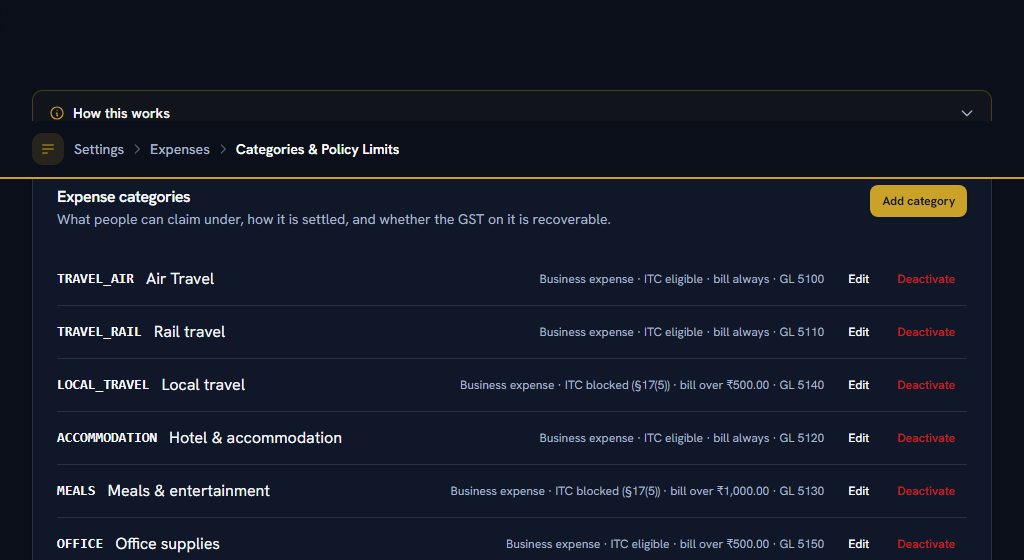
The claim form picks its categories from here, so nothing can be claimed until this is done.
- Add your categories, and for each say how it is settled and whether its GST is recoverable.
- Say whether a bill is required, and above what amount.
- Add policy limits — per claim, per month or per year — and choose whether each warns or blocks.
Leave a limit's role blank to apply it to everybody. Where somebody holds more than one role, the strictest limit binds. A cap is a control, so taking the loosest of two would be a hole rather than a kindness.
Trips & Advances#
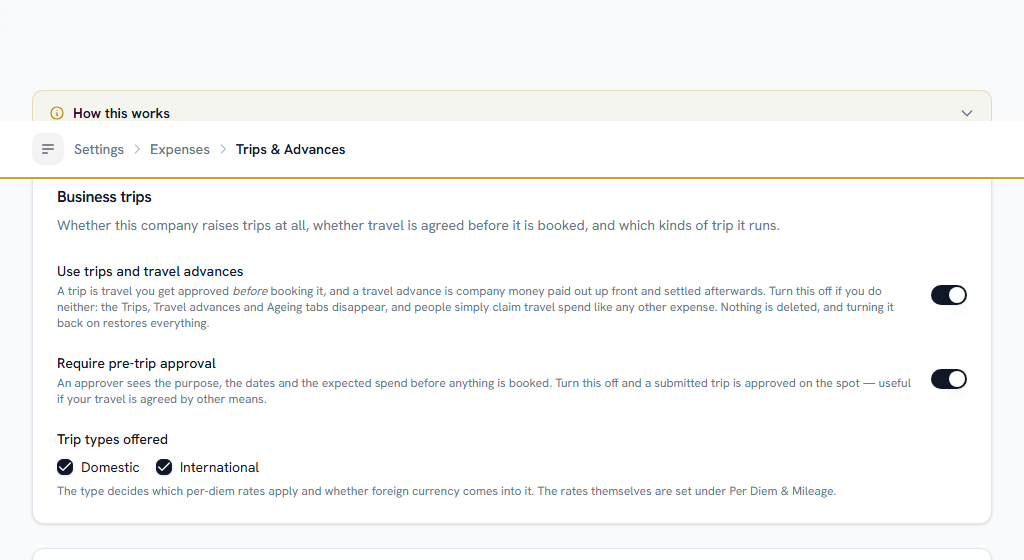
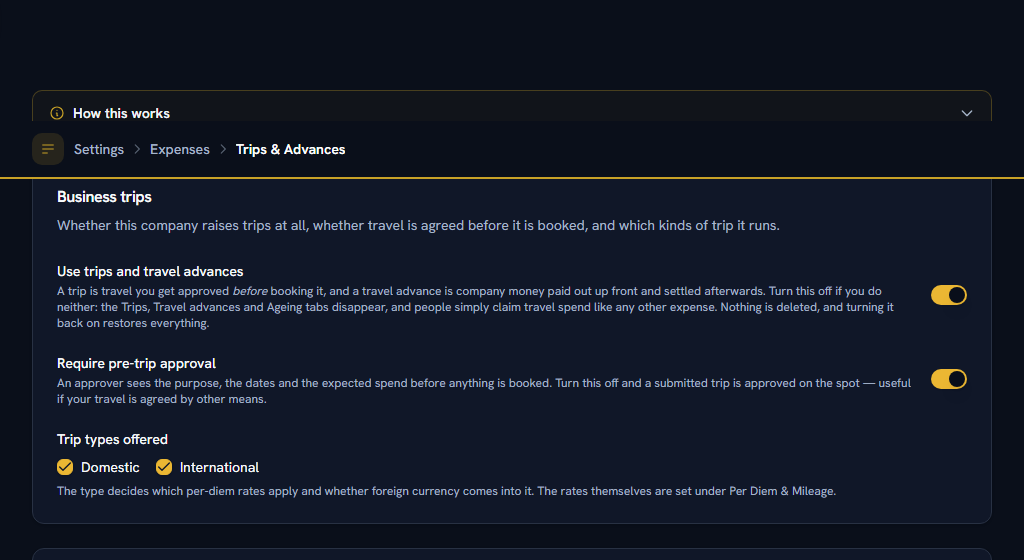
- Decide whether you use trips and travel advances at all. If you use neither, turn it off — people then claim travel spend like any other expense, the Trips, Travel advances and Ageing tabs disappear, and nothing is deleted.
- Decide whether a trip needs approving before it is booked, and name your trip types.
- Decide whether somebody may hold a second advance while one is still unaccounted for.
- Set when an advance counts as overdue, and the ageing buckets the report groups by.
An advance nobody accounts for is taxable pay, not just an open item. Set this up before you pay a first advance.
Per Diem & Mileage#
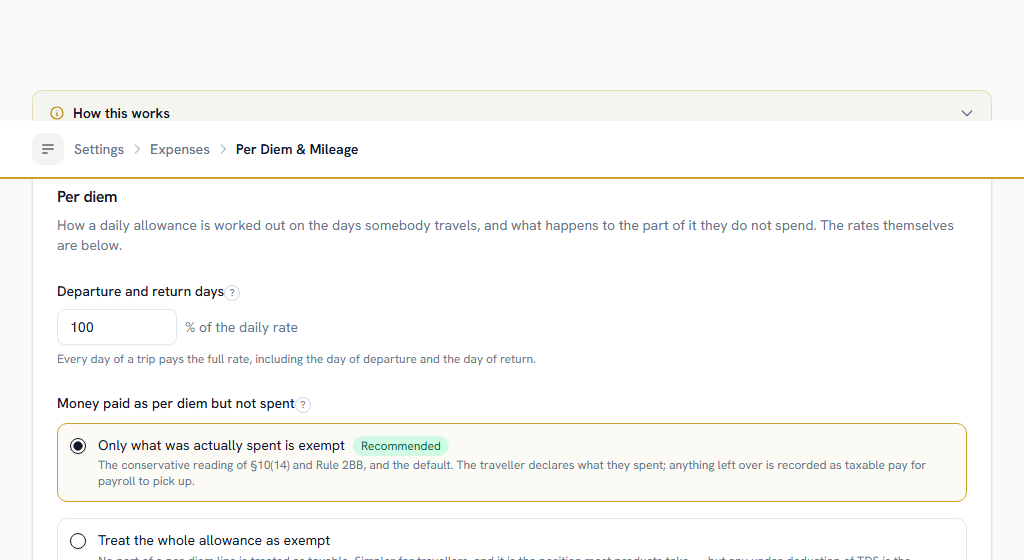
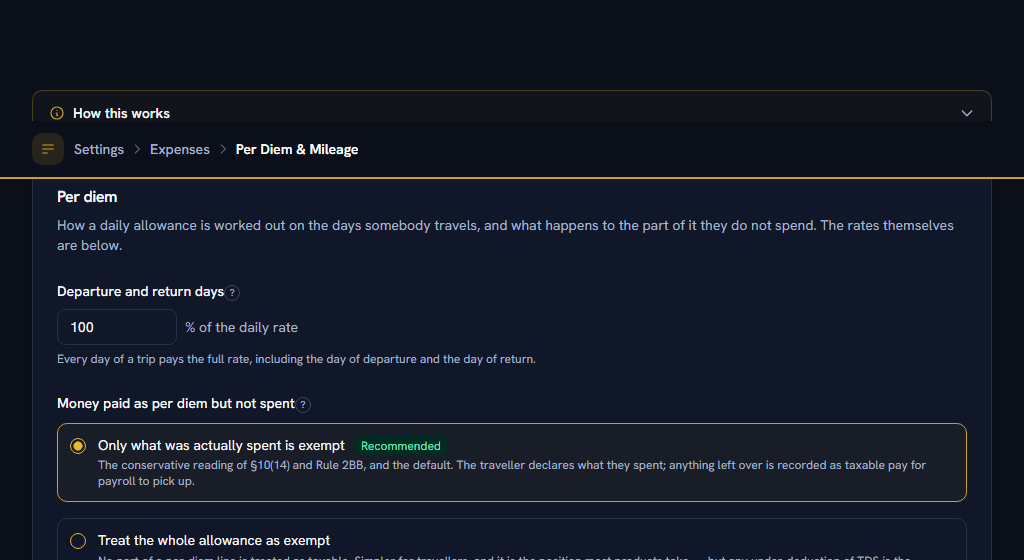
- Add daily-allowance rates by destination, expense type and role, each with the date it starts from. Leave the role blank for a rate everybody gets; where somebody holds two roles, the higher rate is paid.
- Set what a departure or return day is worth.
- Add mileage rates by vehicle class.
- Decide how allowance money that is not spent is treated for tax.
Rates are matched against the date of the expense, so a rate you add in October never restates an August claim.
GST & Input Tax Credit#
Skip if you do not reclaim GST on expenses.
- Set the §17(5) answer for each category, with the date it applies from.
- Say whether GST is claimable on a bill in an employee's own name, and whether reverse charge is flagged.
- Set how much date and rounding difference a GSTR-2B match may carry before it stops counting as the same transaction.
The tax answer is worked out and stored when a claim is filed, so a correction here never rewrites a return you have already filed.
Budgets & Payouts#
- Give a department a budget if you track spend against one, and choose whether going over warns or blocks.
- Choose your bank's payment-file layout, and the account claims are credited from.
Approvals#
Three separate decisions, and they need not be the same person:
- Who approves a claim — add a second level for larger amounts.
- Who approves a trip — agreeing the intent, before any money is committed.
- Who approves an advance. Approving is not paying it out; paying out is a separate permission.
Section 03One-time setupReimbursements#
WhereSettings›HRM›Reimbursements
OpenBenefit Year & Claim RulesBenefit ComponentsEntitlements & LimitsYear-End SettlementApprovals
Benefit Year & Claim Rules#
Do this first — entitlements are annual, and the year you set decides which pot every claim is measured against.
- Choose the month the benefit year starts. April in India, and separate from your leave year.
- Set the claim number prefix. Its own series, because it reconciles against a different account from expenses.
- Decide whether somebody may claim above their entitlement, and how much notice they get before the year ends.
Benefit Components#
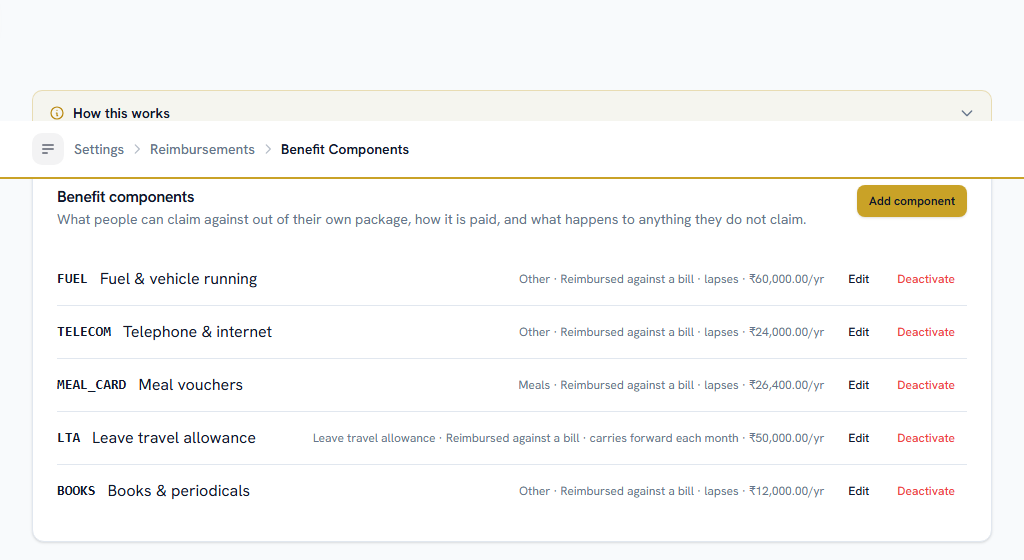
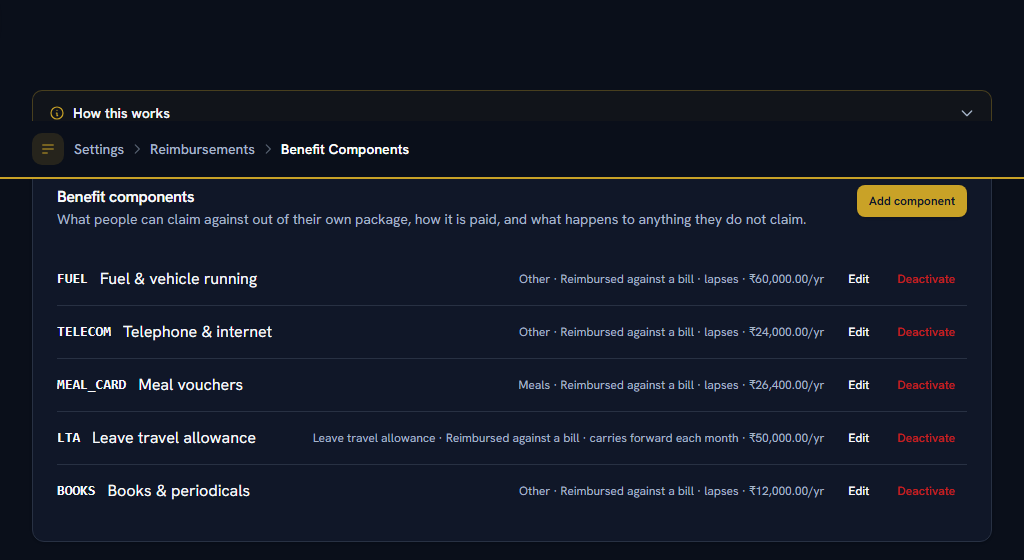
- Add each component your packages include.
- Say how it is paid — reimbursed against a bill, as a non-cash voucher, or as cash. This decides how it is taxed, not just how it looks on screen.
- Say whether a bill is required, and what proof it takes.
Entitlements & Limits#
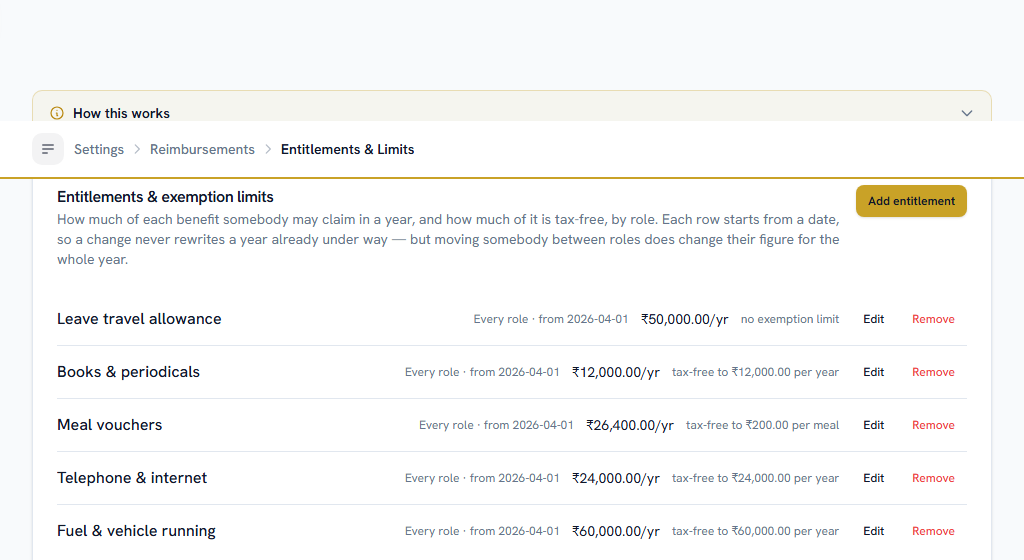
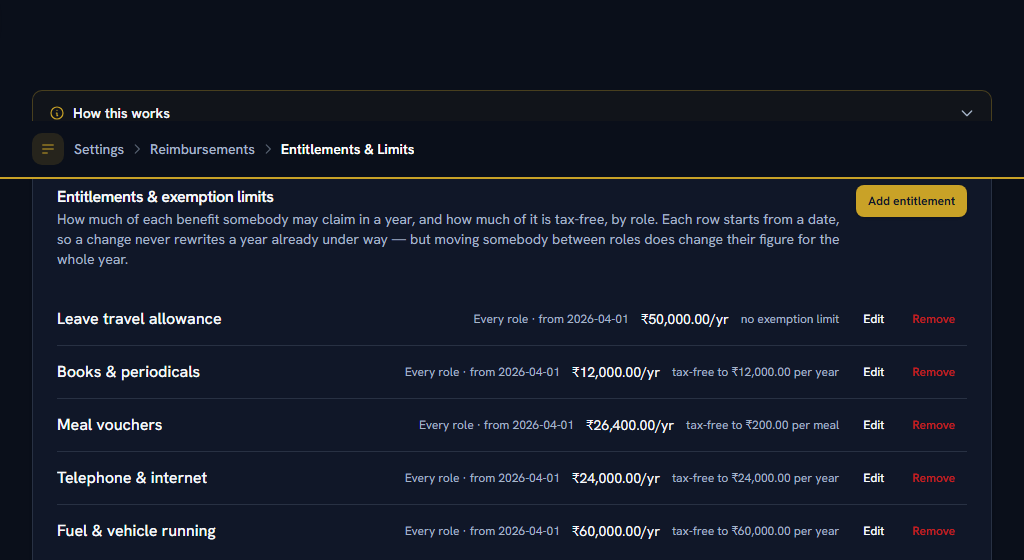
- Give each component an annual entitlement, by role where they differ. Leave the role blank for the figure everybody gets, and add a row only for roles that differ.
- Where somebody holds more than one role, the most generous entitlement wins.
- Add the tax-free limit where the law sets one.
Do
Leave the tax-free limit blank where the law sets none. Blank means "no limit applies".
Don't
Type 0 to mean "no limit". Zero is a real limit, and it makes the whole component taxable.
- Give each one the date it takes effect from. Adding one today never rewrites a year already under way.
Year-End Settlement#
- Choose each component's policy for a balance nobody claimed: lapse, carry forward, or pay out and tax.
- Set the policy now; run the settlement once, at the year end.
Preview the settlement before running it. Running it pays money out and creates taxable pay, and it cannot be undone.
Approvals#
A reimbursement is somebody's own salary coming back, so it often routes to payroll rather than to finance.
- Pick who approves, by role or by named person.
- Add a second level if benefit claims need payroll sign-off.
- Set how long a claim waits before it escalates.
Section 04One-time setupLoans & Salary Advances#
WhereSettings›HRM›Loans & Salary Advances
OpenRequests & RemindersLoan TypesStatutory ReferenceApprovals
Requests & Reminders#
- Set the loan number prefix.
- Decide whether a new request is refused while somebody still owes on one. Off by default — holding two loans at once is ordinary.
- Set how many days ahead people are reminded about an instalment. Overdue instalments are always chased.
Loan Types#
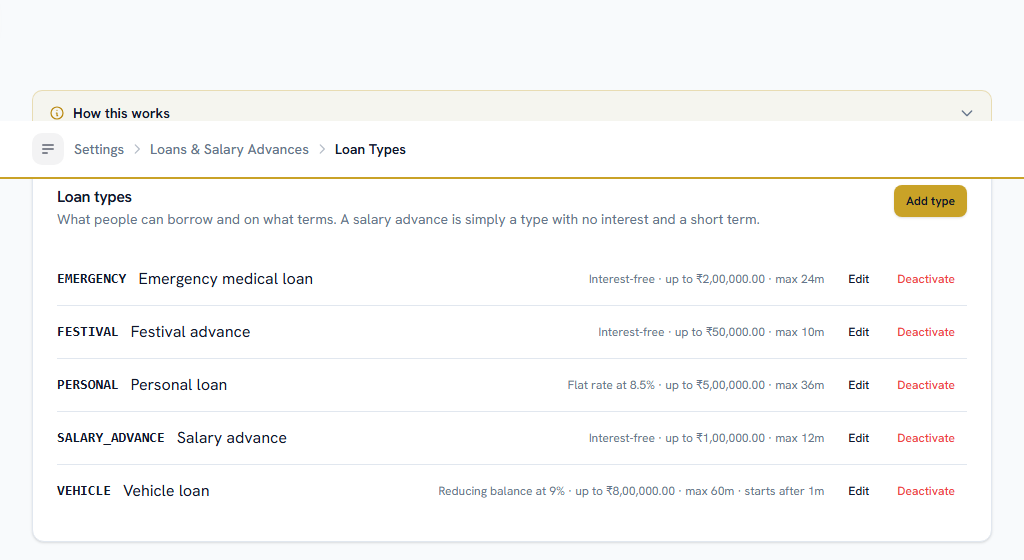
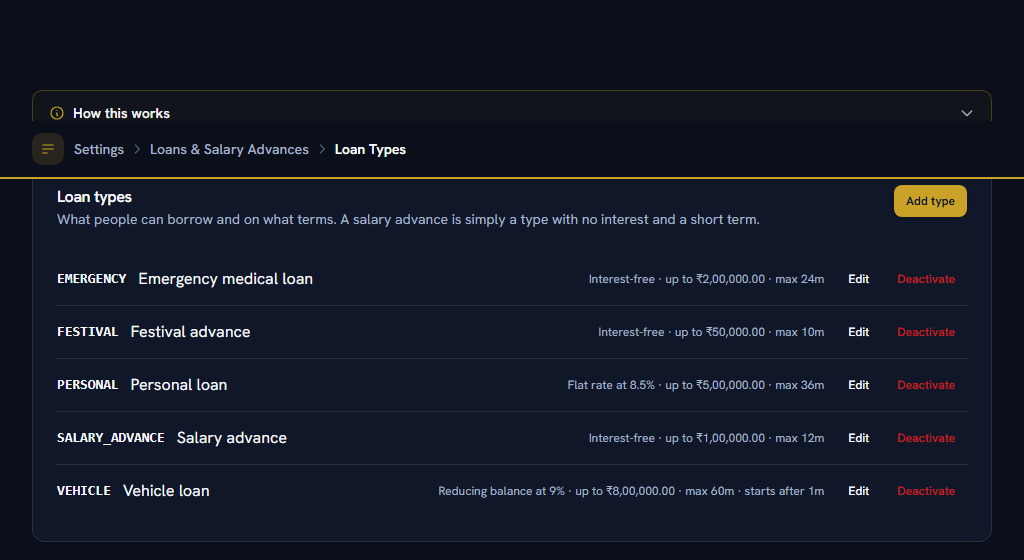
The request form picks its types from here, and a loan carries the terms it was taken under for its whole life.
- Add each type. A salary advance is simply a type with no interest and a short term.
- Set the maximum amount, the longest term, and how soon repayment starts.
- Choose the interest method if you charge any. Flat interest costs roughly twice what the same rate costs on a reducing balance, and both figures are shown to the borrower before they ask.
Statutory Reference — read only#
Shows the concessional-loan threshold the law sets, so you can see what an interest-free loan may cost the borrower in tax. You cannot edit it — it is law, not a company preference. It is a cliff, not a band: one rupee over and the benefit is worked out on the whole balance. Facto flags a loan that crosses it; it does not compute the perquisite. Confirm the treatment with your accountant.
Approvals#
- Pick who approves. A manager can approve a loan without being able to see salaries.
- Add a second level for larger amounts.
- Set how long a request waits before it escalates.
Approving does not release the money. Paying out is a separate permission — and paying out is also what fixes the repayment schedule.
Section 05One-time setupPetty Cash#
WhereSettings›HRM›Petty Cash
OpenFloats & VouchersApprovals
Floats & Vouchers#
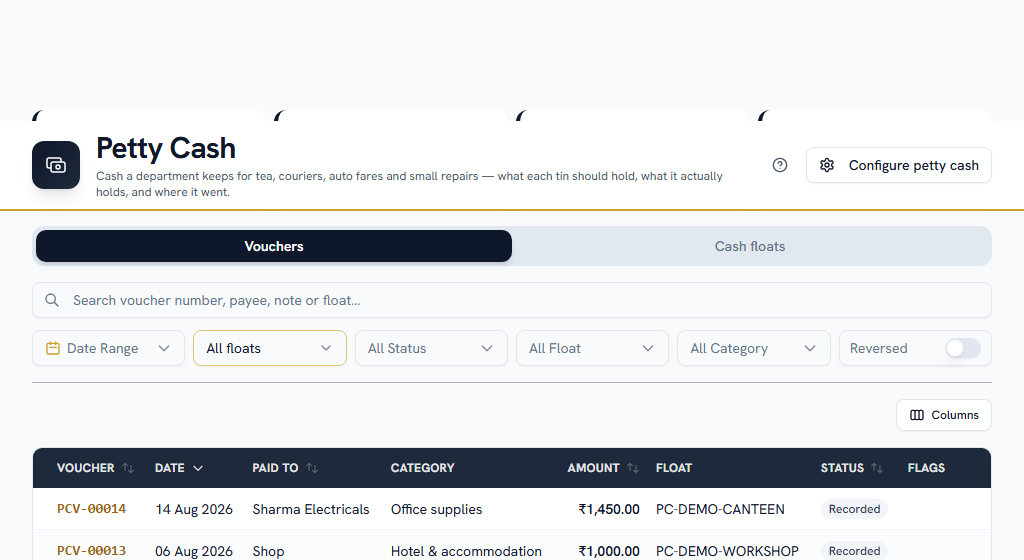
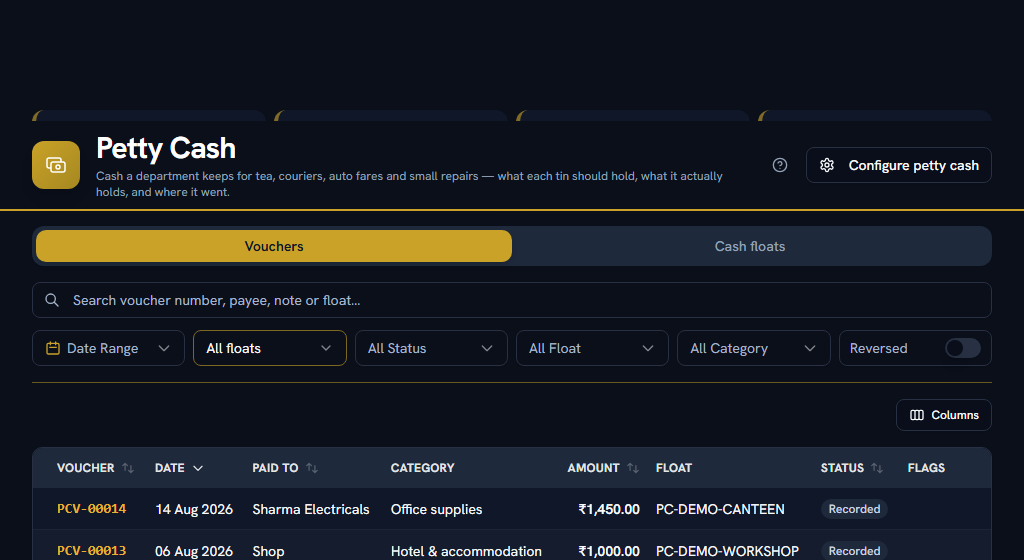
- Set the amount above which a voucher needs approving. Leave it blank for none — the float balance is already a hard cap, since a ₹10,000 tin cannot pay ₹40,000.
- Choose how often the cash is expected to be counted against the book. A tin nobody counts is a spreadsheet.
- Set the voucher number prefix before the first voucher exists. Separate from your expense claim numbering.
- Leave tax details off unless your petty cash regularly comes with real tax invoices.
Every float can override these on its own screen, so this is the answer for the ones nobody thinks about.
Approvals#
Only needed if you gave any float an approval threshold.
- Pick who reviews — usually the reporting manager, since this is a check on spending rather than on cash handling.
- Choose a fallback for people with no manager, or the request has nowhere to go.
This approval is not a gate. Unlike every other approval in Facto, the cash has already left the tin by the time anybody sees the voucher. Rejecting one puts the amount back on the book balance and leaves the tin physically short. Recovering it is a separate conversation, and the next cash count will surface it.
Section 06One-time setupSalary & Payroll#
The longest part, and the one where skipping a step shows up latest. Work straight down.
OpenPay Cycle & Unpaid LeaveStatutory ChoicesIncome Tax & DeclarationsPayslips & ReviewDeductions & Ceilings
Pay Cycle & Unpaid Leave#
WhereSettings›HRM›Salary & Payroll›Pay Cycle & Unpaid Leave
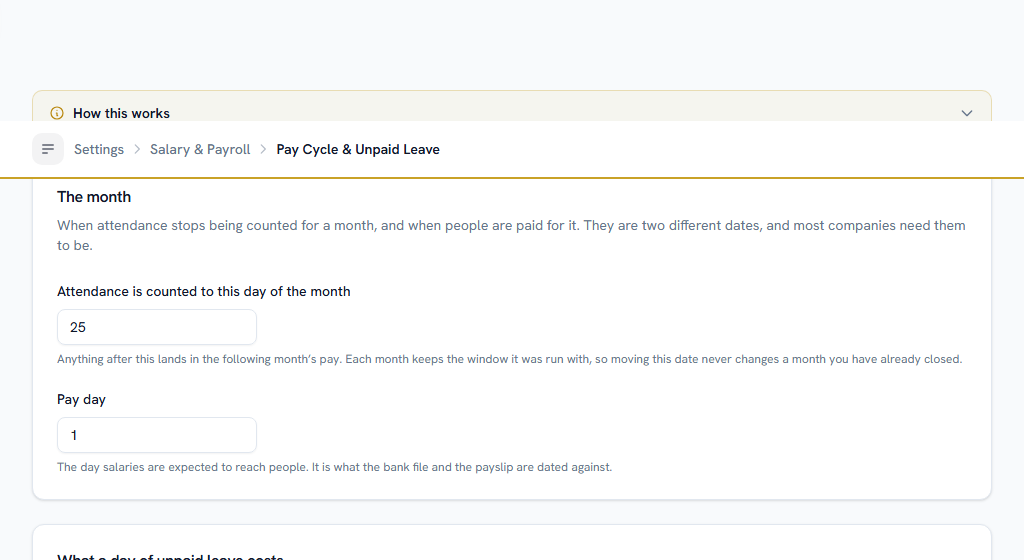
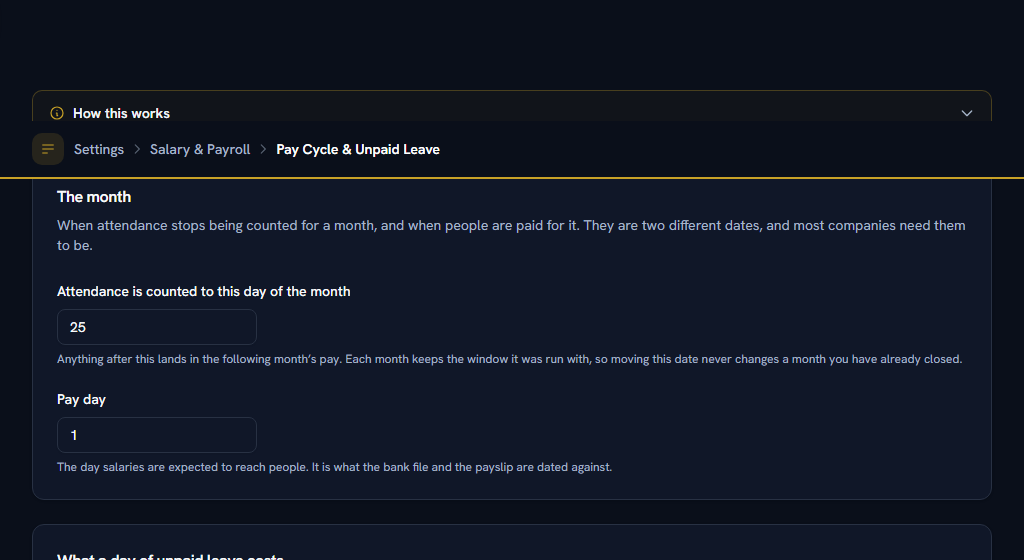
- Set the day attendance is counted to. Anything after it lands in next month's pay.
- Set the pay day — the date the bank file and the payslip are dated against.
- Choose what a day of unpaid leave costs. This is a company policy; the law does not prescribe one, and one thirtieth of the month is what most companies use.
Somebody joining or leaving part way through a month is always worked out on that month's actual calendar days instead. Both rules are correct and they answer different questions.
Each month keeps the dates and the divisor it was run with, so changing these later never rewrites a month you have closed.
Statutory Choices#
WhereSettings›HRM›Salary & Payroll›Statutory Choices
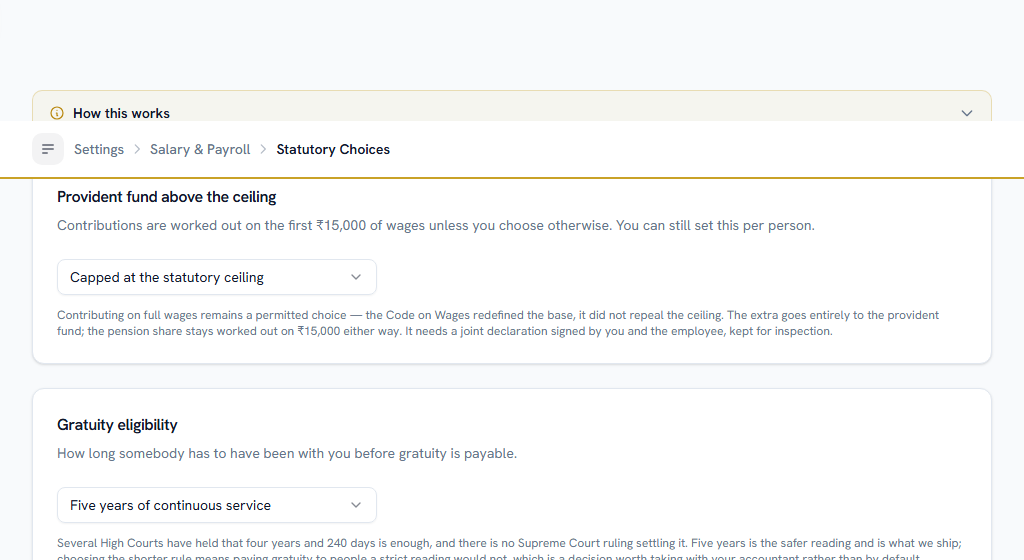
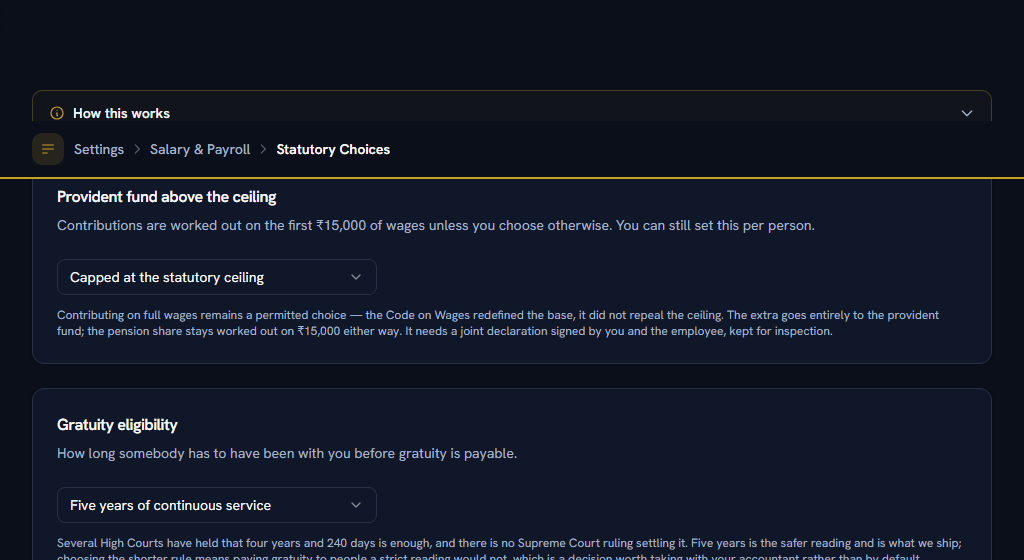
Go through these once with your accountant. The rates and slabs themselves are maintained for you and are not here — only the handful of questions genuinely yours to decide.
- Whether provident fund is worked out on the first ₹15,000 of wages or on the whole of them. The extra goes entirely to the fund — the pension share is capped either way — and it needs a joint declaration you keep on file.
- The gratuity rule. Five years is the safer reading.
- Whether the gratuity provision counts towards the wages the 50% deduction cap is measured on.
Income Tax & Declarations#
WhereSettings›HRM›Salary & Payroll›Income Tax & Declarations
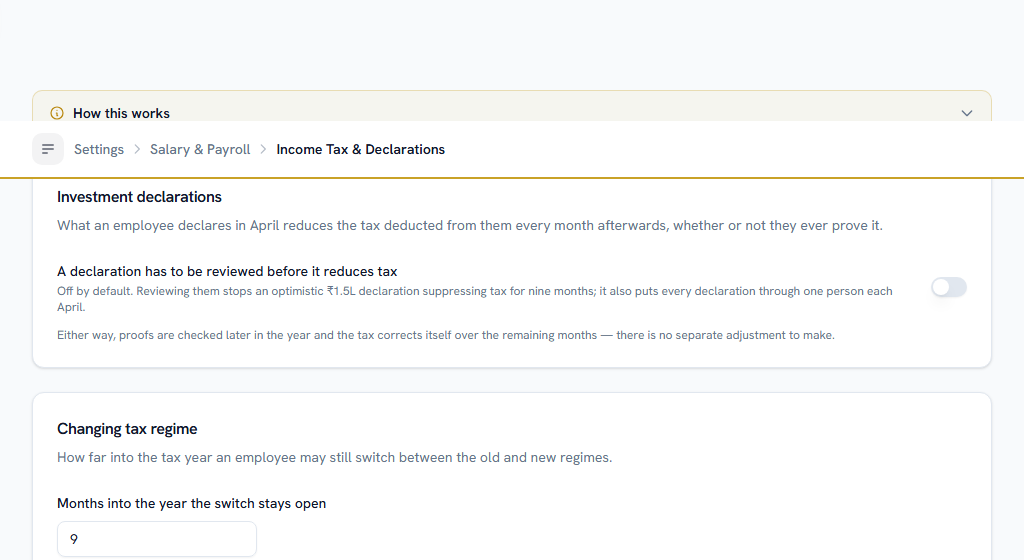
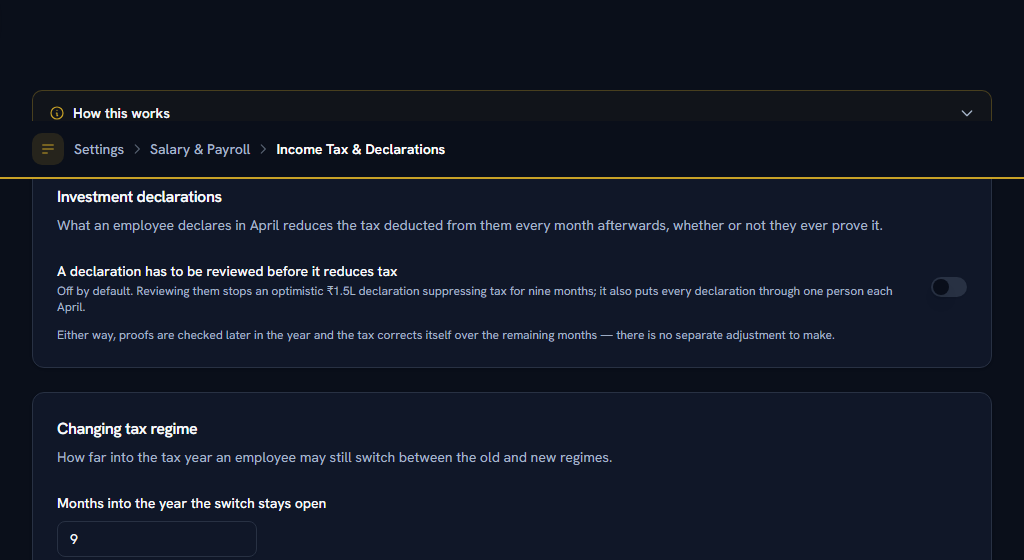
Set this in April, before declarations open.
- Whether investment declarations are reviewed before they reduce anybody's tax. Reviewing stops an optimistic figure suppressing tax for nine months; it also puts every declaration through one person each April.
- How far into the year people may still change tax regime. Locking it early does not save anybody tax — it only means they wait for a refund.
Anybody on the old regime who is 60 or over needs their date of birth on file. It is not on this screen — it is on the person's Details tab in User Management — but it is worth doing in April with the rest of this. The old regime has three slab tables and the higher exemption limits are ₹3,00,000 from 60 and ₹5,00,000 from 80, against ₹2,50,000 below. Age is taken as on 31 March of the tax year, so somebody who turns 60 in February is a senior citizen for the whole of it, including the April payslip. Without a date of birth the person is worked out on the under-60 table and the regime comparison screen says so for them by name. It makes no difference under the new regime, which is age-neutral.
Payslips & Review#
WhereSettings›HRM›Salary & Payroll›Payslips & Review
- Whether payslips are also emailed. Everyone can always read their own in the app.
- Whether year-to-date figures appear on the payslip. They double its width.
- The variance threshold — how big a month-on-month change is worth stopping to look at before a run is approved. Joiners and leavers move by 100% and are labelled as such, so they will not drown the rest.
Deductions & Ceilings#
WhereSettings›HRM›Salary & Payroll›Deductions & Ceilings
Two halves, and only the second one is yours to answer.
The top of the page is the law, read-only. There is a limit on what can come out of somebody's wages in a single month, and Facto applies it for you on every run:
| Rule | The limit |
|---|---|
| All deductions together | Half a month's wages |
| …in a month where a co-operative society is paid | Three quarters |
| Fines | Three per cent of a month's wages |
| How long a fine stays recoverable | 90 days from the act it was imposed for |
Statutory deductions — provident fund, state insurance, professional tax, the labour welfare fund and income tax — come out before this limit and are not counted against it. "Wages" here means Basic, dearness allowance and whatever the 50% test adds back: the figure that appears on every payslip as Wage Base (§2(y)), not gross and not take-home.
The second half is the list of your own deduction heads, and it asks what each one is. The answer decides which limit applies to it and what happens to the part a limit refuses. A badge at the top counts how many are still unanswered.
A fine is not carried forward, and every other kind is. If a canteen recovery or a loan instalment does not fit inside the month's limit, the balance moves to next month and is still owed. A fine cannot be recovered in instalments at all, so the part that did not fit is simply not collected — and the whole thing stops being recoverable 90 days after the act, counted from the act and not from the day you recorded it. Classify a head as Fine only if it really is a penalty.
A head nobody has classified is treated as an ordinary authorised deduction: counted against the total limit, and never treated as a fine. That is the mildest reading available and it is deliberate — the app will not invent a penalty out of a blank field.
This page is configuration. An individual fine or damage recovery is not recorded here — those are dated events with a clock on them, and they live under Fines & recoveries. See Fines and damage recoveries in Part 2.
Salary components#
WhereHRM›Salary›People & pay›Components
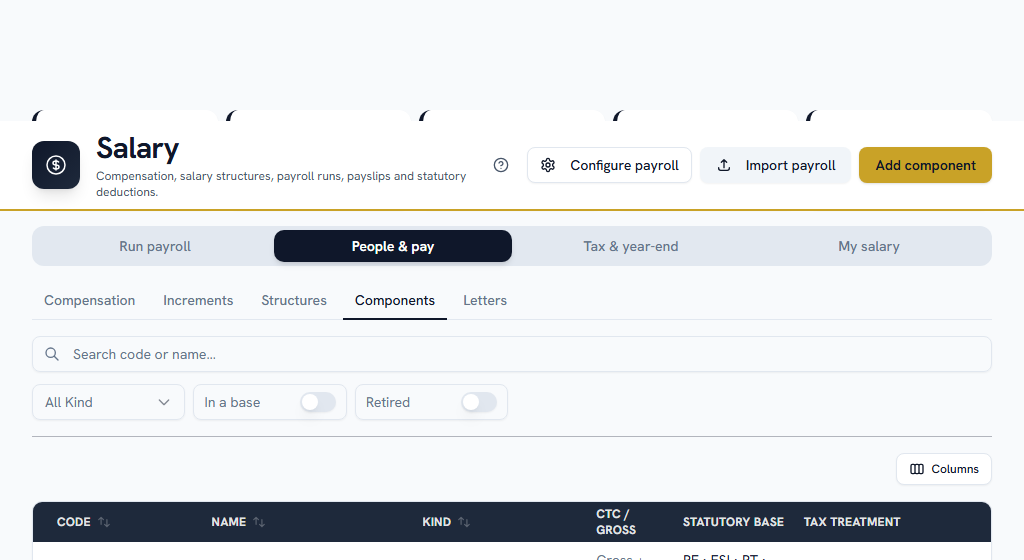
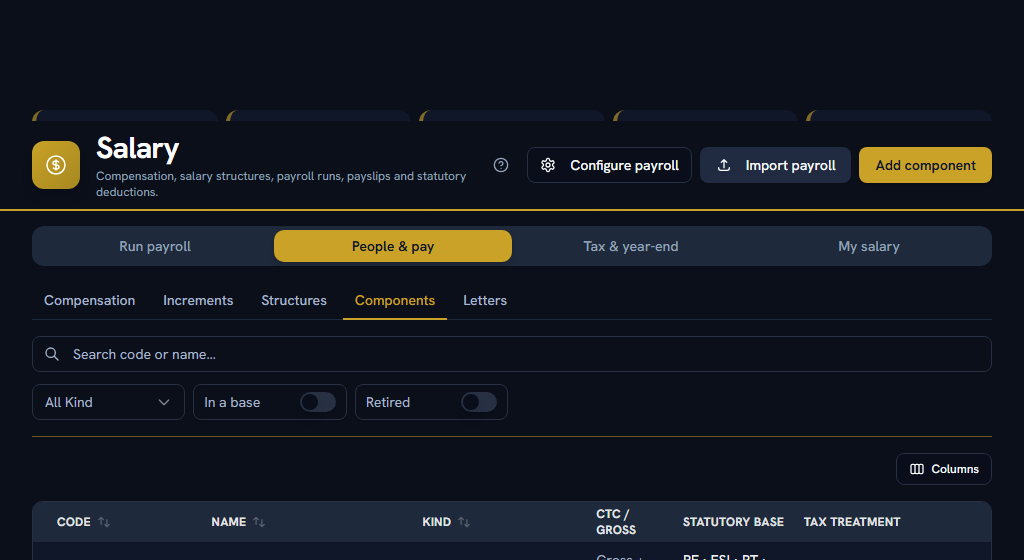
OpenComponents
A component is one line on a payslip. There are two kinds, handled very differently.
The statutory ones are created for you. When your company was set up, Facto added the nine heads its payroll engine posts against, plus a wage-base line. You do not need to create them, and you must not re-create them under different names. The engine matches on the code, exactly:
| Code | What it is |
|---|---|
PF_EMPLOYEE | Provident fund, employee's share |
PF_EMPLOYER | Provident fund, employer's share |
ESI_EMPLOYEE | State insurance, employee's share |
ESI_EMPLOYER | State insurance, employer's share |
PROFESSIONAL_TAX | Professional tax |
LWF_EMPLOYEE | Labour welfare fund, employee's share |
LWF_EMPLOYER | Labour welfare fund, employer's share |
TDS | Tax deducted at source |
GRATUITY_PROVISION | The gratuity provision |
This is the single most expensive mistake you can make in payroll. If a head is missing, or spelled even slightly differently — PF_EE instead of PF_EMPLOYEE — the engine posts nothing for it. It does not warn and it does not guess. Everybody is paid their full gross with no deduction, the run reports itself as correct, and you find out when a return is due.
A code cannot be changed after the component is created. If you find a near-miss, create a new component with the correct code and retire the wrong one.
If your company was set up before this became automatic, some heads may be missing. Check your work tells you which.
The earnings are yours to create. Basic, HRA, a special allowance, a conveyance allowance — these are your company's own design and no two companies agree on them, so Facto does not invent them. Add each one you use.
Salary structure#
WhereHRM›Salary›People & pay›Structures
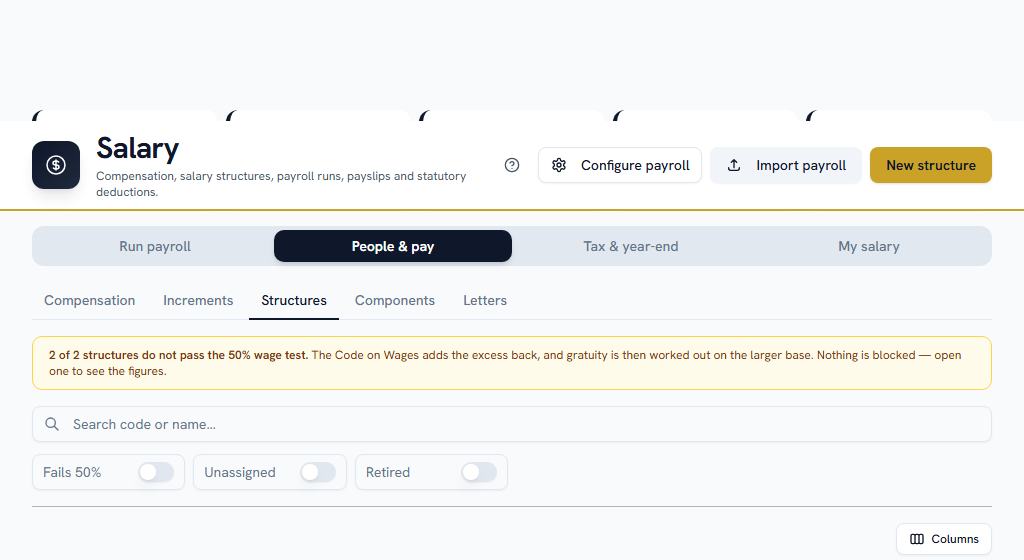
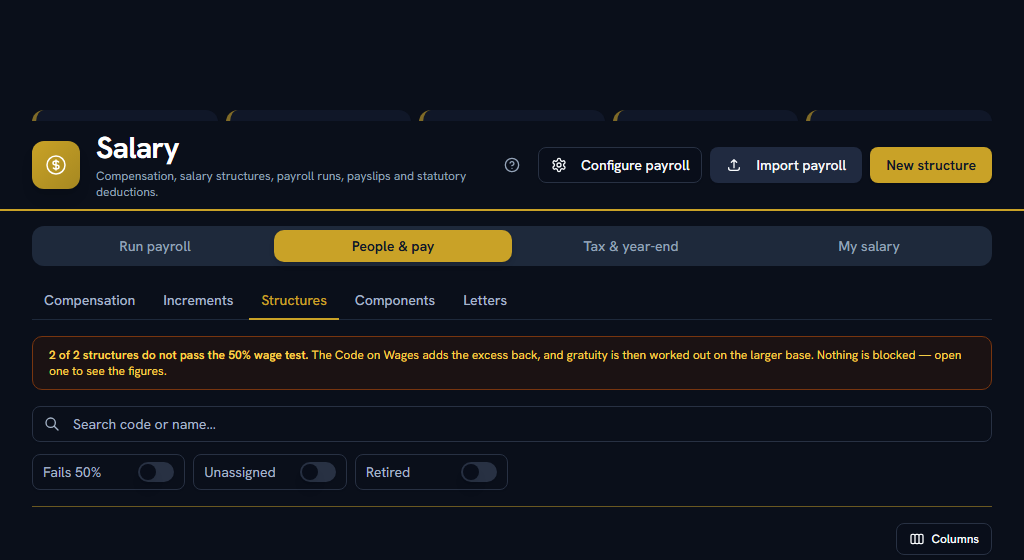
OpenStructures
A cost to company on its own is a number, not a payslip. A structure is what splits it across your components.
Build at least one. It has to balance — the parts must add up to the whole — and one line is the balancing line that absorbs the remainder. It cannot contain a circular reference, where two components each depend on the other.
A ₹9,00,000 cost to company, split by a three-line structure. Basic is 40% of CTC, HRA is 50% of Basic, and Special Allowance is the balancing line.
Basic ₹3,60,000 · HRA ₹1,80,000 · employer provident fund at 12% of Basic ₹43,200 · the gratuity provision ₹17,308 · Special Allowance, the balancing line, ₹2,99,492. Together, ₹9,00,000.
Change Basic to 50% and every figure below it moves: HRA to ₹2,25,000, the fund to ₹54,000, and the balancing line absorbs the difference. That is what "it has to balance" means in practice — you choose the percentages, and one line takes whatever is left.
Each person's payroll profile#
WhereUser Management›open a person›Details
This is on the employee's own page, not in the Salary module, which is why it is the step most often missed. For each person who will be paid:
- Payroll treatment — whether they are on payroll at all. A consultant is correctly outside all of this.
- Professional tax state — professional tax follows the establishment somebody is borne on, not the office they badge into. Without it there is no slab to apply and no state to remit to.
- UAN and provident-fund member ID — where they apply. If a number has been applied for but has not arrived, record it as pending rather than leaving it blank. "Nobody has typed it in" and "it does not apply" are different answers, and the return needs to know which.
- Bank account and PAN — if you did not do it when you added them, do it now.
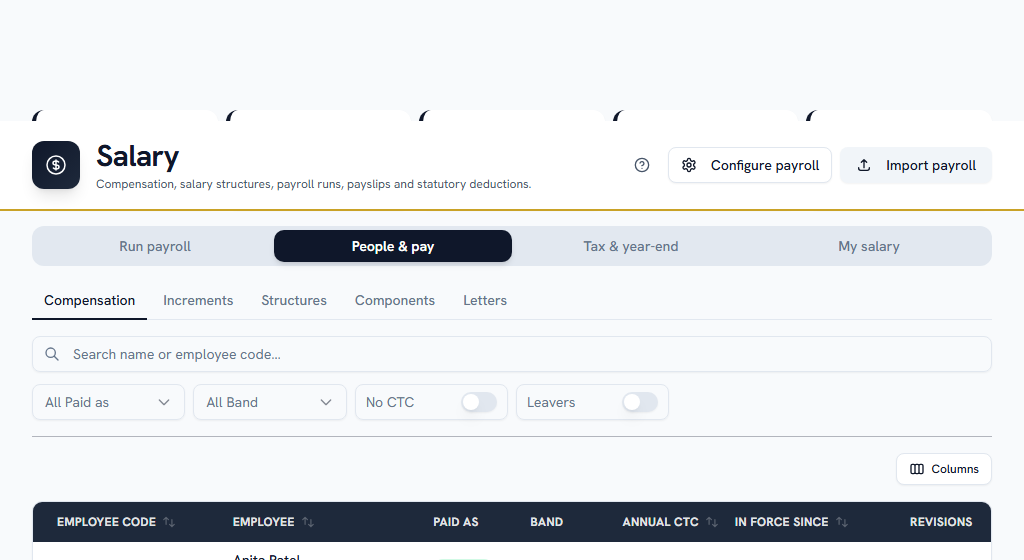
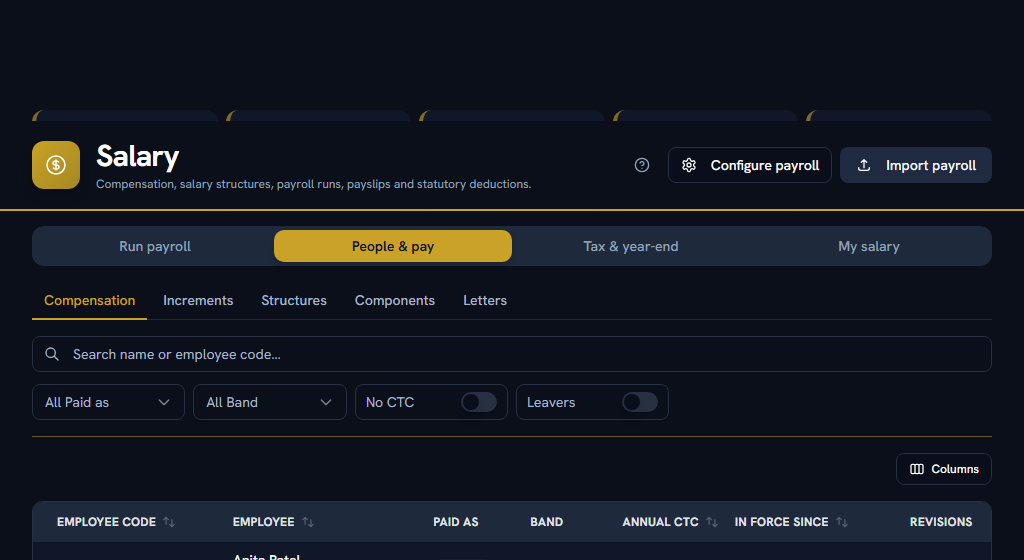
Cost to company#
WhereHRM›Salary›People & pay›Compensation
OpenCompensation
Record each person's CTC, with the date it takes effect from. The date must be on or before the month you want to pay — a revision dated mid-month does not apply to that month's run.
Each entry also carries a kind of change — on joining, annual increment, promotion, market correction, or other — beside the free-text reason. The reason is what an auditor reads; the kind is what a report can count.
Everything recorded before this field existed reads as "Other", which there means unclassified rather than ad hoc. Nothing in the data distinguished an increment from a correction after the fact, and guessing would have produced a report that looks precise and is not.
Assign the structure#
WhereHRM›Salary›People & pay›Compensation
Assign a salary structure to each person, effective from a date. Somebody with a CTC and no structure cannot be paid.
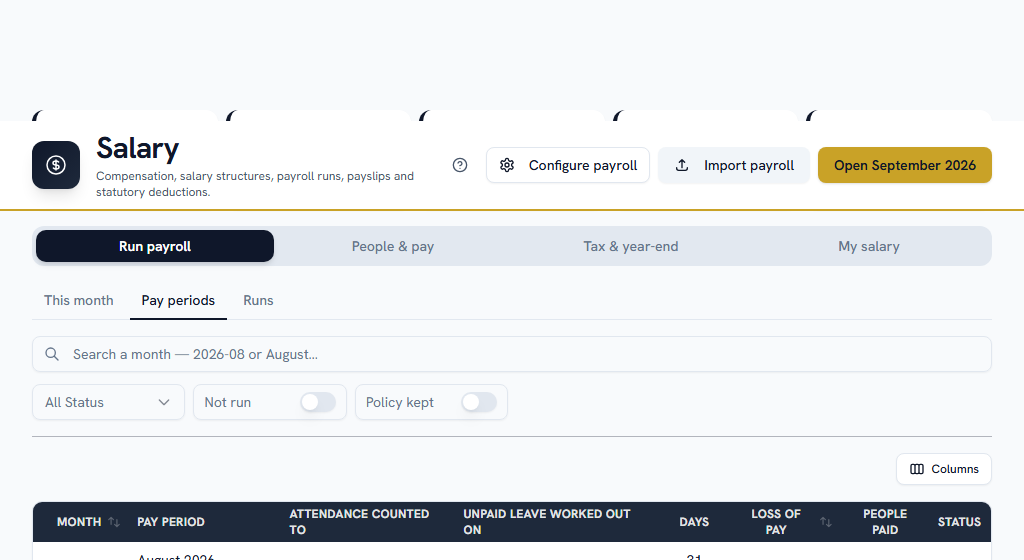
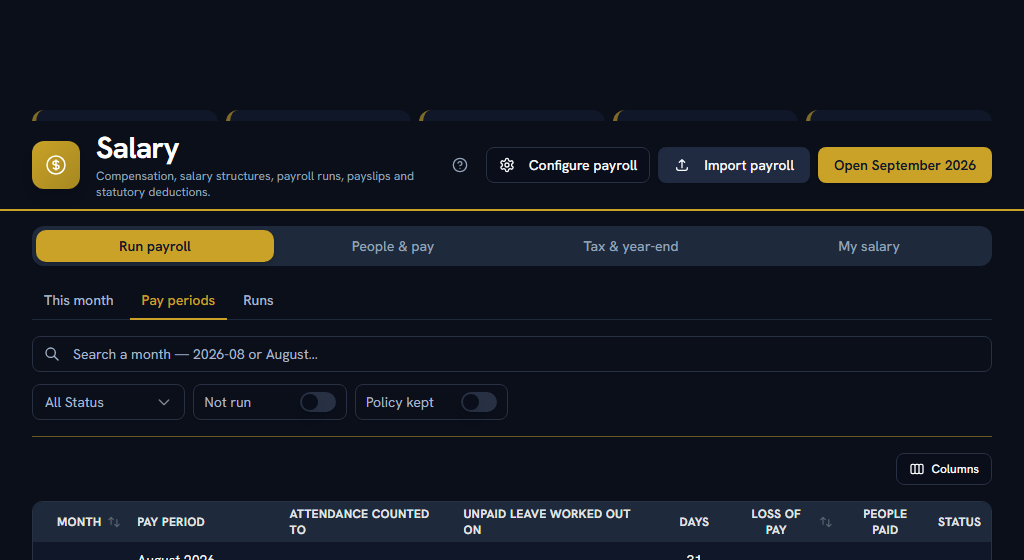
Open the pay period#
WhereHRM›Salary›Run payroll›Pay periods
OpenPay periods
Open the month you want to pay. Until a period is open, most of the Salary module has nothing to show you.
Section 07One-time setupCheck your work#
WhereHRM›Salary›Run payroll›This month
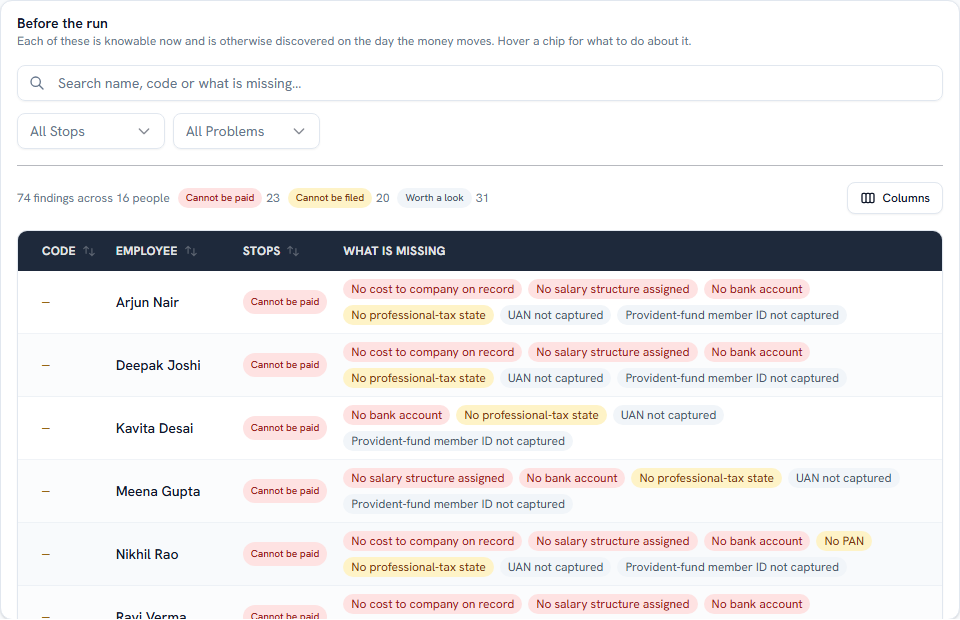
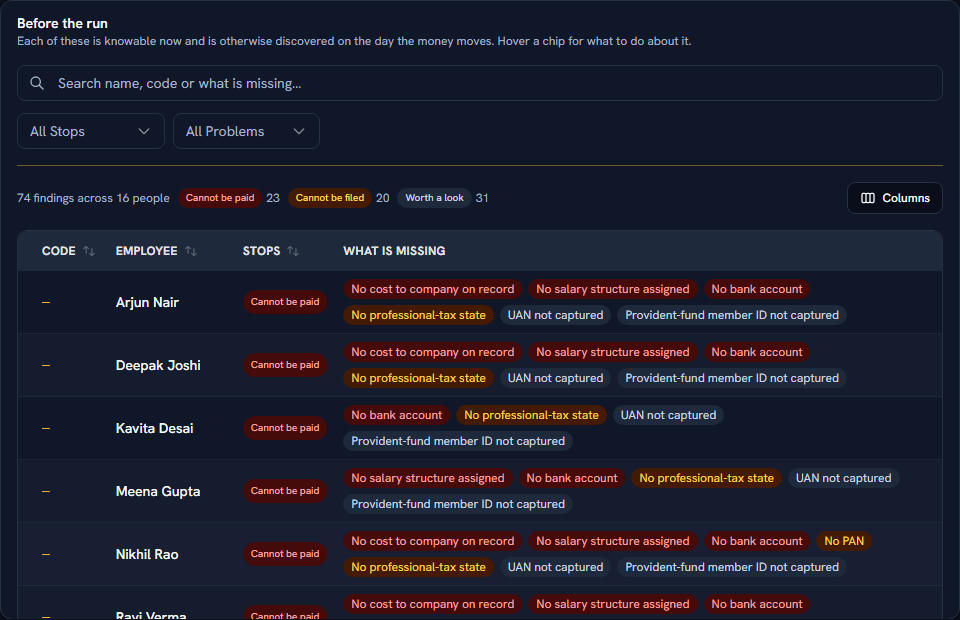
Facto has a built-in pre-flight check that reads your whole setup and tells you what is still missing, person by person. Read it before your first run — and before every run after that, which is why it also appears in Part 2.
It sorts what it finds into three levels:
- Blocks pay — the run cannot pay this person. No cost to company, no salary structure, no bank account. Fix these first.
- Blocks filing — the run can pay them, but you will not be able to file the return. No PAN, no professional-tax state, a provident-fund number still awaited.
- Needs attention — worth a look. A bank account in a slightly different name, a benefit claim waiting for a run that this month will not pay, a statutory head your library does not carry.
Every finding names the person, says what is wrong in a plain sentence, and tells you what to do about it. When this screen is empty, your setup is complete.
OpenThis month
The same list, as something to work down before your first run:
Part 2Everyday use
ForEveryone, HR, FinanceSections7Read17 minNeedsPart 1 done once
Section 08Everyday useIf you are an employee#
Claiming an expense back#
WhereHRM›Expenses›My expenses›Claims
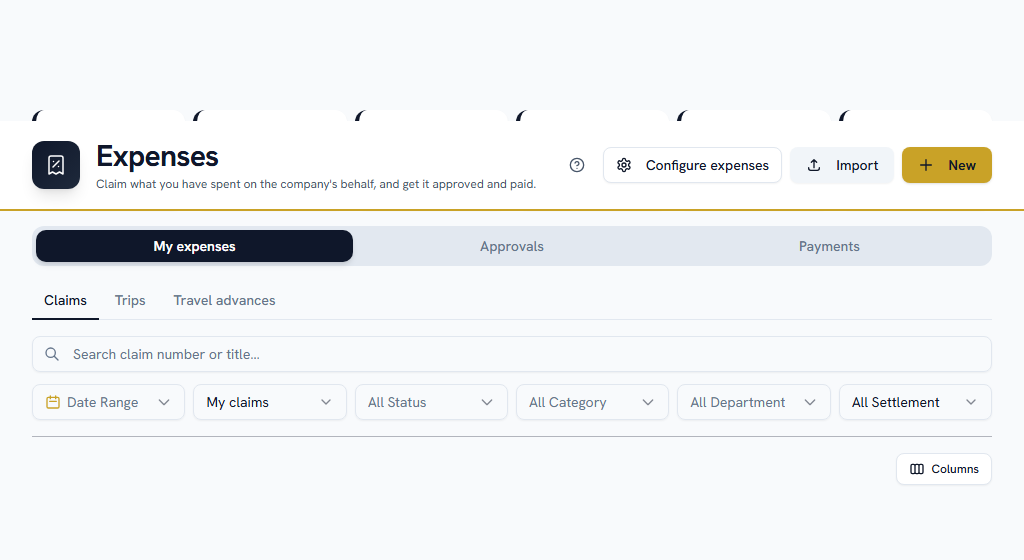
This is for the company's money that you spent.
- Create a claim.
- Add a line for each expense: the category, the amount, the date, and the department it belongs to.
- Attach the bill. Most categories require one above a certain amount.
- Submit it.
- There is a deadline. Your company sets how many days you have after the expense. Late claims are refused.
- There may be a cap. A soft limit warns you and lets you justify it; a hard limit stops you.
- The department is captured when you file. It cannot be corrected afterwards.
If you are travelling and your company uses trips: raise the trip first (My expenses → Trips), get it approved, then file claims against it. A travel advance you were paid shows under Travel advances, and your claims settle against it rather than paying you twice.
Claiming a benefit#
WhereHRM›Reimbursements
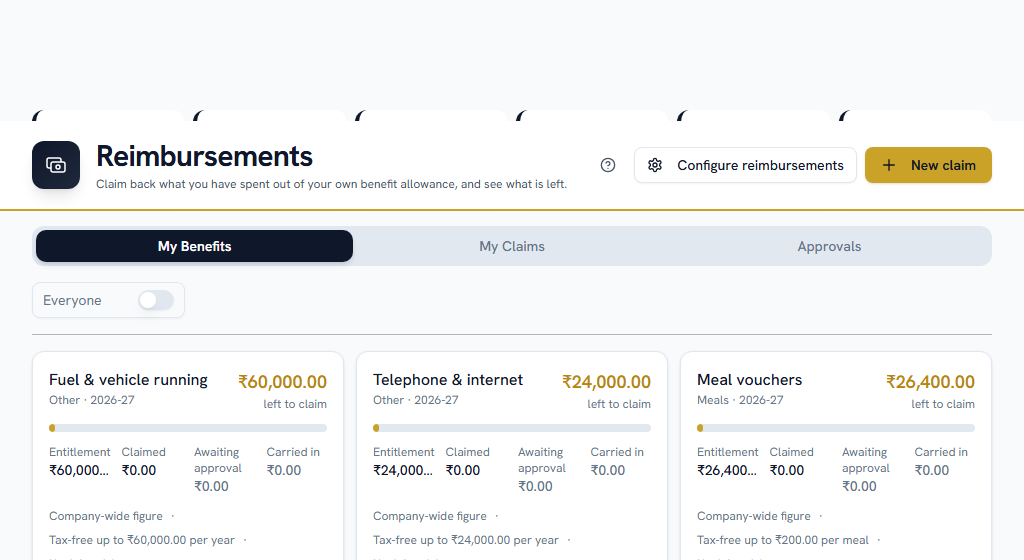
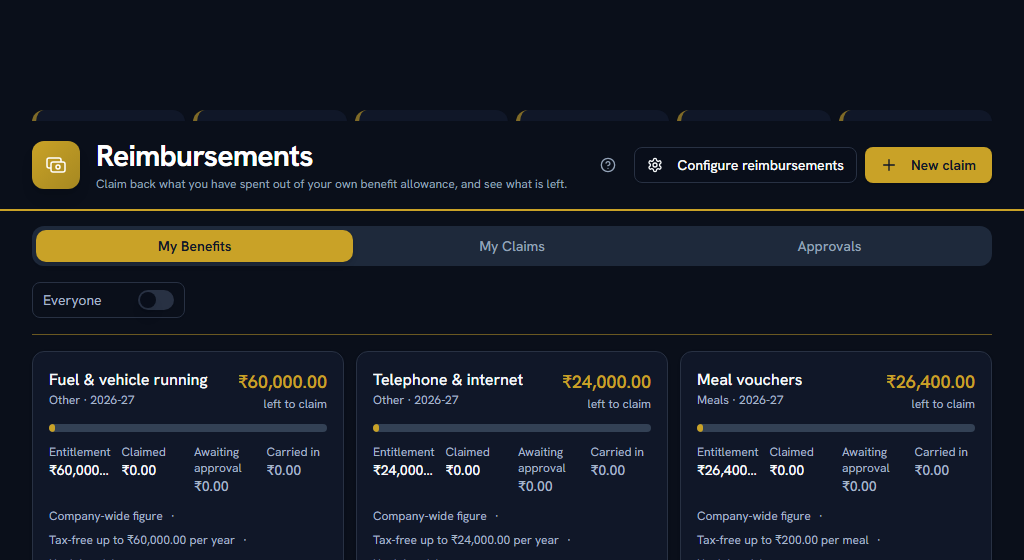
- My Benefits — what you are entitled to this year, what you have claimed, and what is left in the pot.
- My Claims — where you file one and follow it.
Claim before the benefit year ends. Depending on your company's policy, anything unclaimed either lapses, rolls over, or is paid out and taxed — and lapsing is the common choice. You will be reminded before the deadline.
Asking for a loan or a salary advance#
WhereHRM›Loans & Salary Advances
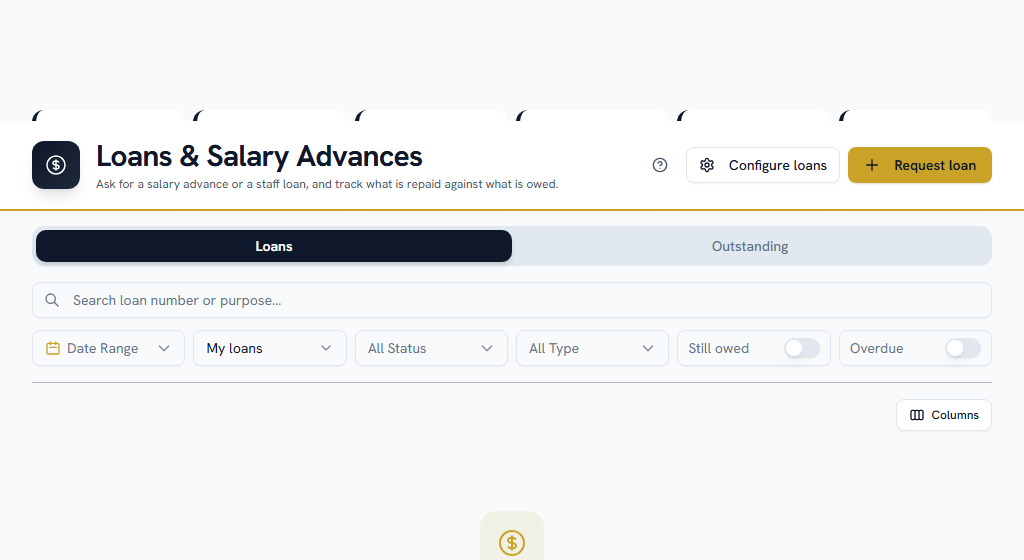
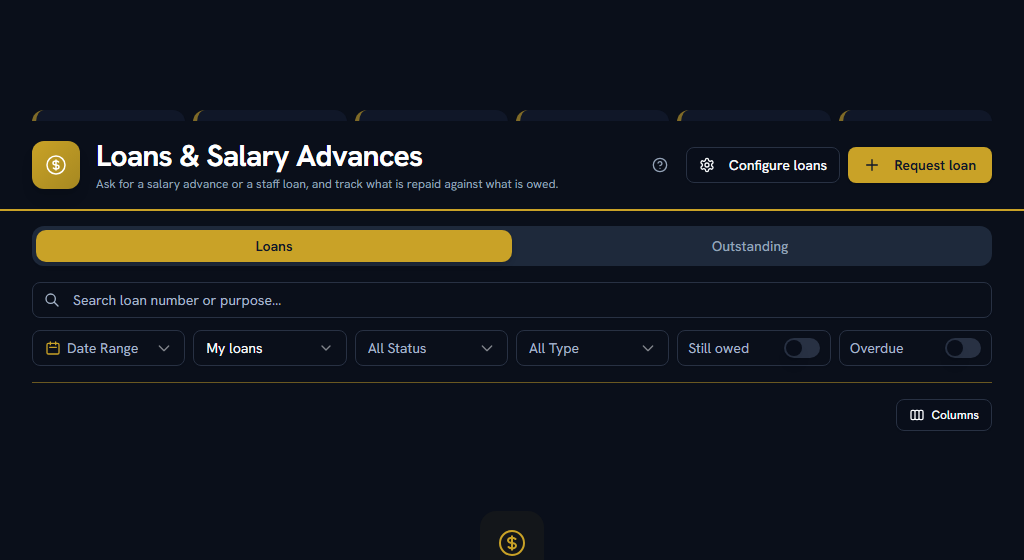
Pick a loan type and it will show you the maximum you can borrow, the longest term, and what it will cost you before you commit.
- Approval is not payment. Somebody approves the request; somebody else releases the money. Your repayment schedule is fixed when the money is actually paid out, not when it is approved.
- Repayments come out of your salary automatically once the schedule starts.
Open the loan to see the schedule, what you have repaid and what is outstanding.
Spending from a petty cash tin#
WhereHRM›Petty Cash
Only relevant if you hold a float for your department. Record a voucher for each thing you pay for. If it is above your float's threshold it also goes for review — but the cash has already left the tin by then. A rejected voucher leaves you physically short, so check before you spend, not after.
Count the cash when you are asked to.
Your payslip and your tax#
WhereHRM›Salary›My salary
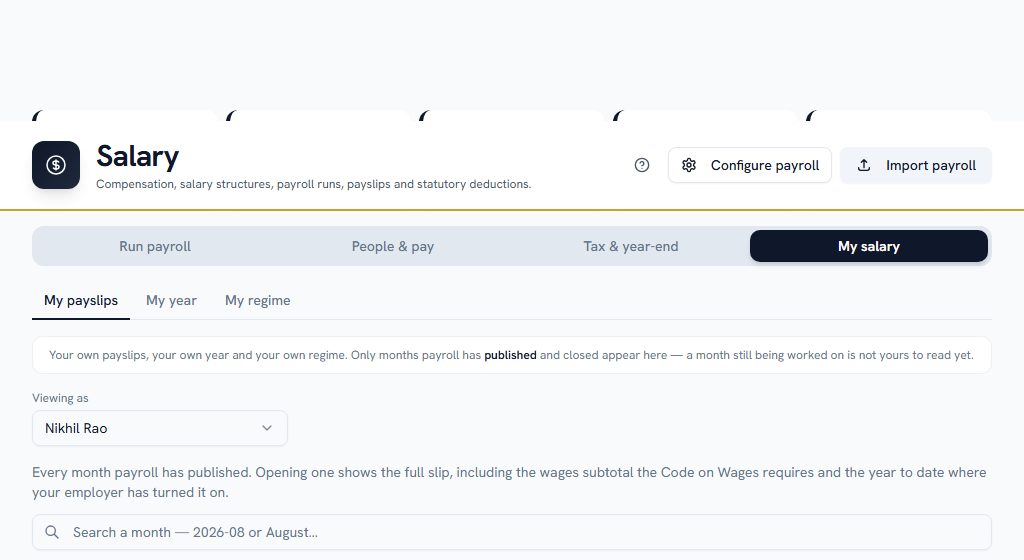
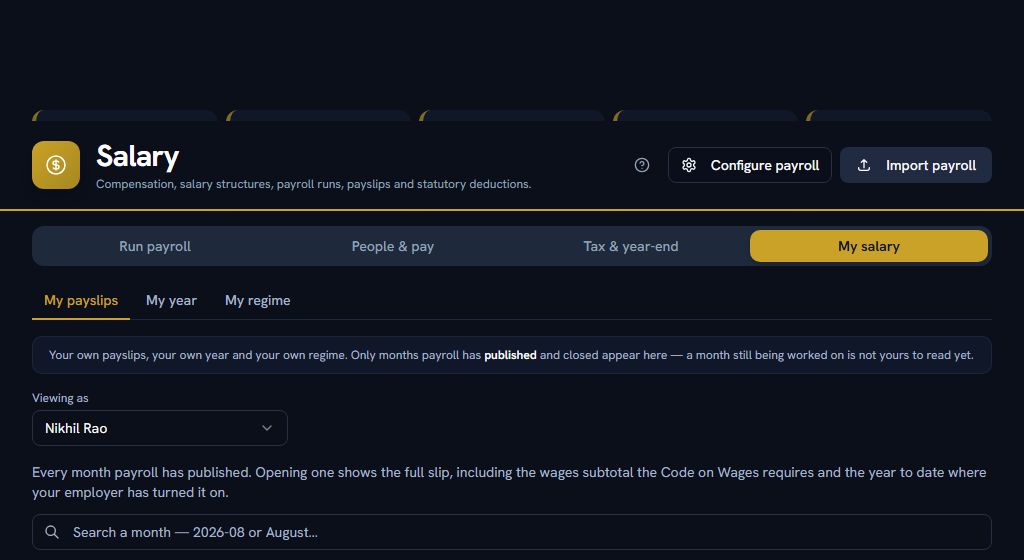
- My payslips — every payslip. Download any of them.
- My year — your earnings and deductions year to date, and your Form 16 when it is issued.
- My regime — which tax regime you are on, and switching it.
In April, do two things:
- Choose your tax regime. Your company sets a deadline for changing it. Locking it in late does not cost you tax — it just means waiting for a refund.
- Declare your investments, under Salary → Tax & year-end → Declarations. If you do not declare, tax is deducted as though you have no deductions at all and you claim it back at the end. Declare early and your monthly tax is right from month one.
Section 09Everyday useIf you approve things#
| What you're approving | Where |
|---|---|
| Expense claims, trips, advances | HRM → Expenses → Approvals |
| Benefit claims | HRM → Reimbursements → Approvals |
| Loan requests | HRM → Loans → open the request |
| Petty cash vouchers | HRM → Petty Cash → Vouchers |
You are notified when something arrives. Requests escalate if you sit on them.
What approving does, and does not do:
- Approving an expense claim agrees the amount. Paying it is finance's separate step.
- Approving a trip agrees the intent, before any money is committed.
- Approving an advance or a loan does not release money. That is a separate permission and usually a different person.
- Approving a petty cash voucher confirms spending that already happened.
When you reject, say why. The person sees your reason, and for most things they can fix it and resubmit.
Section 10Everyday useIf you run finance or payroll#
Paying expense claims#
WhereHRM›Expenses›Payments
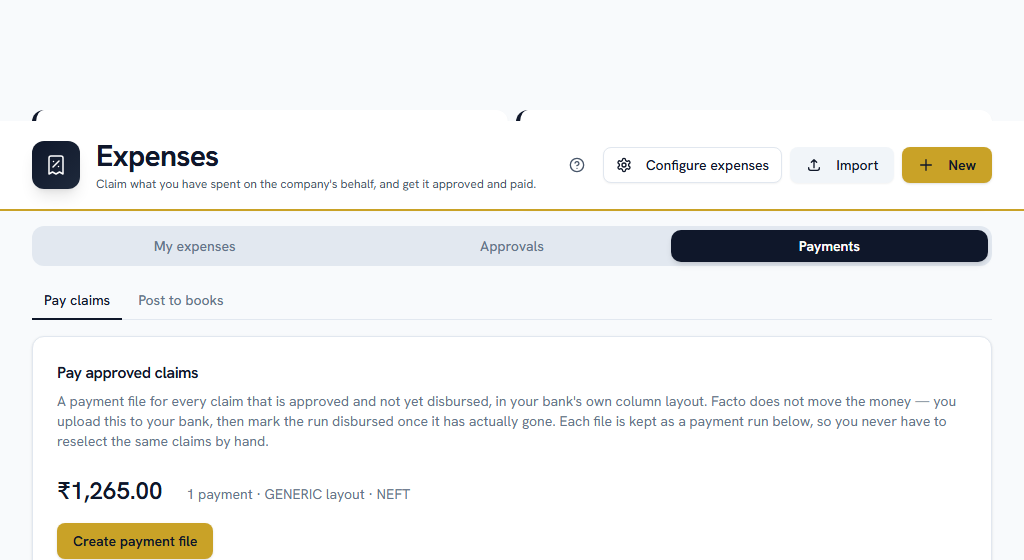
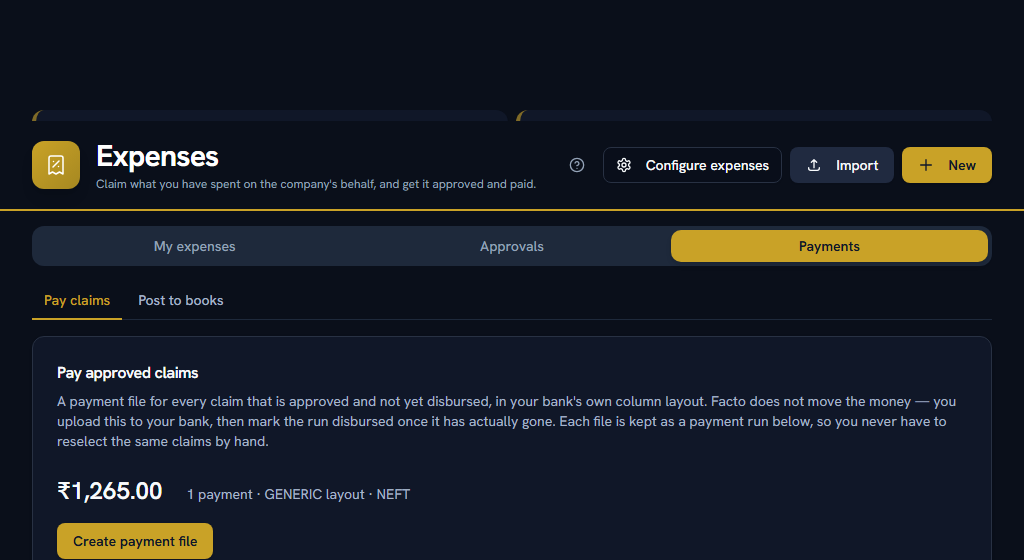
- Pay claims — approved claims waiting to be paid. Select them, generate the bank file, download it, upload it to your bank, then come back and record that it was paid.
- Post to books — the accounting export.
A claim routed to be paid with salary does not appear here. It goes into payroll's queue instead.
Benefit claims and loans#
- Reimbursements → Approvals — approved benefit claims. Some are paid by transfer here; others are routed to payroll and paid with salary.
- Loans — releasing an approved loan. Paying it out is what fixes the repayment schedule, so do not delay it and expect the dates to hold.
- Loans → Outstanding — everything still owed, in ageing buckets.
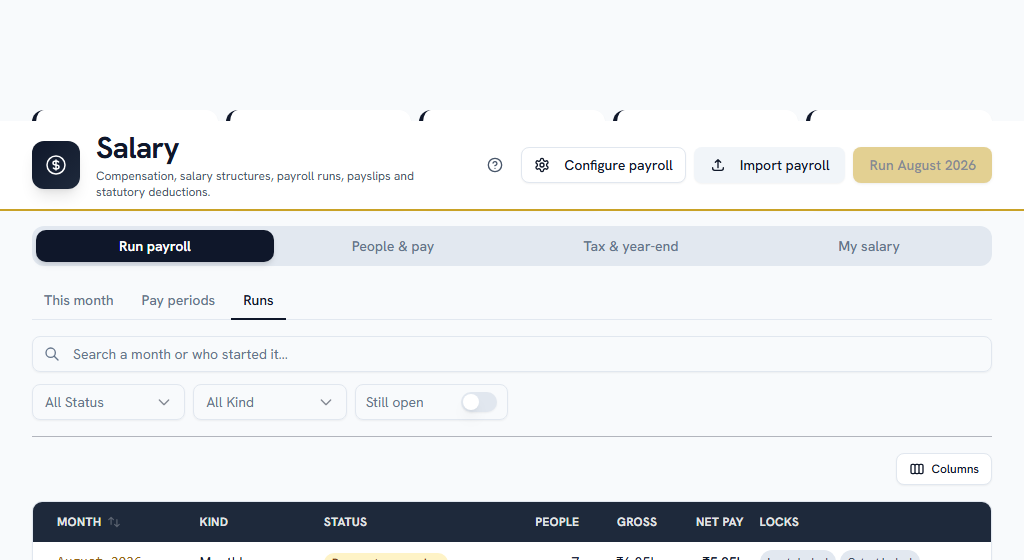
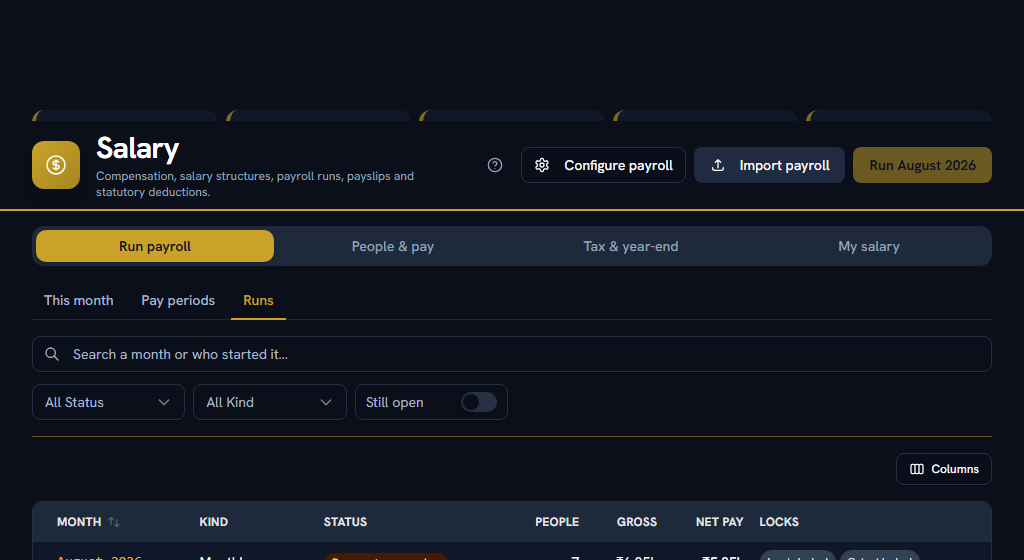
Do it in this order, every month.
- Look at This month. Before anything else, read the pre-flight check — see Check your work. Clear everything that blocks pay before you go further.
- Open the pay period under Pay periods, if it is not open.
- Pull in everything from the other modules — attendance, unpaid leave, loan instalments, and claims routed to be paid with salary. On the period, the From other modules view is where you refresh these.
- Create the run under Runs. Facto calculates every payslip.
- Lock the inputs. Attendance, leave and claims stop feeding in.
- Review the variance. Anyone whose pay moved more than your threshold since last month is flagged. This is your last cheap chance to catch a mistake.
- Submit it for approval.
- Approve it — and this should be a different person from whoever created it.
- Lock the output. The figures are now final.
- Publish payslips. People can see them.
- Download the bank advice and take it to your bank. Check the "not in this file" list before you do — anybody without a valid bank account is excluded, and you will need to pay them another way.
- Record the payment once the bank confirms. The run is now Paid.
The run moves through six states as you go: Draft, Submitted, Approved, Payment due, Payment processing, Paid.
The claim-timing trap. A claim is picked up by the run for the month it was submitted in, not the month it was approved. A claim submitted in May and approved in July is a May queue row — refreshing July will never find it. The pre-flight names these.
If something is wrong: you can reject a run at any point before a payment is recorded, which sends it back to draft to be fixed and resubmitted. Once a payment is recorded you cannot edit it — the correction is an arrear in a later month.
Two deductions the law puts extra conditions on, so they are recorded as dated events rather than typed into a month. Everything else — a canteen charge, a loan instalment, a uniform — is an ordinary deduction and belongs on the month's inputs.
Recording one asks for six things:
| Field | Why it is asked for |
|---|---|
| The act or omission, and its date | The date every rule counts from |
| When you recorded it | Usually later, and the difference matters |
| The amount | What was imposed, before any ceiling |
| The deduction head | What the payslip line will be called |
| What happened, in words | A fine is only lawful for an act on your own approved list, and the register has to state it |
| Opportunity to show cause | Required by law, optional in the app — see below |
Each month's run then takes what that month's ceilings allow and credits it back automatically. Nothing is marked by hand, and the payslip line says in words if a ceiling reduced it.
The 90 days run from the act, not from the day you record the fine. The law deems a fine imposed on the day of the act or omission. A fine entered three weeks late has three weeks less to be collected in, and one entered four months late cannot be collected at all — Facto refuses to record it rather than putting a fine on the register that nobody could ever lawfully take.
The list counts down against every open fine — amber at a fortnight, red at a week — and whoever recorded it is notified a fortnight out, while there is still a payroll run in which to act. A fine that runs out of time lapses: it stays on the register with the amount that lapsed and the date it happened. Nothing is deleted, because a register that quietly dropped it would report money the company never received.
The same thing happens the moment a run takes part of a fine and a ceiling stops the rest. A fine cannot be recovered in instalments at all, so the balance is gone rather than carried — which is exactly the opposite of what happens to a loan instalment or a canteen recovery.
A recovery for damage or loss is the gentler one:
- It has no deadline at all. What the law caps is the amount, not the time.
- It can be spread over up to 36 months, and each month's instalment competes for the same half of wages as everything else. One that does not fit is carried.
- Its total can never come to more than the damage you assessed against the person. Leave that figure blank and there is no ceiling on it at all — the screen counts the rows in that state so it is visible rather than quiet.
The show-cause date is optional here and required by law. Facto cannot know whether the conversation happened, and refusing to record a fine that did happen would only move the record out of the app. So it takes the date if you have one and marks the row when you do not.
Nothing on this screen can be deleted. Forgiving one is a waiver, which records how much, who did it and why, and cancels any months still planned for it.
Recording a fine is its own permission, and nobody was given it on upgrade. Imposing a fine is a disciplinary act rather than payroll administration, so an administrator has to grant Payroll → Deductions → Manage deliberately. Reading the register came free to anybody who could already see a payroll run.
Four steps, in this order. Only the last one pays anybody, and the screen says so at each stage — a declaration that looked like a payment is how a company finds out in month nine that its deadline has passed.
- Declare a percentage for the accounting year.
- Read who the Act entitles, and who it excludes and why.
- Record the payouts — the statutory ones in a batch, an ex-gratia or an incentive one at a time.
- Stage them into a pay period, then pay them with an off-cycle run.
The percentage is yours, not Facto's. The law fixes both ends — never below 8.33% however bad the year, never above 20% however good it was — and where between them your company lands comes from the allocable surplus in your profit-and-loss account. Facto does not hold your accounts and has not checked the figure against anything. Your accountant works it out; this screen is where you record what they said, and there is a box beside it for the board minute.
Eligibility is two limbs and both are required:
| Limb | The test |
|---|---|
| Wages | ₹21,000 a month or less |
| Days worked | At least 30 in the accounting year |
"Wages" means Basic, dearness allowance and a retaining allowance — not gross and not cost to company. "Worked" counts paid leave, lay-off, maternity leave with salary and absence through a workplace injury, because the Act says so explicitly.
Everybody the Act excludes still appears on the list, with the reason against them, rather than being filtered out. They are exactly the people you may want to pay an ex-gratia to instead.
Nobody gets a statutory bonus and an ex-gratia. They are the same payment under two legal characters — the bonus is what the Act requires of you, the ex-gratia is what you choose to pay somebody it excludes — so paying both is either a double payment or a sign the eligibility test came out wrong. Facto refuses the pair. An incentive is different again: against a scheme you name, for anybody, and it sits alongside either.
Two things about the figures that surprise people:
- The Act computes on a notional wage, not on what somebody earns. ₹7,000 a month, so bonuses cluster and nobody gets a share of their own salary.
- It is really the higher of ₹7,000 and your state's minimum wage for that scheduled employment — per state, per employment, revised twice a year, and held nowhere in this app. So every base Facto shows is a lower bound, and the screen says so above the numbers. If your state's figure is higher, the entitlement is higher and you will need to work it out yourself.
Declaring the year notifies everybody with a payout under it. The notification carries no figure — that arrives with the payslip.
Pay them with an off-cycle run, never a monthly one. An off-cycle run pays only what was staged; a monthly run would pay that month's salary over again on top. The Act gives you eight months from the close of the accounting year, and the screen shows the date.
Recording a bonus percentage is its own permission — Payroll → Bonus → Declare — and it was granted to nobody on upgrade. Deciding what a company pays in bonus is a board-level decision, so an administrator hands it out deliberately.
Your first month#
WhereHRM›Salary›Run payroll›Parallel run
Run the month in Facto alongside your existing payroll and compare the two, before you pay anybody. Do this for at least one month.
Tax and year-end#
WhereHRM›Salary›Tax & year-end
- Declarations — everybody's investment declarations. If your company reviews them before they take effect, this is where you do it. April is the busy month.
- Which regime — who is on which tax regime.
- Form 16 — issuing Form 16 at year end.
Compensation changes#
WhereHRM›Salary›People & pay
- Compensation — record a CTC revision with the date it takes effect, on or before the month it should apply to.
- Increments — the same raise for a whole cohort, previewed before it happens.
- Structures — your salary structures.
- Components — the lines a payslip is built from.
- Letters — revision, promotion, certificate, bank, verification, the two probation letters and the leaver's statement.
Give a group of people the same raise on the same date, without recording a hundred revisions by hand.
- Pick the cohort — any mix of departments, roles and compensation bands. Leave one blank and it means all of them.
- Pick a percentage or a flat annual amount. One or the other, never both.
- Pick the date it applies from, and press Preview. Nothing is written yet.
- Read the preview. It lists every person with their current cost to company, what it becomes, and which already-paid months the date reaches back over. Anybody who cannot be included says why on their own row rather than disappearing from the list.
- Un-tick anyone who should not be in it, then Commit.
Each person committed gets a compensation entry AND their current salary structure re-assigned from the same date — the payslip is built from the structure's frozen figures, so moving the cost to company alone would raise a number on a screen and change nobody's salary.
A back-dated cycle owes arrears to everybody in it, for every month already paid. Committing stages nothing: each person's retro is worked out on their own record, where somebody reads the figures first. The preview names the months, and it is the part to read before pressing Commit.
Promotions#
A promotion is two records and neither implies the other:
- The title goes on the person's record in User Management, under Designation history — a new entry from the date it applies, never an edit of the last one.
- The money goes under Compensation, with the kind set to Promotion.
The promotion letter under Letters reads the title change and states no figure. If the pay changed too, issue the revision letter as well.
Petty cash oversight#
WhereHRM›Petty Cash›Cash floats
Open a float, top it up, and see what each department has on hand against what the book says. Chase the counts.
Section 11Everyday useIf you run HR#
When somebody joins#
Beyond adding them in User Management, two payroll steps are easy to miss:
- Record their CTC under HRM → Salary → People & pay → Compensation, effective from their joining date, with the kind set to On joining.
- Assign them a salary structure, effective from the same date.
The symptom of missing either is that the person is absent from a payroll run, or blocks it.
When somebody leaves#
WhereHRM›Exits & Settlements
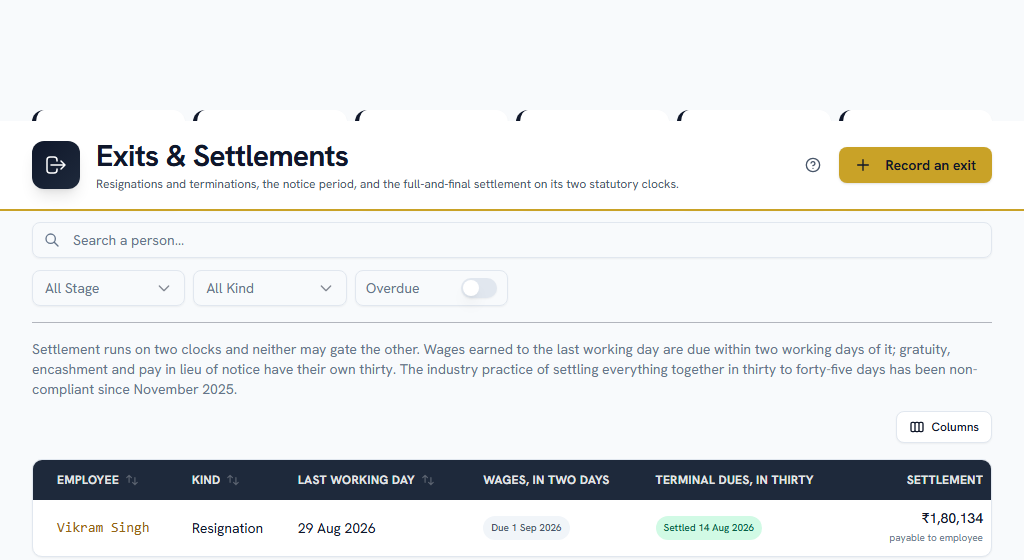
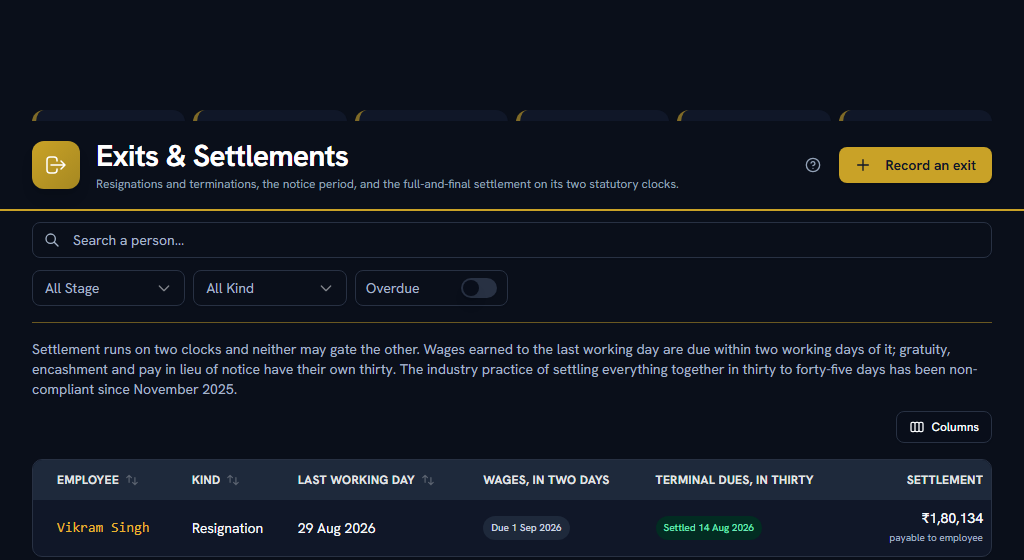
Record the exit with the last working day, then work through the settlement. Their final month is paid as a settlement, not as part of the ordinary monthly run.
Watch the timing. If somebody's last working day falls inside the month, the ordinary run pays them and that is correct. If they left before the month started, the run must leave them out — and if it picks them up, their last month is paid twice. The pre-flight check flags this.
Section 12Everyday useThe monthly rhythm#
| When | Who | What |
|---|---|---|
| Through the month | Everyone | File claims, request advances |
| Through the month | Managers | Clear approval queues before they escalate |
| After the attendance cut-off | Finance | Read the pre-flight; clear anything that blocks pay |
| After the attendance cut-off | Finance | Refresh the inputs from other modules |
| Before pay day | Finance | Create the run, lock inputs, review variance |
| Before pay day | Finance | Submit → approved by somebody else → lock output |
| Pay day | Finance | Publish payslips, download the bank file, pay, record it |
| Month end | Finance | Post to books |
| April | Everyone | Choose a tax regime, declare investments |
| Benefit year end | Everyone | Claim anything left in the benefit pot |
| Benefit year end | HR | Preview, then run the year-end settlement |
Section 13Everyday useThings people commonly get wrong#
Six mistakes account for most of the tickets this module produces. All six are cheap to avoid and expensive to discover late.
Expenses and Reimbursements are not the same thing
Separate claim numbers, separate approvers, separate tax treatment.
A travel advance is not a loan
They share the word "advance" and nothing else. One settles against claims; the other is repaid from pay.
Approving is not paying
For claims, advances and loans these are two separate steps, usually done by two different people.
Petty cash approval happens after the money has gone
Every other approval in Facto is a gate. This one is a review.
A CTC revision needs a date
Dated after the month starts, it does not apply to that month.
Facto does not talk to your bank
Every payment is a file you download, upload to your bank yourself, and then come back and mark as paid.
Section 14Everyday useIf you get stuck#
In this order — most questions are answered before you reach the bottom.
- Look for help on the page itself. A ? in the page header opens the FAQs for that screen, and every settings screen carries a "How this works" panel with an example. Not every page has the ? yet.
- Search the FAQs — the menu under your name, top right → FAQs. Search the words you can see on screen, rather than what you think the feature is called.
- Take a tour — the same menu → Help & Tours.
- Read the message. When Facto refuses something it says why, and usually what to do about it. "No cost to company on record" means exactly that, and names the person.
- Ask your own company — Support in the sidebar. Anyone can raise a ticket there and your admins pick it up. Most things that look broken are a setting your own admin can change — a missing approver, a category nobody added, a limit somebody configured.
- Facto Support — the pinned block at the bottom of the sidebar. Admins can talk to Facto directly there, or escalate one of your internal tickets to us. If you are not an admin, raise it at step 5 instead.