Start here
The foundation every other part of HRM reads.
HRM guide 1 of 7 · 11 min · 4 screenshots · updated 17 Aug 2026
- For
- Admin
- Use
- One-time setup
- Needs
- An Admin account
Who this is for: the person setting HRM up for your company. You need an Admin account. You do not need to be technical.
What this covers: the foundation every other part of HRM reads. Do it first, once. Then pick up whichever of the other guides you actually need.
This guide is one-time setup only — there is nothing here you come back to weekly.
Before you start. Open the sidebar and look for HRM. If it is not there, HRM has not been switched on for your company yet, and you cannot turn it on yourself. Ask Facto through Facto Support — the pinned block at the bottom of the sidebar — then come back to this page.
Section 01One-time setup#
Four things. Three of the four screens are outside HRM, which is why they are the ones most often missed.
1. Company details#
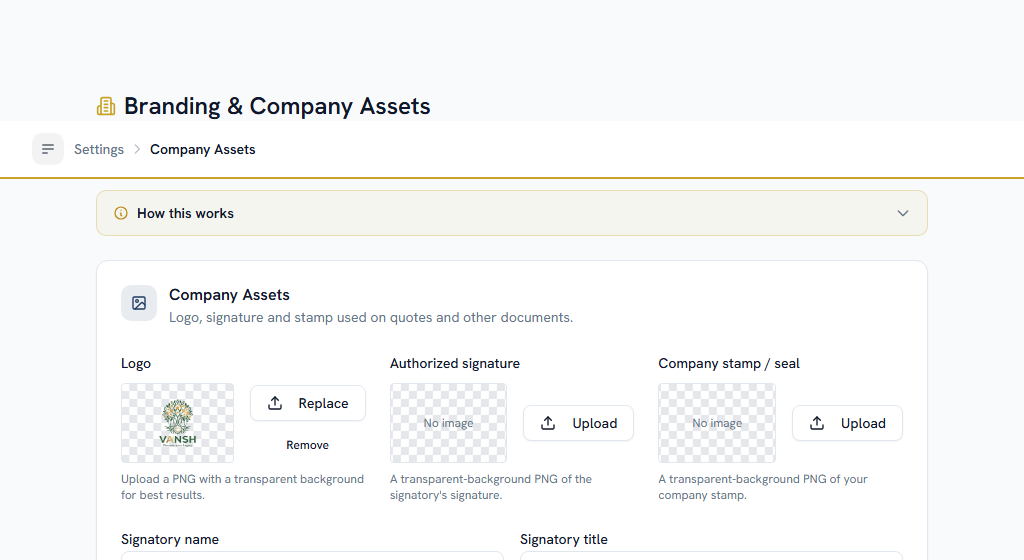
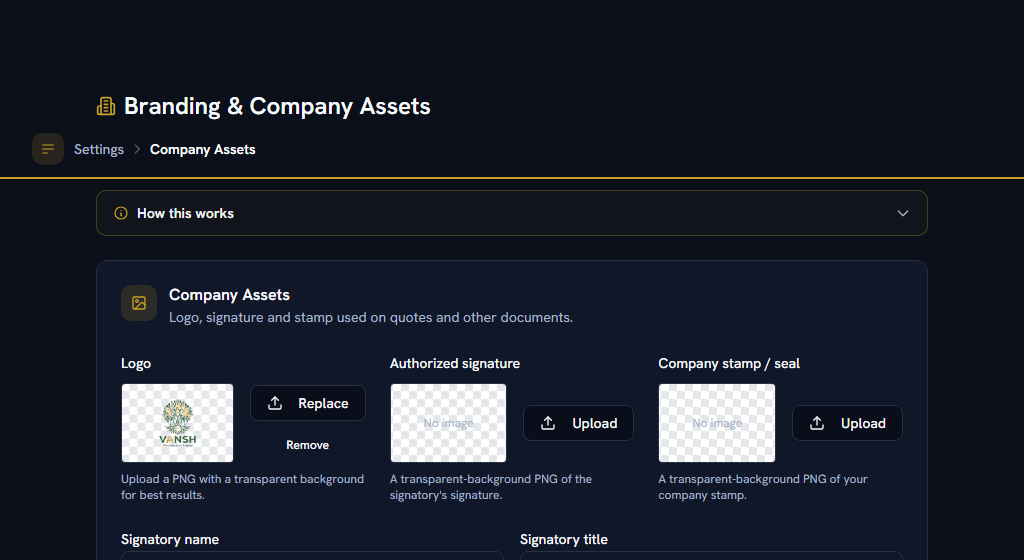
WhereSettings›General›Company Assets
OpenCompany Assets
The screen is called "Company Assets" and its description talks about logos and stamps, so it is easy to assume it is only branding. It is not. It also holds the details payroll, invoices and bank files all read.
- Legal name — the registered name of the entity, not your workspace name. This is what prints on a payslip and on a bank file.
- Address — used on statutory forms.
- PAN — your company's own PAN, as the deductor. Without it you cannot file a quarterly return or issue a Form 16, however correct your deductions are.
- Bank account and IFSC — the account salary leaves from. Without it, payroll cannot produce a bank file at all.
- Signatory — statutory returns name a person responsible for deduction, and this is where it comes from.
- Employee code prefix — the prefix for staff codes, e.g.
EMP.
Add every department. Expenses, petty cash and reporting all group by department — and an expense claim's department is captured the moment it is filed, so it cannot be filled in afterwards. Departments need to exist before anybody claims.
Add everyone who will use HRM, and everyone who will be paid. For each person:
- Name and email — the name must match the name on their bank account. A mismatch is one of the commonest reasons a salary transfer is rejected, and it fails _after_ you have submitted the file to the bank.
- Reporting manager — most approvals route here by default. Leave it blank and requests fall through to an administrator.
- Department
- Employment type — if you are going to use leave, set the types up first (see the Attendance & Leave guide) and come back.
- Joining date
- Bank account and IFSC — somebody without one cannot be paid electronically.
- PAN — without it, tax is deducted at the higher rate and the quarterly return will not accept their line.
- Date of birth — on the Details tab. It decides which of the three old-regime income-tax slab tables the person is taxed on. Somebody 60 or over gets a higher exemption limit, and age is measured as on 31 March of the tax year, so a person who turns 60 in February is a senior citizen for that whole year. Leave it out and they are worked out on the under-60 table — which over-deducts rather than under-deducts, so it is a refund they chase, not a demand you owe. It changes nothing under the new regime, which is age-neutral.
- Gender — also on the Details tab, and used for one thing only: leave types restricted to one gender, such as maternity or paternity. Those restrictions apply only to people whose gender is recorded, so leaving it blank is safe and simply means the restriction is not enforced for that person.
Both of the last two are visible only to an administrator and to the person themself, and neither value is ever written into the activity log — an entry says the date of birth changed and who changed it, never what it changed to.
You can add people one at a time, or import a spreadsheet. The spreadsheet carries both of those columns, which is the realistic way to fill in four hundred birth dates.
Further down the same Details tab are four lists that make up the rest of the HR file:
- Emergency & family contacts — who to ring, with a second number and an address. Mark one person as the one to ring first; there can only be one, and setting a new one takes the flag off whoever had it. This is the one of the four worth filling in on day one. The employee spreadsheet carries a name, a relationship and a number, so you can bring them in with everybody else — one per person, and re-importing updates it rather than adding a second.
- Education, Previous employment and Dependents — the rest of the file. Nothing in Facto calculates anything from them; they are there so you do not have to open a scanned PDF to answer a question. These three are typed in, because a spreadsheet with one row per employee cannot carry three qualifications.
Ticking Declared as a nominee on a dependent does not nominate anybody. It records what the employee wrote on their joining form. Gratuity nomination is Form F and insurance nomination is the insurer's own form — both signed and witnessed, both living in the document library — and nothing in Facto pays anyone on the strength of that tick.
All four are private in exactly the way the date of birth is: an administrator and the person themself, and nobody else. Anybody else sees "Hidden" rather than an empty list, so nobody is sent to re-enter records that are already there.
3b. Designation history#
WhereUser Management›open a person›Details›Designation history
The designation on somebody's record is what they are called today. This is how it got there.
Record a change with the date it applies from, and it becomes a new entry rather than an edit of the last one — so what somebody's title was in any past month stays true, which is what a promotion letter, an appraisal and an auditor all read. An entry dated today or earlier also updates the designation shown on their record and in the employee list, so nothing else has to be changed by hand.
Remove is for an entry typed by mistake. A title that genuinely changed is corrected by recording a new entry from the date the right one applies.
This records the title and no money. A raise goes under Salary → Compensation, with its kind set to Promotion, and a promotion that is both gets both entries and both letters.
If you set anybody's employment type to Probation, this tab is where the loop closes. It groups them by urgency: probation already ended, ending within thirty days, no end date on file, and still running.
That third group is the one to look at first. Somebody on probation with no end date is never due and never overdue, so nobody is ever reminded about them — and if you have a leave type set to accrue only after confirmation, they are accruing nothing meanwhile, with no error anywhere to tell you. Give them a date, or confirm them.
Press Review on anybody and you get one drawer with both answers in it:
- Confirm — writes the confirmation date, turns their employment type to Permanent, and records the decision. The date defaults to the day probation ended rather than today, because the entitlement was earned then and a late click is an administrative delay. Leave accrual that was being withheld starts at the next run.
- Extend probation — moves the end date and records why. It does not change their employment type: they were on probation and they still are.
Either way a letter is filed against their record unless you switch it off. It is addressed to the employee, states no salary figure, and is visible to them and to administrators.
The manager gets a notification thirty days before probation ends and again once it has passed — or every administrator, if the person has no reporting manager.
The history lists decisions, not every change to the dates. The probation end date and the confirmation date can also be edited directly on somebody's record and under Leave settings, and neither of those is a review — they just set the field.
4. Working calendar#
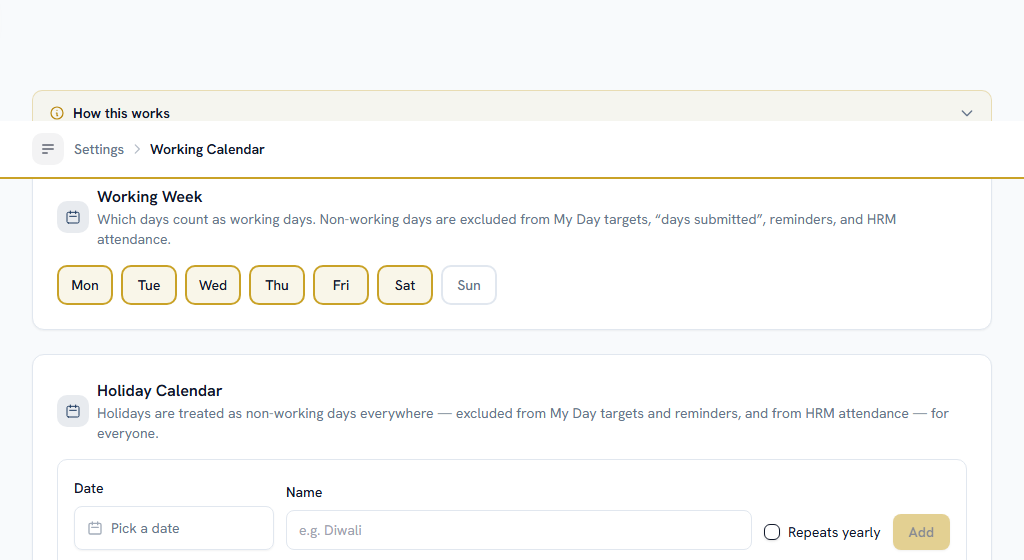
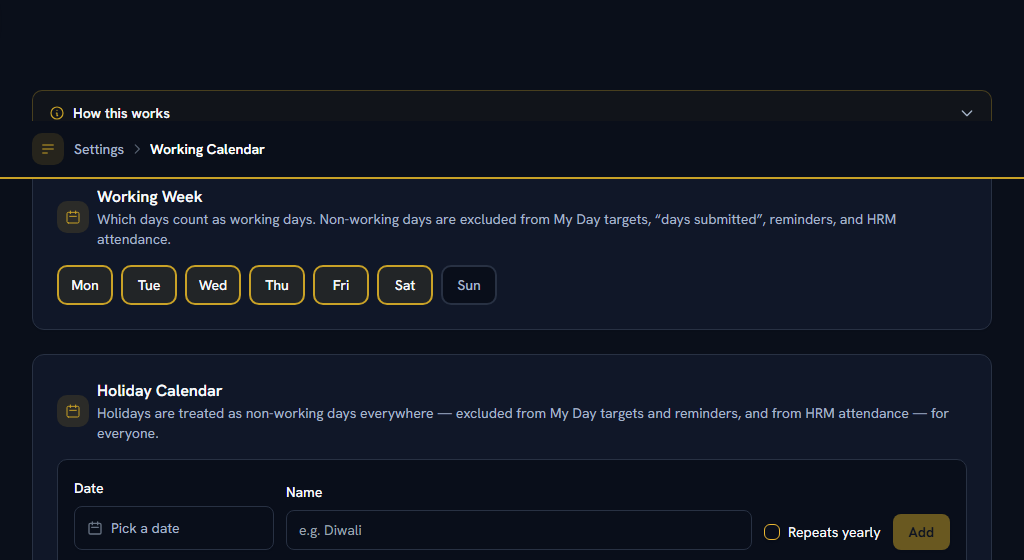
WhereSettings›HRM›General›Working Calendar
OpenWorking Calendar
Set your working week and this year's holidays. Attendance, leave and payroll all measure against it. Do it before anybody checks in or applies for leave.
A holiday can be narrower than the company:
- Leave State blank for a company-wide day. Fill it in — spelled exactly as it is on the work location — and only people posted to that state get it.
- Mark a day Optional for a restricted holiday. It stays an ordinary working day until an employee chooses it, up to the limit set below the list. Zero switches choosing off without removing anything from the calendar.
Everybody picks their own on the same page, under Your optional holidays.
The working week here is one set of days for every week. For an alternate Saturday off, put those people on a shift — Settings → HRM → Attendance → Shifts, where a week-by-week pattern lives.
Optional: what people land on#
WhereSettings›HRM›General›HRM Dashboard
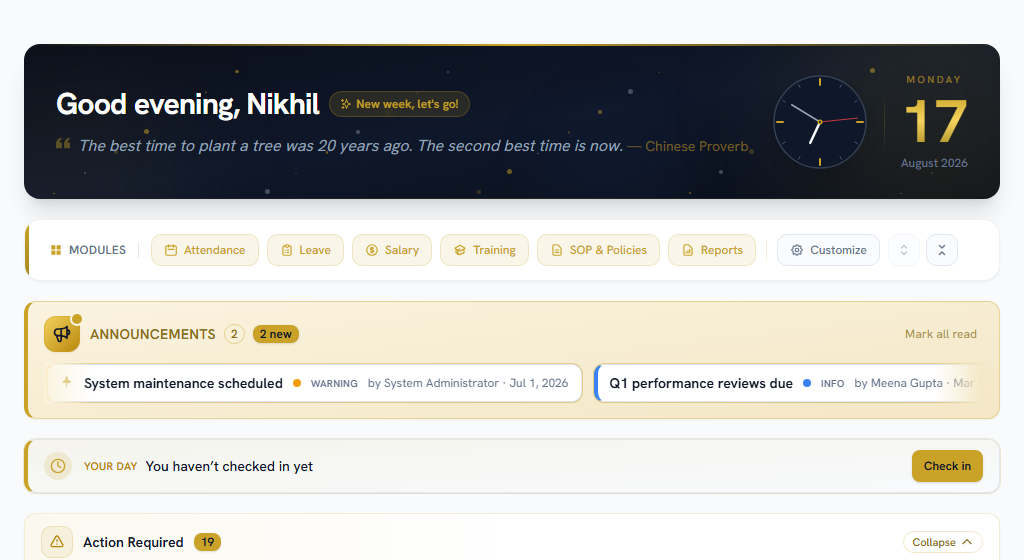
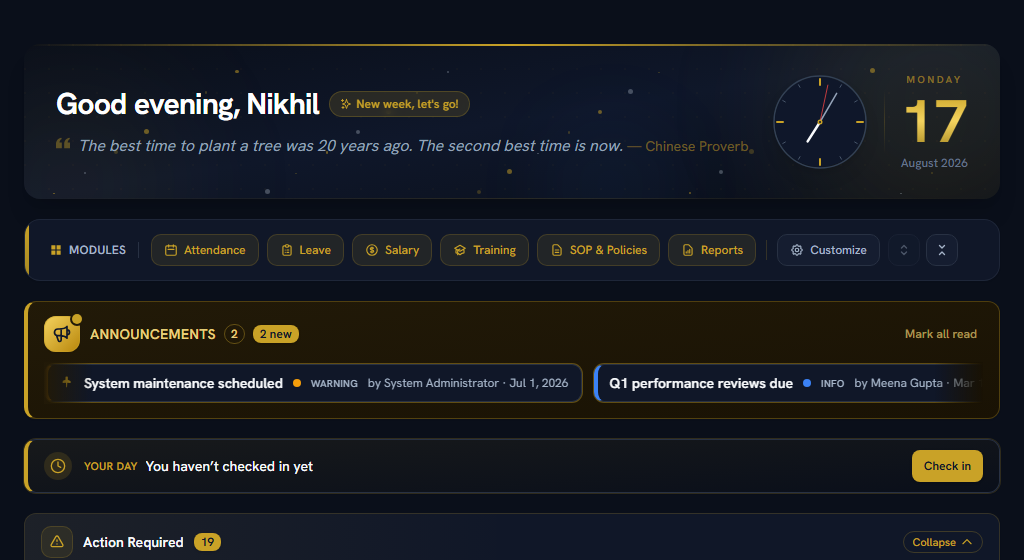
OpenHRM Dashboard
Sets the default HRM home each person sees, per role or per named user. Leave it alone and come back once the rest works — it changes what people see first, not what they can do.
- Pick a role or a user.
- Choose the sections and stat cards for their default.
- Save.
An employee might get their leave balance and a check-in button; a manager the same plus their approval queue and who is out today.
Check your foundation#
Open any employee in User Management. You should see their department, manager, employment type, joining date, bank account and PAN, with nothing blank. Tick these off as you go — this page remembers where you got to.
OpenUser ManagementWorking Calendar
Section 02Which guide next#
HRM is four groups, and they match what you see in the sidebar. Set up only the ones you will use.
| Guide | Covers | Read it if |
|---|---|---|
| Attendance & Leave | Attendance, Leave Management | You track who is at work and who is off |
| Pay & Claims | Expenses, Reimbursements, Loans & Salary Advances, Petty Cash, Salary, Exits & Settlements | You pay people, or you reimburse them |
| Learning & Policies | Training, SOP & Policies | You publish policies or assign training |
| For everyone | The handful of things every employee does | Send this one to your staff |
The one dependency between them: payroll reads attendance and leave. The pay cycle has an attendance cut-off, unpaid leave costs somebody a day's pay, and the payroll run pulls both in. If you are doing payroll, set up Attendance & Leave first.
Section 03If you get stuck#
In this order — most questions are answered before you reach the bottom.
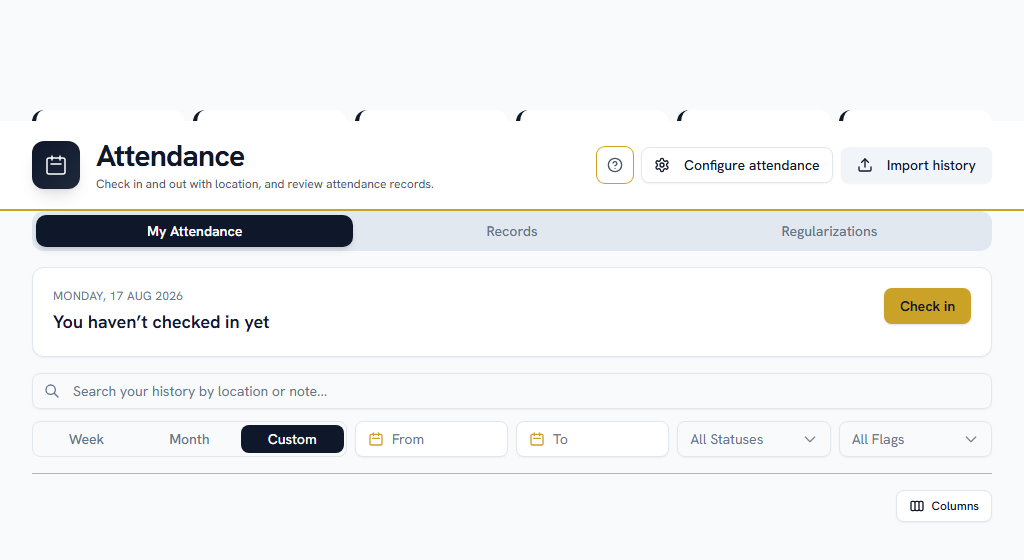
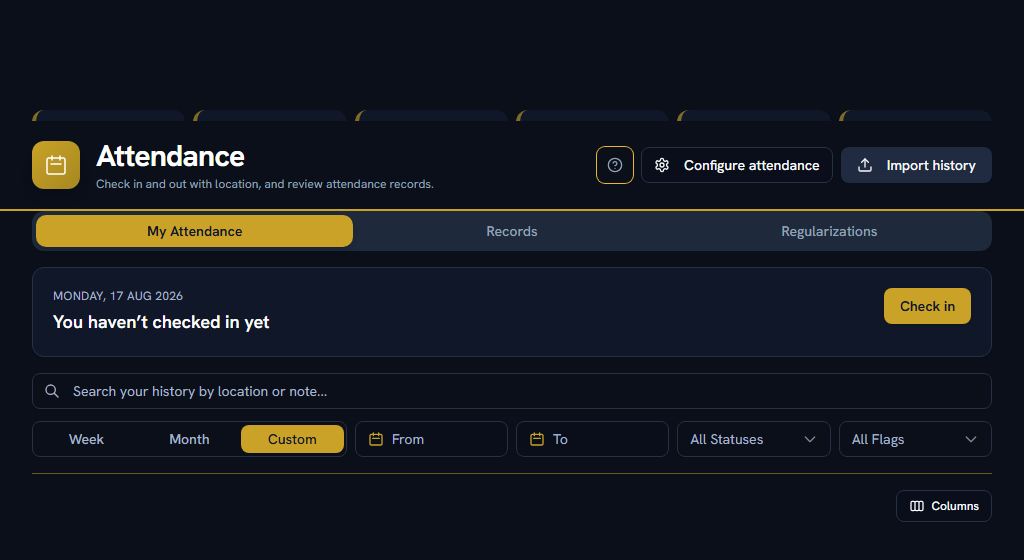
- Look for help on the page itself. A ? in the page header opens the FAQs for that screen, and every settings screen carries a "How this works" panel with an example. Not every page has the ? yet.
- Search the FAQs — the menu under your name, top right → FAQs. Search the words you can see on screen, rather than what you think the feature is called.
- Take a tour — the same menu → Help & Tours.
- Read the message. When Facto refuses something it says why, and usually what to do about it.
- Ask your own company — Support in the sidebar. Anyone can raise a ticket there and your admins pick it up.
- Facto Support — the pinned block at the bottom of the sidebar, below the navigation. Talk to Facto directly, or escalate one of your internal tickets to us. Admins hold this by default; you can grant it to an ops lead.
Section 04What Facto does not do#
Worth knowing before you plan around it:
- Facto does not connect to your bank. Every payment produces a file you download and upload to your bank yourself, and you come back and record that it was paid.
- Facto does not file your returns. It produces the figures and the forms; filing is yours.
- Facto does not compute the perquisite on a concessional loan. It flags a loan that crosses the statutory threshold and leaves the treatment to your accountant.