Learning & Policies
Policies to acknowledge, training to complete.
HRM guide 4 of 7 · 4 min · 3 screenshots · updated 17 Aug 2026
- For
- Admin, HR, Everyone
- Use
- Setup + everyday
- Needs
- Your people added
Covers the two modules under Learning & Policies in the HRM sidebar: Training and SOP & Policies.
The smallest part of HRM, and the only one that depends on nothing else — you can set it up without attendance, leave or payroll. It still assumes you have added your people, so do HRM — start here first.
Section 01What the two modules are for#
SOP & Policies
Write company policies and SOPs, publish them, and collect e-signatures from employees.
Training
Build a library of training videos, articles and documents, assign them with deadlines, and track completion.
The difference in practice: a policy is something people must read and confirm. Training is something they must do. Policies carry a compliance trail; training carries a completion record.
Part 1One-time setup
ForAdminSections0Read1 minNeedsYour people added
Only SOP & Policies has settings. Training has none — you build the library and start assigning, which is all in Part 2.
WhereSettings›HRM›SOP & Policies
OpenPolicy CategoriesSample TemplatesRe-acknowledgement
Policy Categories#
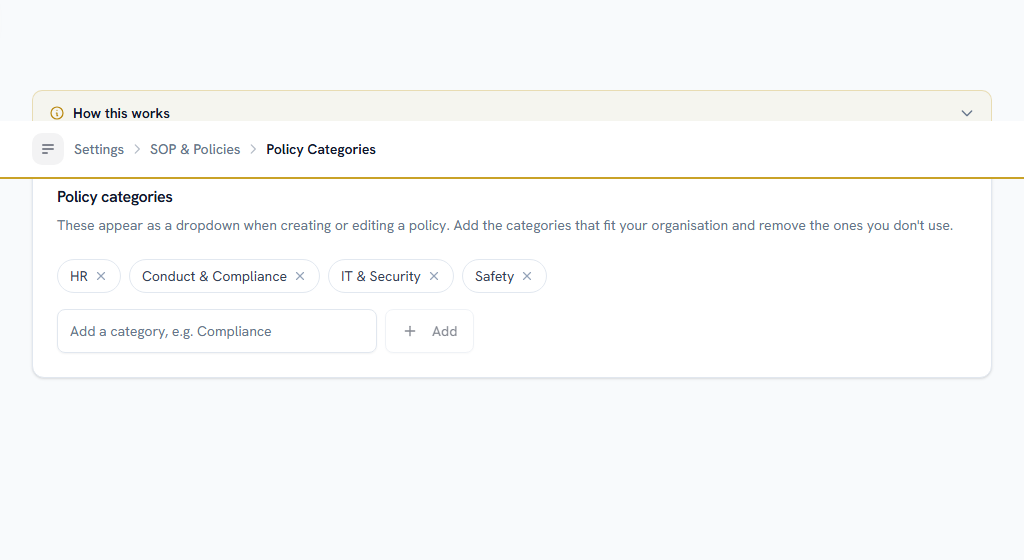
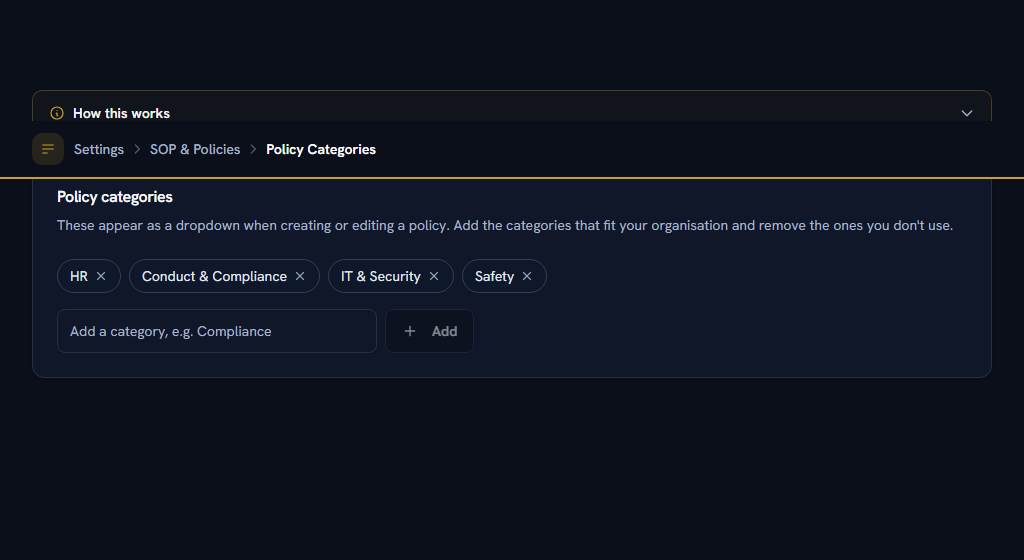
Add the groups people browse policies by — Code of Conduct, IT & Security, Travel, Health & Safety. An uncategorised list stops being usable at about a dozen policies, so do this before you publish more than a handful.
Order them. Then file each policy under one.
Sample Templates#
Choose which ready-made policy documents your organisation can publish from, instead of writing each one from scratch.
- Enable the templates you want available.
- Publish one, and edit the wording to match your company.
- Ask staff to acknowledge it.
Re-acknowledgement#
Decide how often people must re-confirm they have read a published policy, so an acknowledgement does not go stale.
- Turn periodic re-acknowledgement on.
- Set how often it comes round.
- Set how much notice people get before it falls due.
Turn this on for anything carrying a compliance obligation. A signature from three years ago proves very little.
Part 2Everyday use
ForEveryone, HRSections3Read2 minNeedsPart 1 done once
Section 02Everyday useIf you are an employee#
Policies you need to read#
WhereHRM›SOP & Policies›My Policies
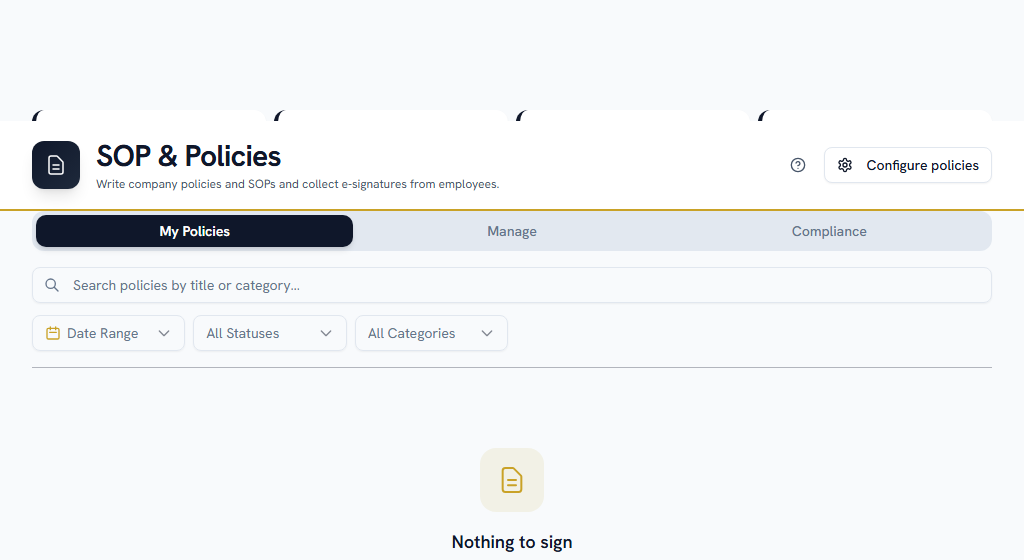
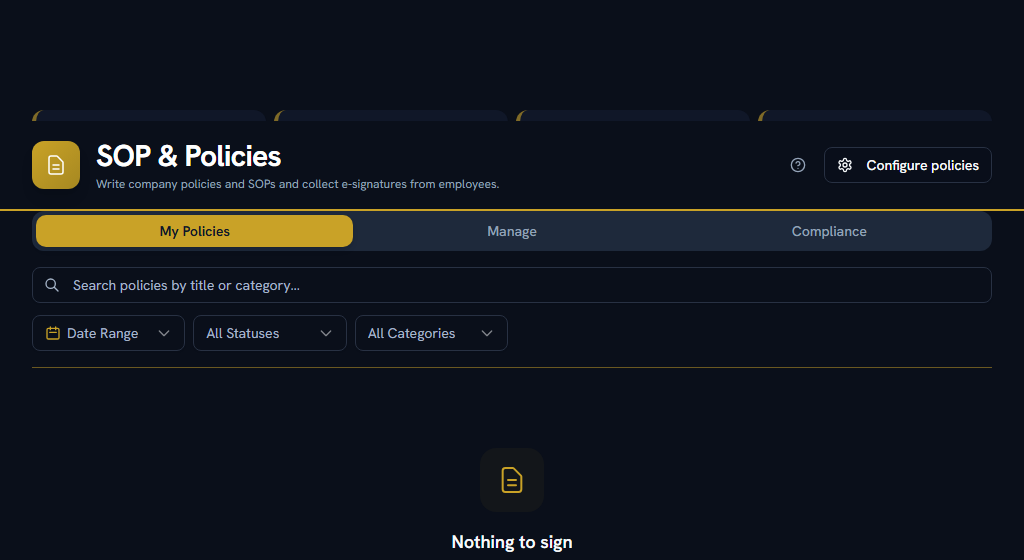
The policies you are expected to have read. Open each one and acknowledge it — that records an e-signature against your name.
If your company turned on periodic re-acknowledgement, some will come round again. You will be reminded before they fall due.
Training assigned to you#
WhereHRM›Training›Assigned to me
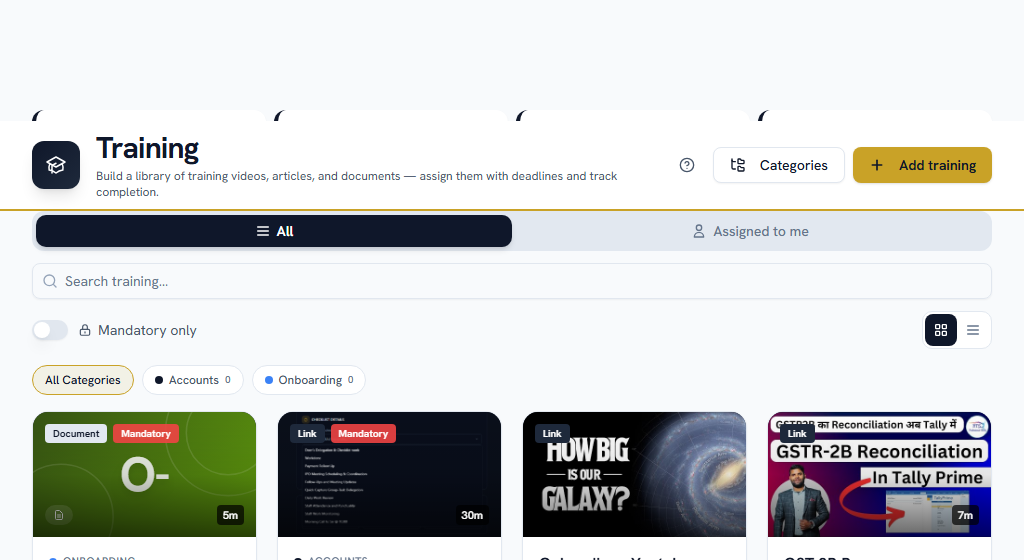
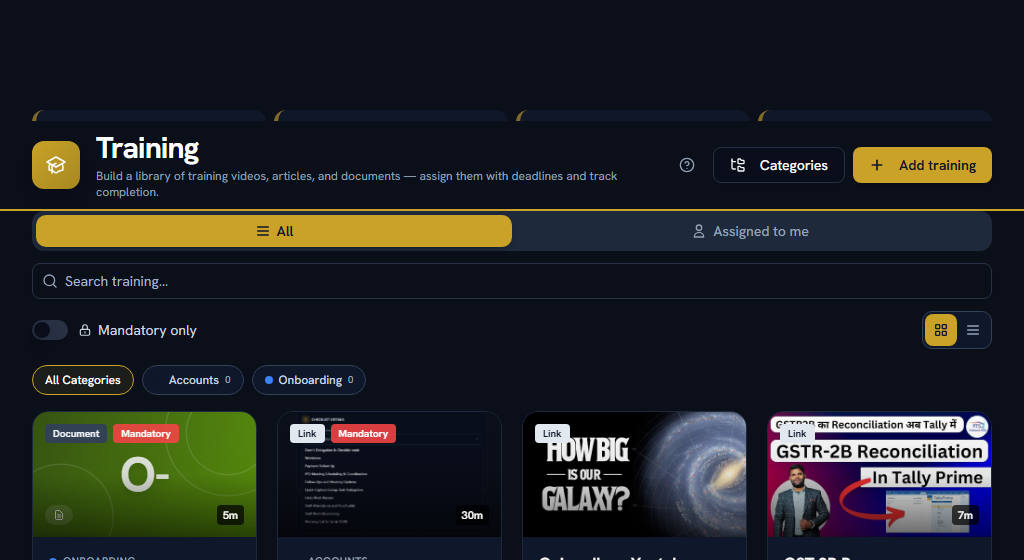
Courses, videos, articles and documents assigned to you, with their deadlines. Work through them and mark them complete.
The All tab is the whole library, if you want to read something nobody assigned you.
Section 03Everyday useIf you run HR#
Writing and publishing a policy#
WhereHRM›SOP & Policies›Manage
Write a policy — or start from one of the templates you enabled — file it under a category, and publish it. Publishing is what puts it in front of people.
Chasing acknowledgements#
WhereHRM›SOP & Policies›Compliance
Who has acknowledged what, and who has not. This is the tab you live on if you have a compliance obligation to evidence.
If you turned on periodic re-acknowledgement, people are asked again automatically — you do not have to re-publish anything.
Building the training library#
WhereHRM›Training
Add training as videos, articles or documents, and file it under a category. Assign it to people with a deadline, mark whether it is mandatory, and track completion.
Use Categories to keep the library navigable, the same way policy categories work.
Section 04Everyday useIf you get stuck#
In this order — most questions are answered before you reach the bottom.
- Look for help on the page itself. A ? in the page header opens the FAQs for that screen, and every settings screen carries a "How this works" panel with an example. Not every page has the ? yet.
- Search the FAQs — the menu under your name, top right → FAQs. Search the words you can see on screen, rather than what you think the feature is called.
- Take a tour — the same menu → Help & Tours.
- Read the message. When Facto refuses something it says why, and usually what to do about it.
- Ask your own company — Support in the sidebar. Anyone can raise a ticket there and your admins pick it up. A policy nobody can see is usually a policy that was written but never published.
- Facto Support — the pinned block at the bottom of the sidebar. Admin-only: if your question needs Facto, raise it at step 5 and your admin will escalate it.