For everyone
The short version. Send this one to your sales team.
CRM guide 6 of 6 · 7 min · 6 screenshots · updated 18 Aug 2026
- For
- Everyone
- Use
- Everyday use
Who this is for: everybody who sells. Not the person who set CRM up — this is the short version, for people who just need to get through the day.
There is no setup in this guide. All of it is everyday use. Everything lives under CRM in the left sidebar; if a section is missing from yours, your company has not switched that part on and you can ignore it.
Section 01Start here every morning#
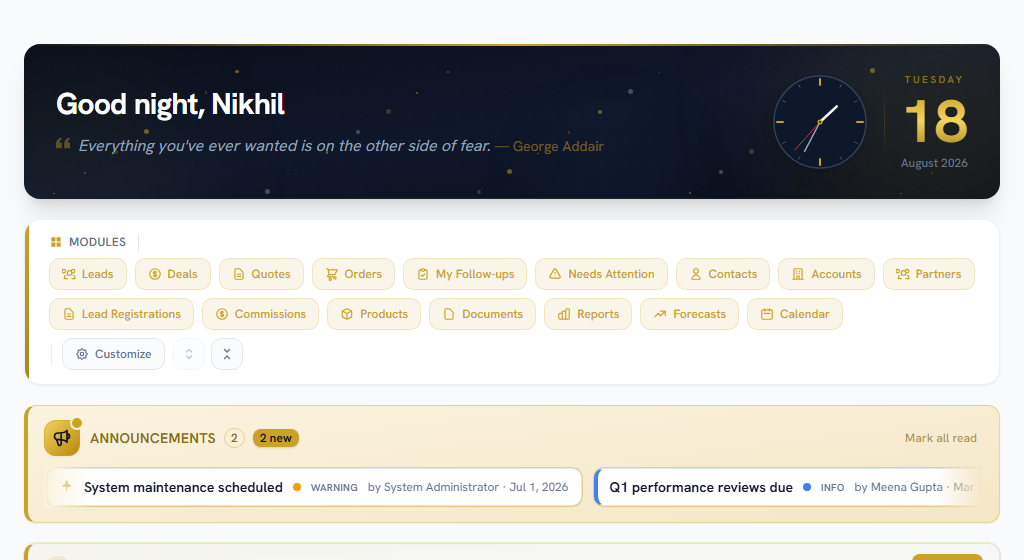
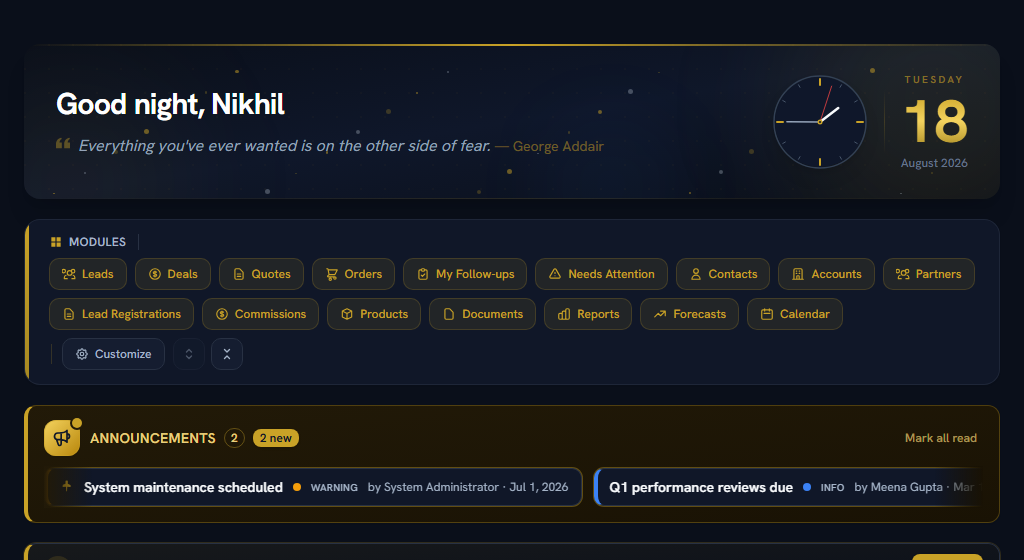
CRM (Dashboard)
OpenDashboard
Two panels are your morning: Today's Follow-ups and Action Required. Between them they tell you what is due, what is overdue, which of your deals has gone quiet, and which of your quotes is about to expire.
If you only ever open one CRM screen, make it this one.
Section 02Working a lead#
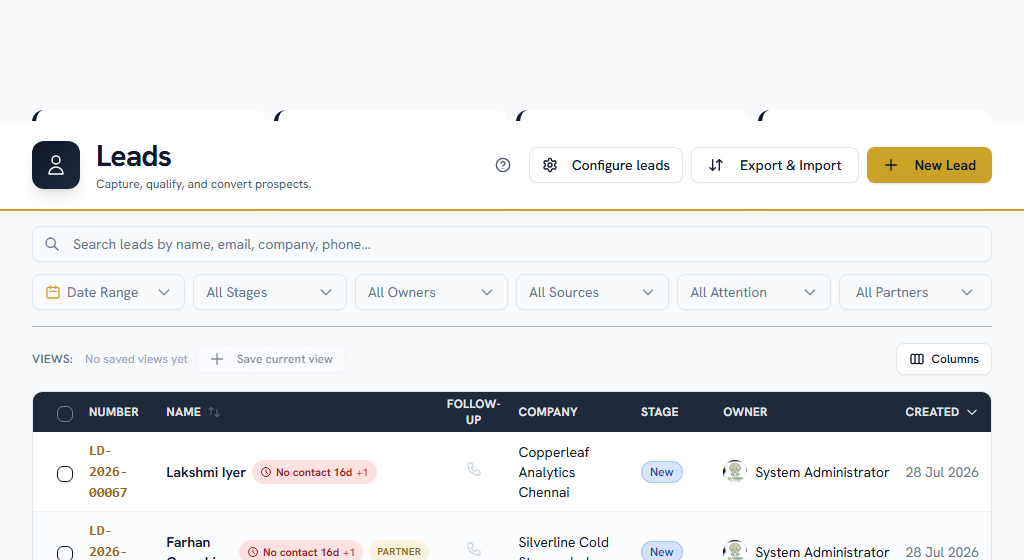
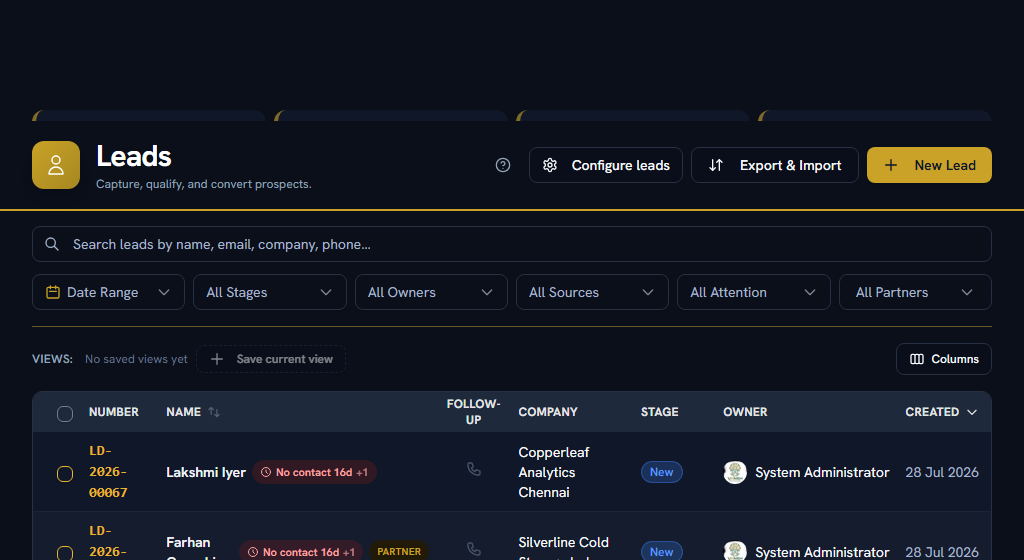
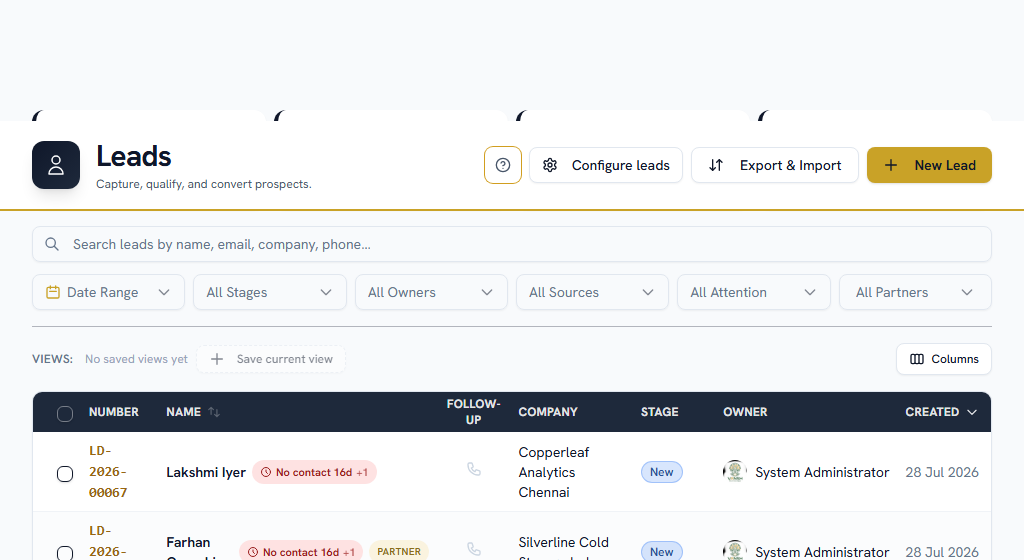
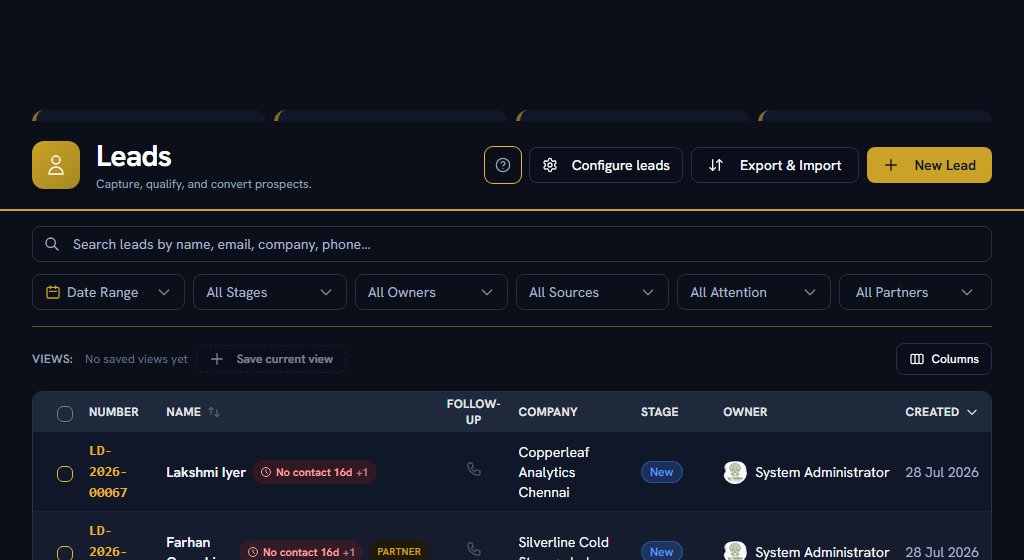
CRM → Sales Pipeline → Leads
OpenLeads
A lead is somebody who might buy. Yours are the ones with your name in the Owner column — new ones may be handed to you automatically.
Two things to watch on the list:
- The phone icon. Grey means nothing is scheduled on that lead. Green means something is coming up, red means you have missed one. A column of grey is a list nobody is working.
- The Needs attention badge. That lead has been quiet for longer than your company allows.
Open a lead and edit it by clicking straight on a value — there is no edit mode and no Save button to find.
When it turns real#
Use Convert. In one step it creates the contact, the company and the deal, so nothing is retyped.
Fill in the Qualification Notes while you are there — the budget, the timeline, who actually decides. It takes thirty seconds and it is what the rest of the company reads when they ask why this deal was ever thought real.
If it is going nowhere, use Disqualify with a reason instead of deleting it.
Converting cannot be undone, and a converted lead can no longer be edited. Get the company name and the contact right on the conversion panel — fixing them afterwards means editing three separate records.
Section 03Moving a deal along#
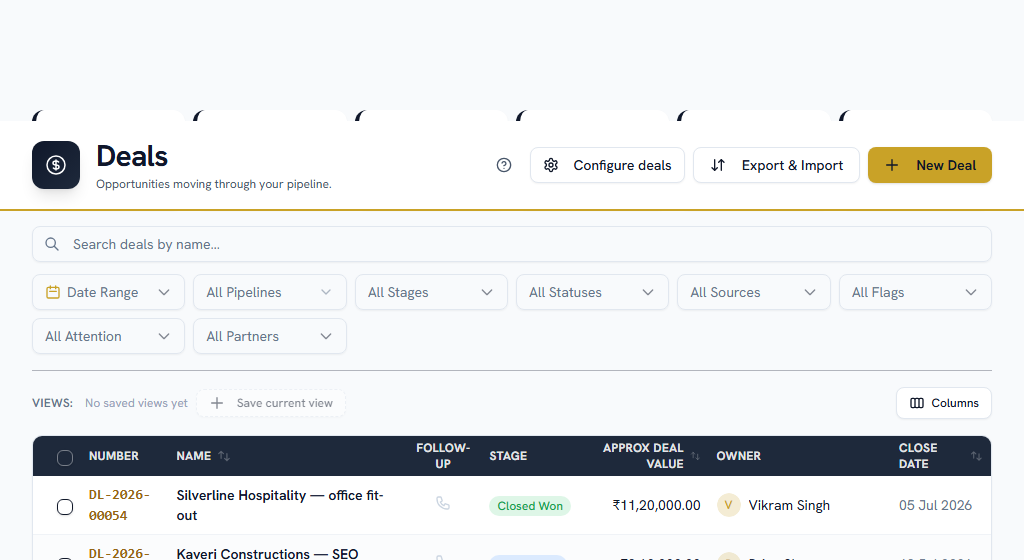
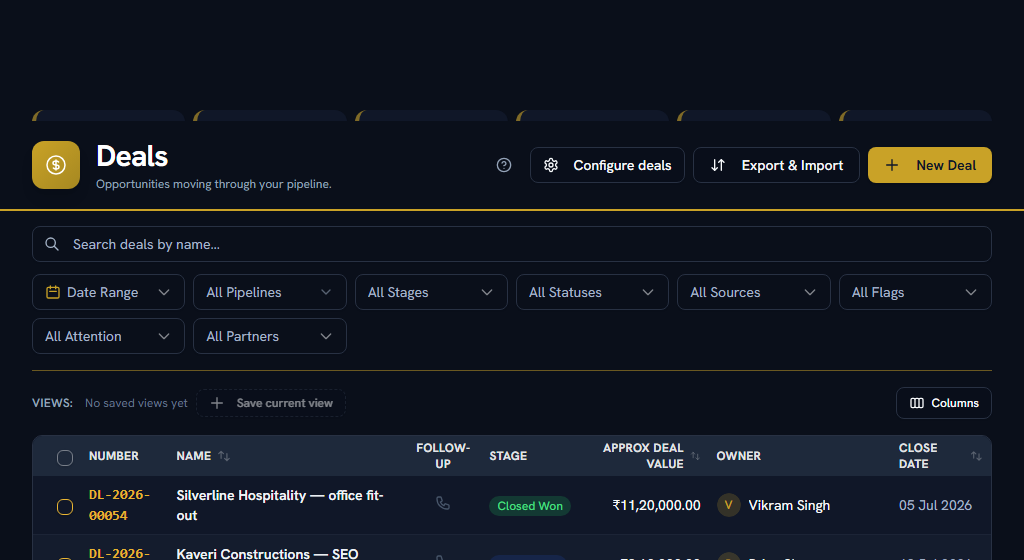
CRM → Sales Pipeline → Deals
OpenDeals
Drag the deal to its next stage, or change the stage on the deal itself. If your company requires certain fields before a stage, the move is refused and tells you which ones.
Always set the expected close date. A deal without one appears in no forecast, so as far as your manager's numbers are concerned it does not exist.
Section 04Quoting, and winning#
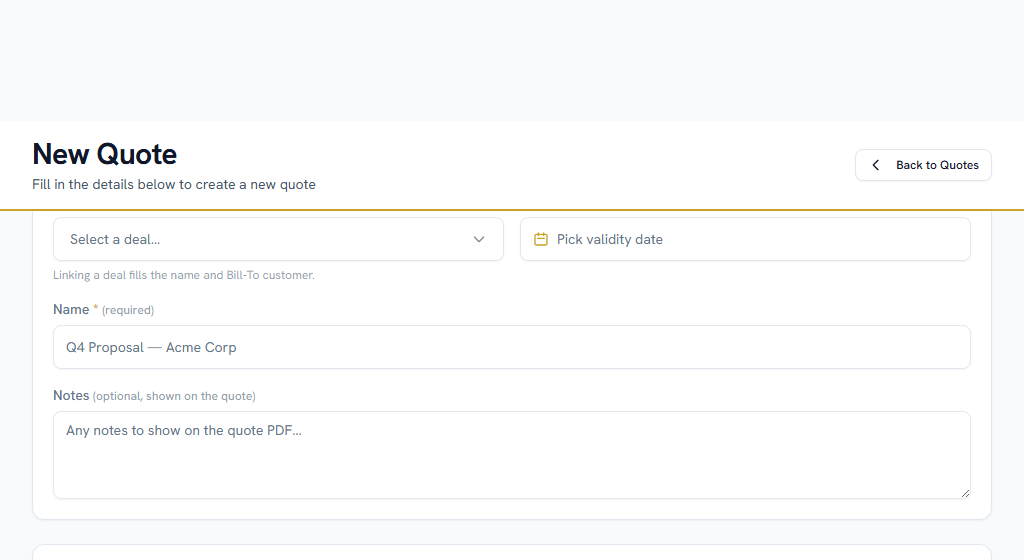
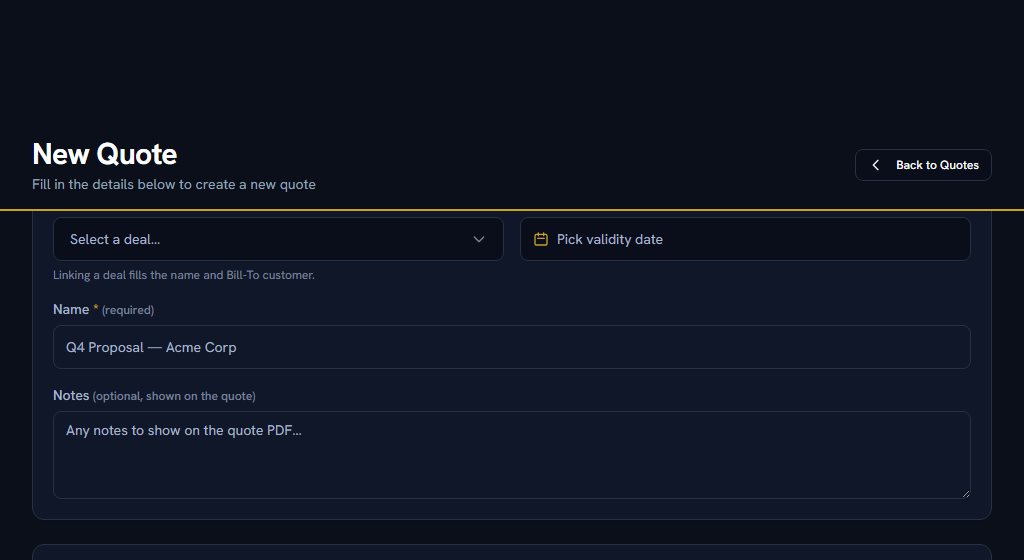
CRM → Sales Pipeline → Quotes
OpenQuotes
The easy way in is from the deal — its Related tab has Create Quote, and it carries the customer and currency across for you.
Add a line per thing you are selling, set the valid-until date, and send it:
- Download PDF or Print for a proper document with your company's logo, bank details and signature on it.
- Share gives you a link the customer opens with nothing to log into — offered as WhatsApp, email, or copy.
When the customer says yes, mark the quote Accepted.
You cannot win a deal without an accepted quote. It is refused, in those words. If the customer has agreed but the deal will not close, the quote is almost always still sitting on Sent.
And a sent quote expires by itself once its valid-until date passes. If a customer comes back a month later, reopen the quote rather than wondering why it says Expired.
Move the deal to your Won stage and the sales order is created for you from that quote. You never create one by hand.
Got it wrong? Reopen the deal — it puts it back to an open stage and cancels the order it created. The one thing that stops it is an order that has already been fulfilled.
Section 05Staying in touch#
CRM → Activities → My Follow-ups
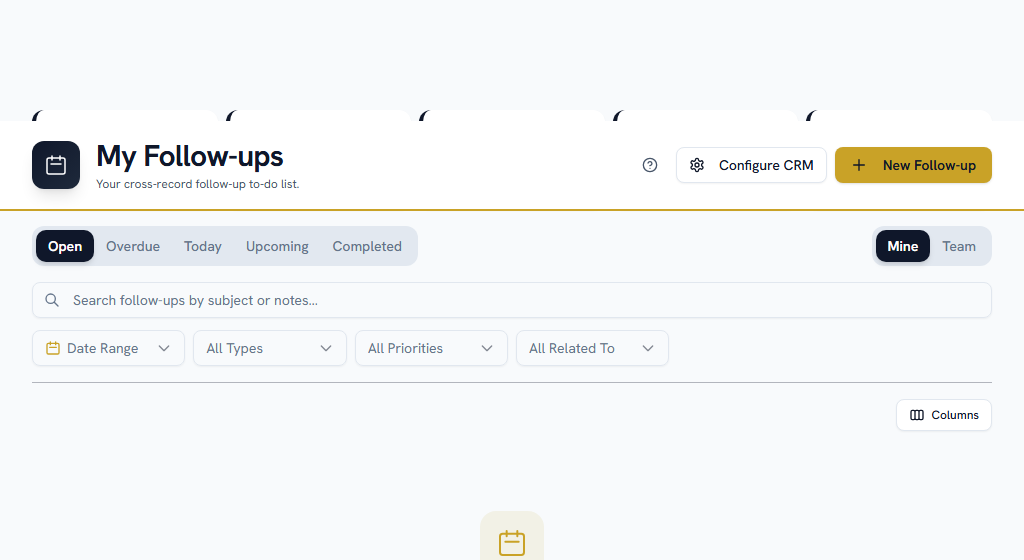
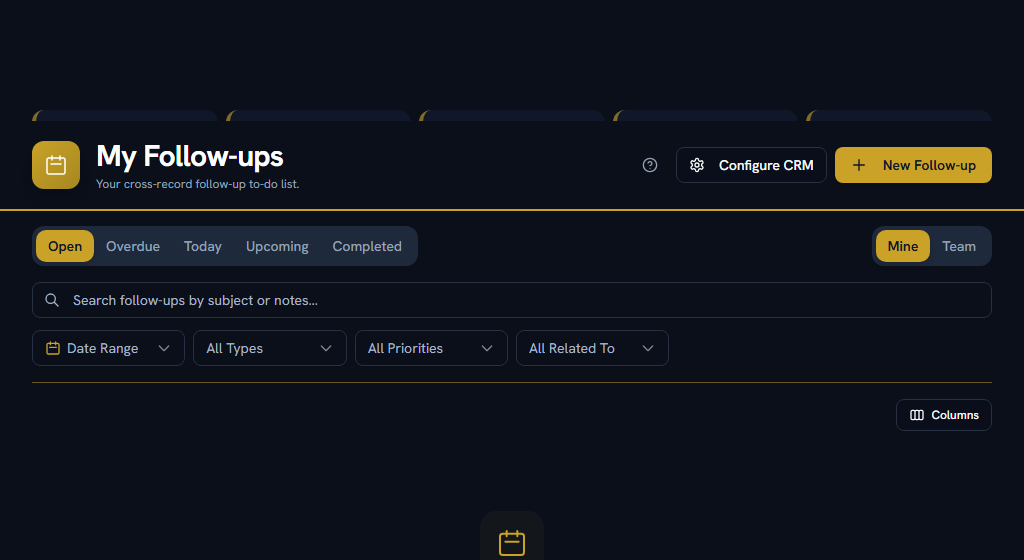
OpenMy Follow-upsCalendarNeeds Attention
Your to-do list across every record. Every follow-up has a due date — that is the point of it.
- New Follow-up here lets you pick the record afterwards, so you do not have to open a lead just to schedule a call.
- Snooze moves a row to tomorrow, next week, or a date you pick.
- Mark done asks how it went and offers to schedule the next one in the same step. Use it — that is how you never end a call without a next step.
- Tick several rows to do them all at once.
The assignee defaults to whoever owns the record, not to you. If you are logging a follow-up on a colleague's lead and meant to keep it yourself, change the assignee before you save.
Missing one is recorded. If a follow-up goes past its due time while still open, that gets stamped on it permanently, and moving it afterwards asks you for a reason. Nobody is being caught out — a customer who keeps postponing is a real thing and this is how it becomes visible instead of looking like you forgot.
Needs Attention is the list of your records that have gone quiet. If you are genuinely waiting on the customer, snooze it with a reason rather than ignoring it.
Calendar puts your follow-ups, your deal close dates, quote expiry and order dates on one grid. Drag anything to another day to move it. Use the Agenda view on your phone.
Section 06The people and the companies#
CRM → People & Organizations
Contacts are people; Accounts are the companies they work for. If you converted a lead, both already exist and are already linked — you made them.
An account's page is the single view of everything you have with that customer: their people, their deals, their history.
Section 07Finding a file#
CRM → Catalog → Documents
Every file attached to any CRM record, in one list, with the record it belongs to named beside it. It is the screen for when you remember the customer but not the deal.
Products is the catalog your quote lines are looked up from, so you are not retyping prices.
Section 08Two things people get wrong#
Do
Record the outcome when you complete a follow-up, and schedule the next one in the same step. It is one extra click and it is what stops a deal going quiet.
Don't
Type a lead source, currency or stage that is not in the dropdown. It looks like it saved. Some of them vanish the next time the field is opened, and a deal in a currency your company has not enabled cannot be won at all.
Section 09If you get stuck#
In this order — most questions are answered before you reach the bottom.
- Look for help on the page itself. A ? in the page header opens the FAQs for that screen.
- Search the FAQs — the menu under your name, top right → FAQs. Search the words you can see on screen, rather than what you think the feature is called.
- Take a tour — the same menu → Help & Tours.
- Read the message. When Facto refuses something it says why, and usually what to do about it. "An accepted quote is required to win this deal" is the whole explanation.
- Raise a ticket with your own company — Support in the sidebar. Anyone can, and your admins pick it up. This is the right step for almost everything: most things that look broken are a setting your admin can change in a minute.
- Facto Support is admin-only. If your question really needs Facto, your admin can escalate your ticket to us from step 5 — you do not need to do anything different.
Section 10Want more detail?#
- Pipeline — leads, deals, quotes, orders and the product catalog
- People & Activities — contacts, accounts, follow-ups and the calendar
- Partners — if you work with resellers or referrers
- Insight — reports and forecasts