For everyone
The short version. Send this one to your people.
HRM guide 7 of 7 · 5 min · 5 screenshots · updated 17 Aug 2026
- For
- Everyone
- Use
- Everyday use
Who this is for: everybody who works at a company using Facto. Not the person who set it up — this is the short version, for people who just need to get things done.
There is no setup in this guide. All of it is everyday use. Everything lives under HRM in the left sidebar; if a section is missing from yours, your company has not switched that part on and you can ignore it.
Section 01Checking in and out#
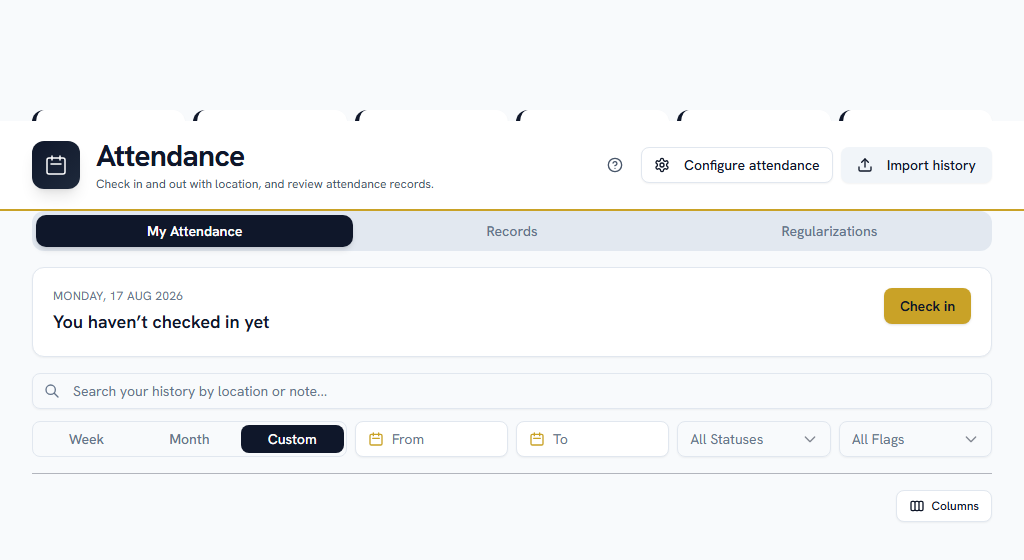
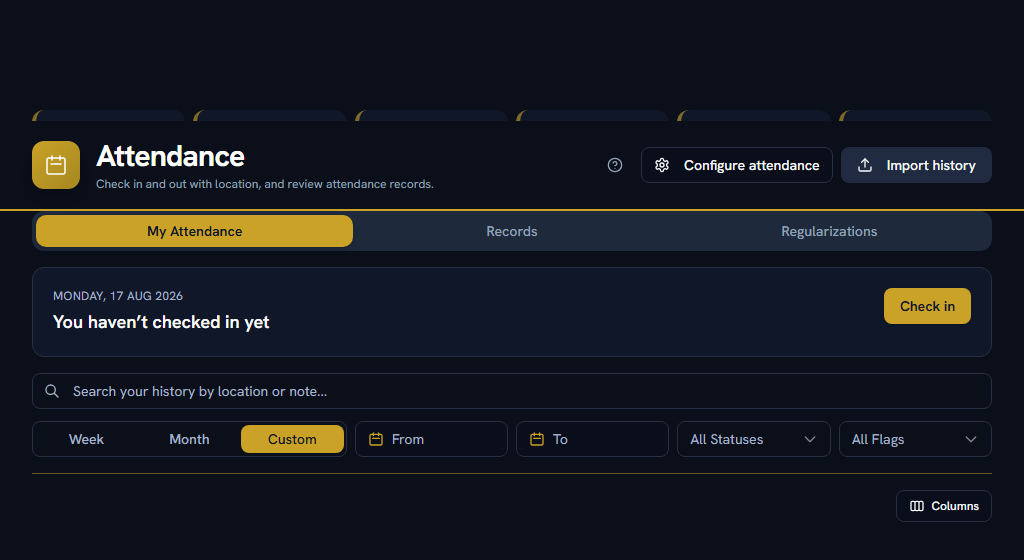
HRM → Attendance → My Attendance
OpenMy Attendance
Press check in when you start and check out when you finish. Depending on how your company set it up, you may be asked for a selfie, and you may need to be at one of your company's locations for it to count.
If you forget, or it recorded the wrong thing: use Request correction on the day in question and say what actually happened. It goes to whoever reviews corrections. Track it under Regularizations.
Section 02Applying for leave#
HRM → Leave Management → My Leave
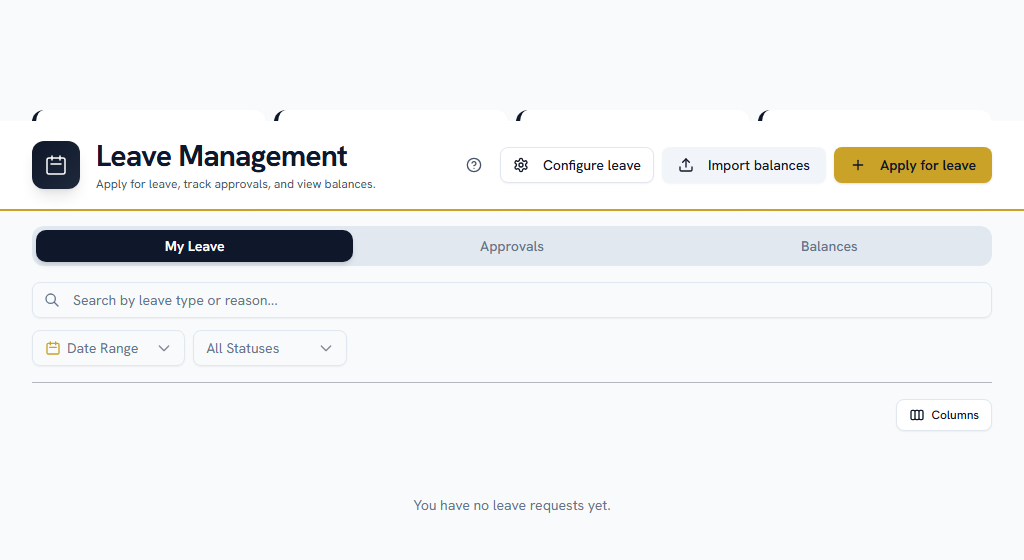
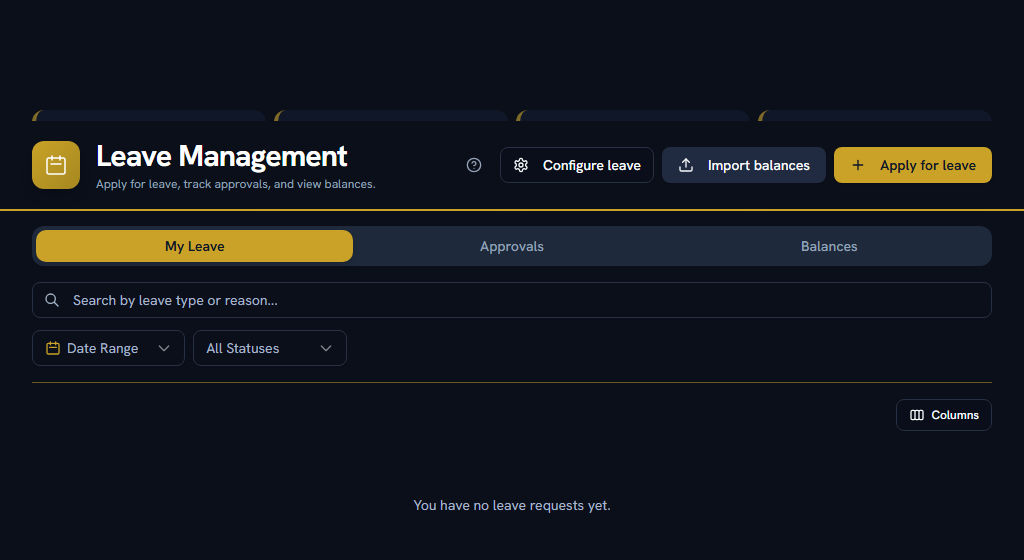
Press the button to apply. Pick the type, the dates, and give a reason. Your balances are on the Balances tab.
Three things that will stop you:
- Not enough balance. Some leave types accrue monthly, so the balance grows through the year.
- Too short notice. Each type has a minimum notice period.
- A document is required. Longer requests need a supporting document — usually a medical certificate.
Section 03Claiming money back#
Two different things, and people mix them up constantly.
Money you spent for the company
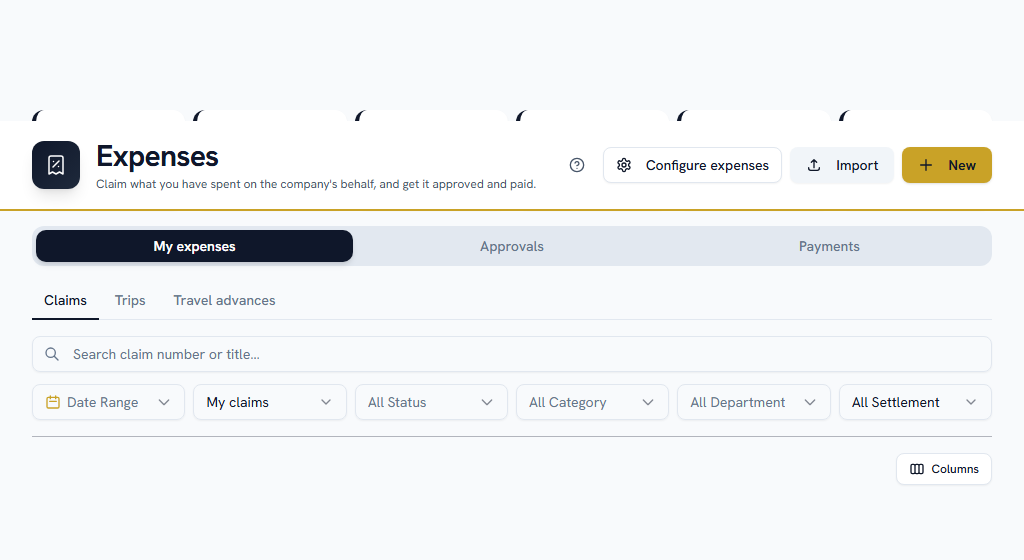
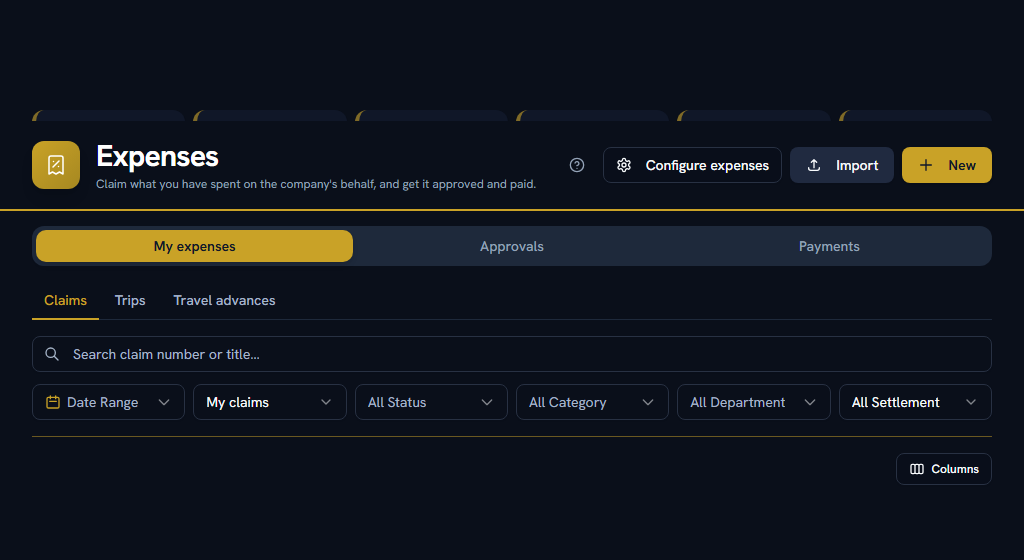
A client lunch, a taxi, a hotel. Go to HRM → Expenses → Claims, add a line per expense with its category, amount, date and department, attach the bill and submit. Watch the deadline — your company sets how many days you have.
A benefit out of your own package
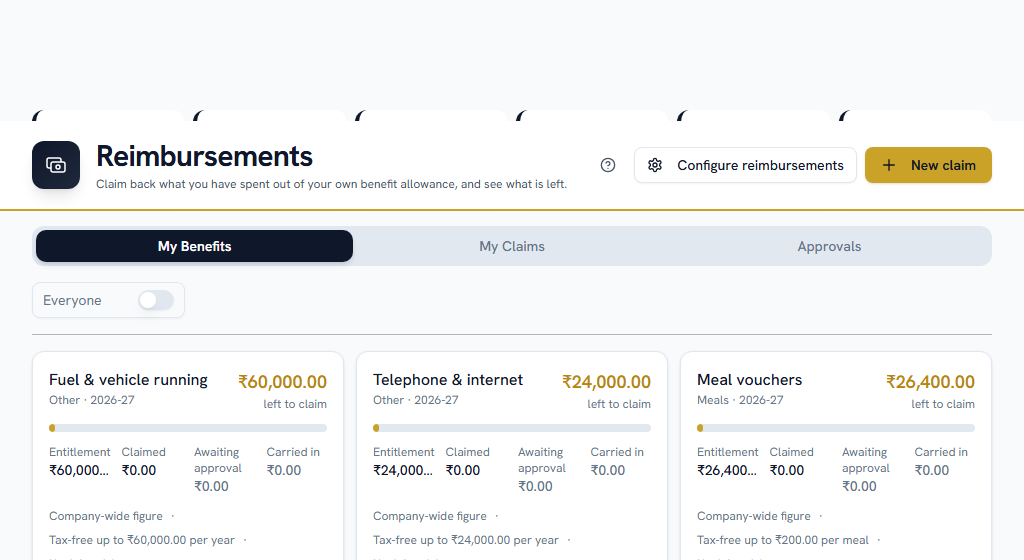
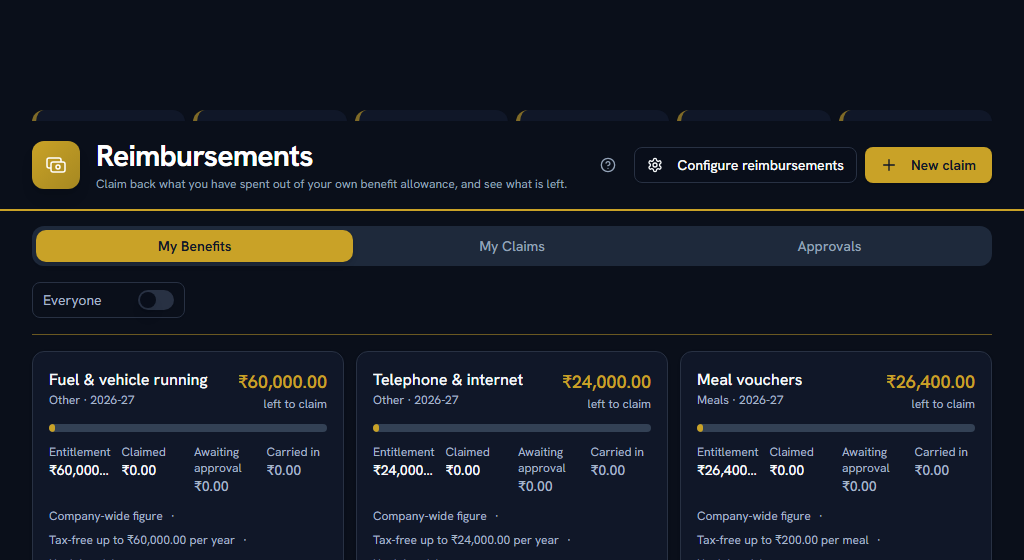
Fuel, phone, books, meals, leave travel. Go to HRM → Reimbursements. My Benefits shows what is left in your pot; My Claims is where you file. Claim before the benefit year ends, or you may lose it.
OpenExpense claimsMy BenefitsMy Claims
Section 04Borrowing from your employer#
HRM → Loans & Salary Advances
Pick a type and it will show you the maximum, the term, and the cost before you commit.
Two things people are surprised by:
- Approval is not payment. Somebody approves the request; somebody else releases the money. Your repayment schedule is fixed when it is actually paid out.
- Repayments come out of your salary automatically.
Section 05Your payslip and your tax#
HRM → Salary → My salary
OpenMy payslipsMy yearMy regime
- My payslips — every payslip, downloadable.
- My year — earnings and deductions year to date, and your Form 16 when issued.
- My regime — which tax regime you are on, and switching it.
In April, do two things. They are the difference between the right tax each month and waiting a year for a refund:
- Choose your tax regime. Your company sets a deadline for changing it.
- Declare your investments, under Salary → Tax & year-end → Declarations. If you do not declare, tax is deducted as though you have no deductions at all.
Section 06Policies and training#
- HRM → SOP & Policies → My Policies — the policies you are expected to have read. Acknowledge each one. Some come round again periodically.
- HRM → Training → Assigned to me — courses assigned to you, with deadlines.
Section 07Seeing what's going on#
- HRM → Calendar — who is out, company holidays, and your own commitments.
- HRM (Dashboard) — your HR home.
Section 08If you approve things#
There is no single combined queue — you check the module the request belongs to. Each has an Approvals tab, and you are notified when something arrives.
| What | Where |
|---|---|
| Attendance corrections | HRM → Attendance → Regularizations |
| Leave requests | HRM → Leave Management → Approvals |
| Expense claims, trips, advances | HRM → Expenses → Approvals |
| Benefit claims | HRM → Reimbursements → Approvals |
| Loan requests | HRM → Loans → open the request |
| Petty cash vouchers | HRM → Petty Cash → Vouchers |
| Probation ending | User Management → Probation |
Approving is not paying. For claims, advances and loans, releasing the money is a separate step done by somebody else.
Probation is the odd one out — it is not a request somebody sent you, it is a date arriving. You are notified thirty days before one of your people finishes their probation, and again if it passes with nothing recorded. Somebody has to either confirm them or extend it; until one of those happens, any leave that only starts building up after confirmation is not building up for them.
When you reject something, say why. The person sees your reason and can usually fix it and resubmit.
Section 09If you get stuck#
In this order — most questions are answered before you reach the bottom.
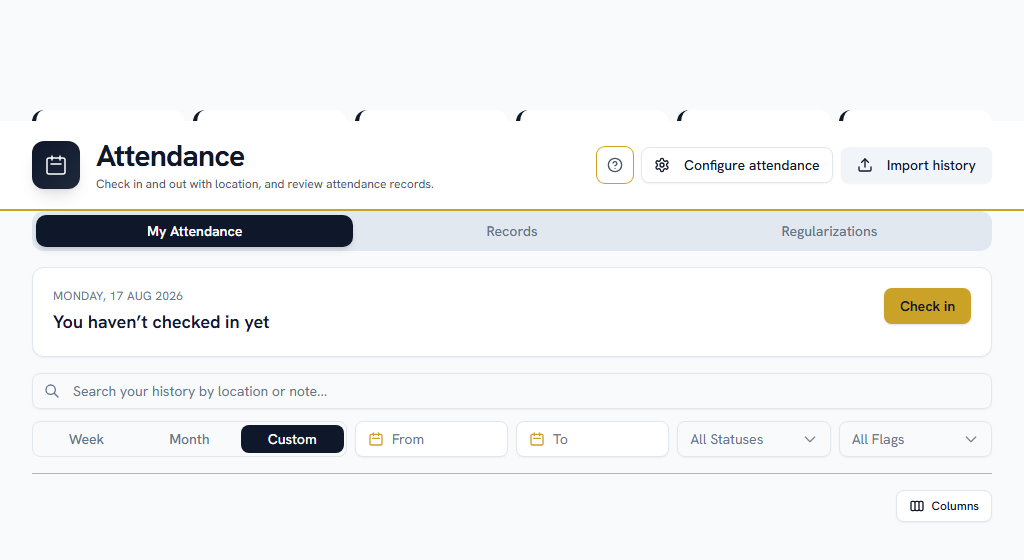
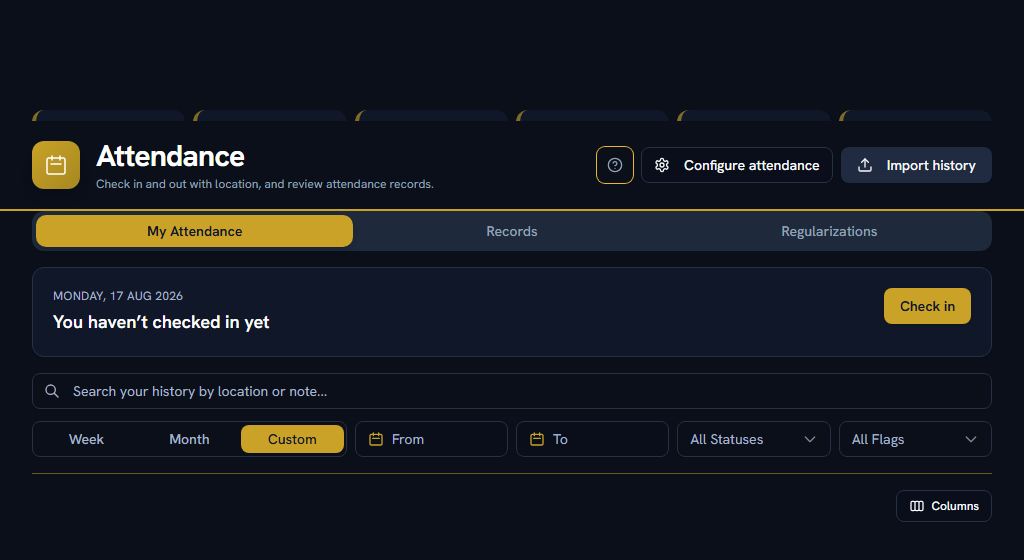
- Look for help on the page itself. A ? in the page header opens the FAQs for that screen, and every settings screen carries a "How this works" panel with an example. Not every page has the ? yet.
- Search the FAQs — the menu under your name, top right → FAQs. Search the words you can see on screen, rather than what you think the feature is called.
- Take a tour — the same menu → Help & Tours.
- Read the message. When Facto refuses something it says why, and usually what to do about it.
- Raise a ticket with your own company — Support in the sidebar. Anyone can, and your admins pick it up. This is the right step for almost everything: most things that look broken are a setting your admin can change.
- Facto Support is admin-only. If your question really needs Facto, your admin can escalate your ticket to us from step 5 — you do not need to do anything different.
Section 10Want more detail?#
- Attendance & Leave
- Pay & Claims — expenses, benefits, loans, petty cash, salary
- Learning & Policies